

As an EUC Architect with 24 years of experience in enterprise IT, I deploy digital workspace solutions for global organizations, support Windows 11 environments at scale, deploy productivity tools for thousands of users, and see firsthand how Slack, Teams, and email distractions destroy focus during the workday. I can tell you that learning how to use Focus Sessions in Windows 11 is one of the most effective ways to protect your attention without installing another paid productivity app.
The numbers back this up. According to Insightful’s Lost Focus research study covered by Fortune Magazine, 79% of employees said they cannot go a full hour without getting distracted at work, and 59% cannot make it even 30 minutes. That is not a personal discipline problem. That is a tooling problem, and Focus Sessions is built directly into Windows 11 to help fix it.
Whether you are looking to silence distractions during deep work, run timed focus sessions for individual tasks, or integrate Microsoft To Do tasks into a single productivity workflow, you will find everything you need in this guide. I will walk you through the system prerequisites, four ways to launch Focus Sessions, how to customize settings for your workflow, how to integrate Microsoft To Do, troubleshooting tips, and the upcoming features Microsoft is testing in Insider builds.
Focus Sessions runs smoothly only when your Windows 11 system itself runs smoothly. If your PC is slow to launch the Clock app or sluggish when switching between focus and break states, check out my guide on how to speed up Windows 11 before you start. It covers everything from startup management to hardware upgrades. I cover startup program optimization, disk cleanup with Storage Sense, visual effects tuning, and how to make the most of Windows 11’s built-in performance tools.
Table of Contents
What You Need Before Using Focus Sessions on Windows 11
Skipping these prerequisites is the most common reason people open the Clock app and cannot find the Focus Sessions tab, or hit errors mid-session.
1. Windows 11 Version 22H2 or Later
The modern Focus Sessions experience requires Windows 11 version 22H2 or later. This is the update Microsoft shipped on September 20, 2022, which integrated Focus Sessions deeply into the Notification Center.
How to check your Windows 11 version:
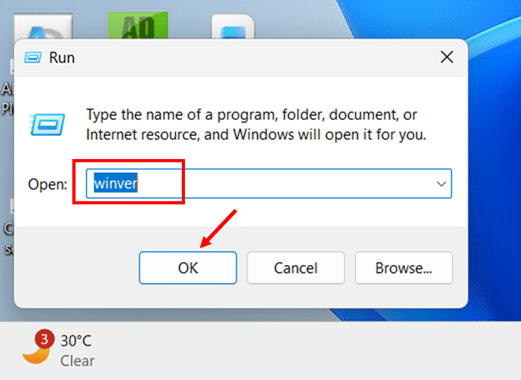
- Press Windows key + R, type winver, and press Enter.
- Look for the version number below the Windows 11 logo, it should say 22H2, 23H2, 24H2, or 25H2.
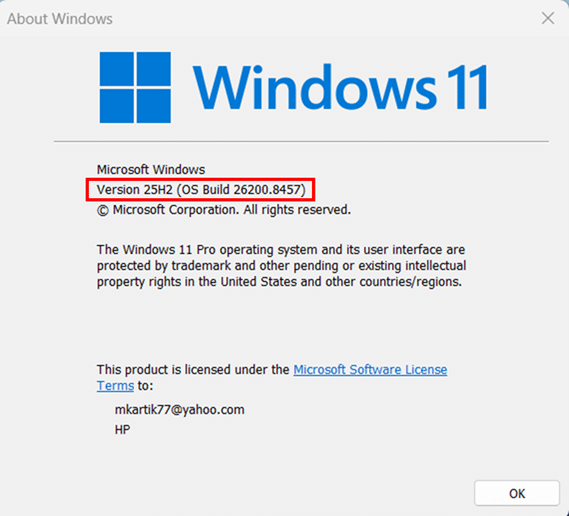
If your version reads 21H2 or lower, run Windows Update before continuing.
2. The Microsoft Clock App
Focus Sessions lives entirely inside the Microsoft Clock app, which ships preinstalled on every Windows 11 device. The Clock app updates independently from Windows itself, which means new features only appear after the app updates.
How to update the Clock app:
- Press Windows key + S, type Microsoft Store, and press Enter.
- Click the Downloads icon in the bottom-left corner of the Microsoft Store window.
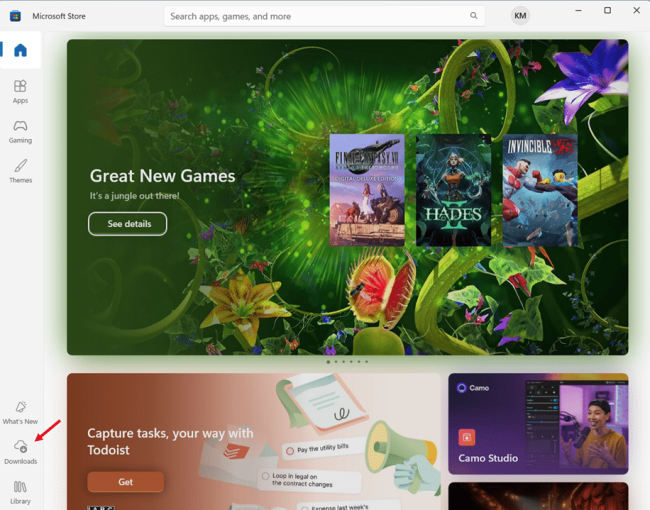
- Click Check for updates in the top-right corner to scan for available updates.
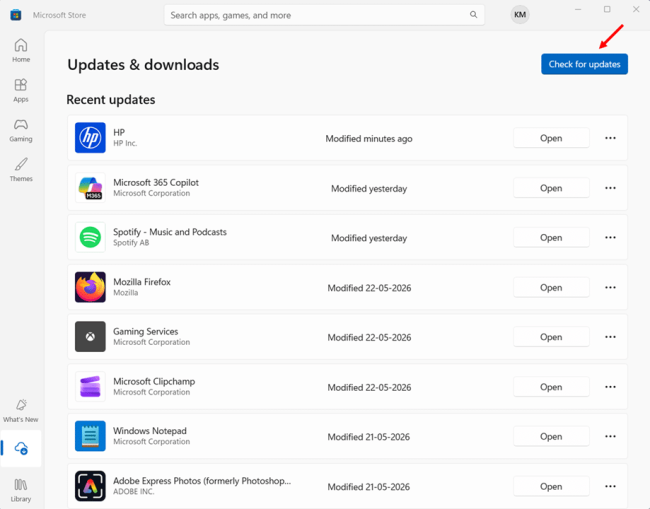
- Locate Windows Clock in the update list and allow it to install the latest version.
If the Clock app was uninstalled previously, search Windows Clock in the Microsoft Store and install it before continuing.
3. A Microsoft Account (Optional)
A Microsoft account is only required if you want to link Microsoft To Do tasks to your focus sessions. If you already sign in to Windows 11 with a Microsoft account, the Clock app picks it up automatically.
Focus Sessions also works without signing in to anything, you simply lose the task integration.
4. The Spotify Desktop App (Optional)
For background music during focus sessions, the Spotify desktop app from the Microsoft Store is required. The Spotify web player does not work with the integration. Both Spotify Free and Premium are supported.
How to Open Focus Sessions in Windows 11 (4 Methods)
Windows 11 gives you multiple ways to start a Focus session, including the notification center, Settings, and the Clock app. Each method starts the same distraction-reduction feature, but the best option depends on whether you want speed, more system-level control, or the full Focus Sessions experience with tasks and music.
I personally use two methods daily depending on context. The Notification Center shortcut for quick sessions, and the full Clock app when I want to pick a task or set up music first. Let me walk you through every option so you can pick your favorite.
Method 1: Open Focus Sessions Through the Clock App
The Clock app method gives full access to every configuration option, including duration, break intervals, Microsoft To Do task linking, and Spotify integration.
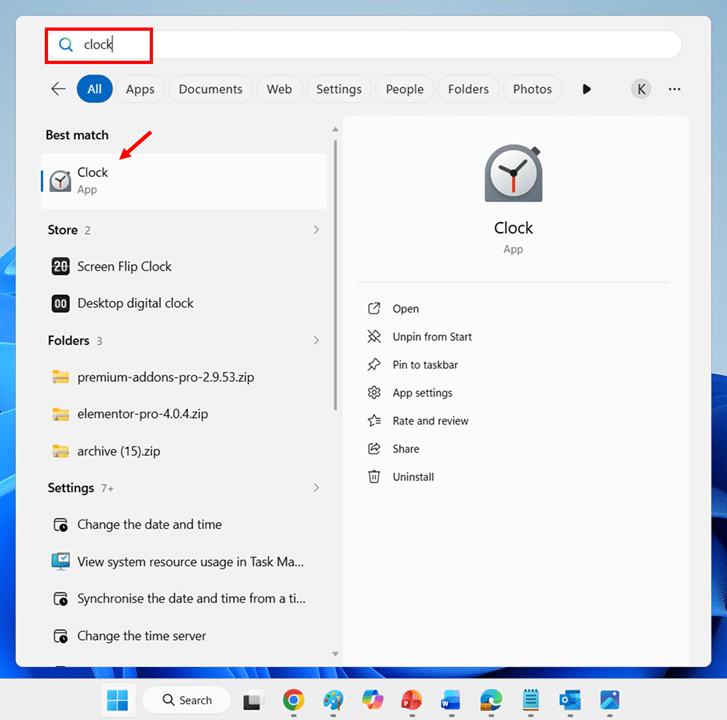
- Press Windows key + S, type Clock, and press Enter to launch the Clock app.
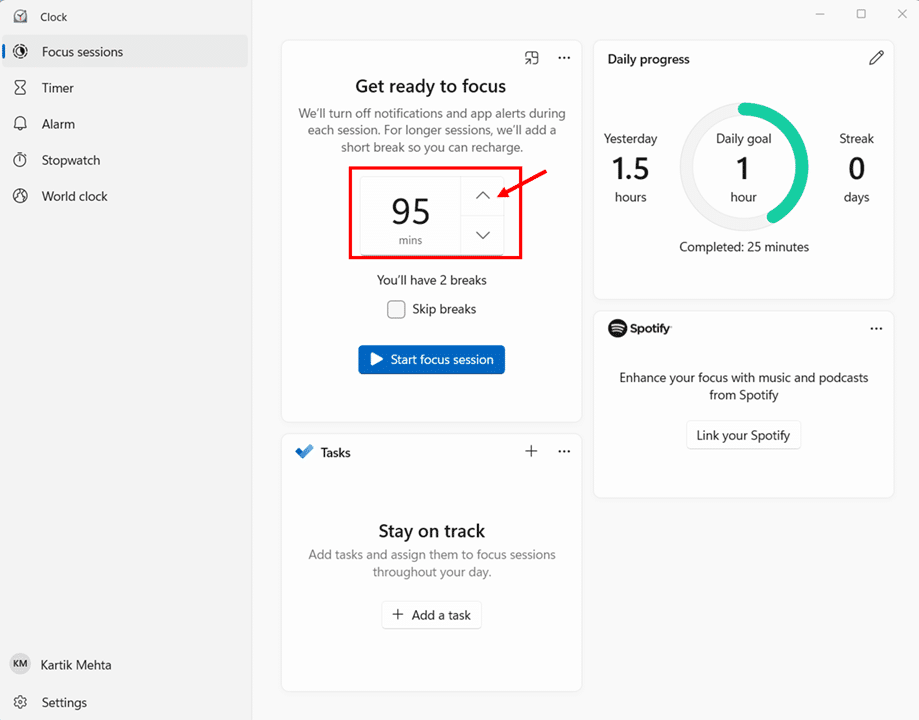
- Click the Focus sessions tab in the left sidebar (it appears as a pie chart icon) to open the main Focus Sessions screen.
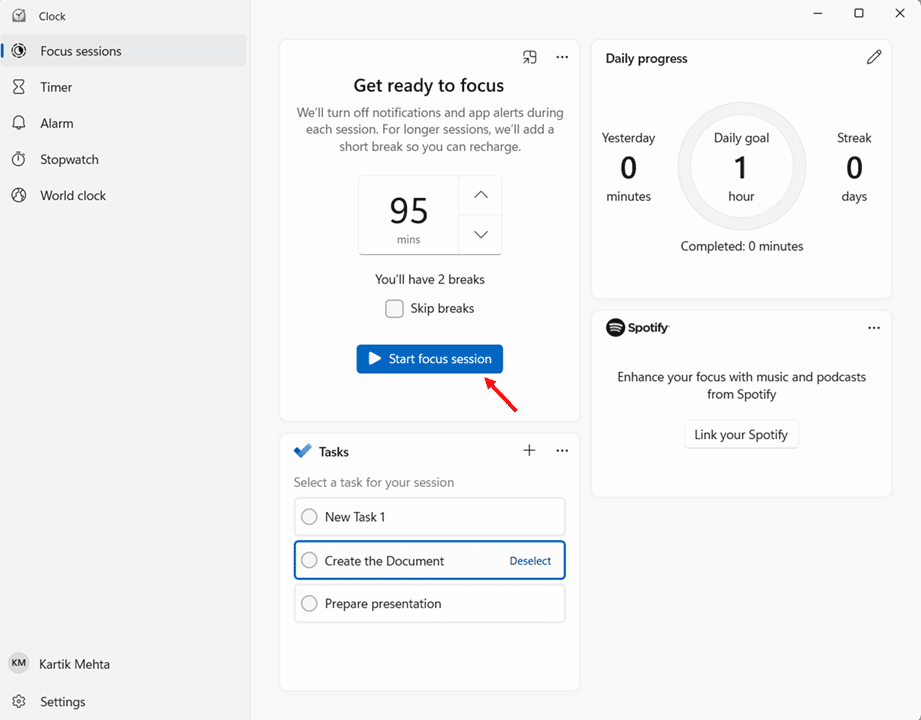
- Set the session duration using the up and down arrow buttons next to the duration display in the Get ready to focus section.
- Check Skip breaks to run one continuous focus session, or clear Skip breaks to let Windows add short breaks automatically.
- Click Start focus session to begin the timer.
- Confirm that the countdown timer appears and your session starts in the full Clock app view
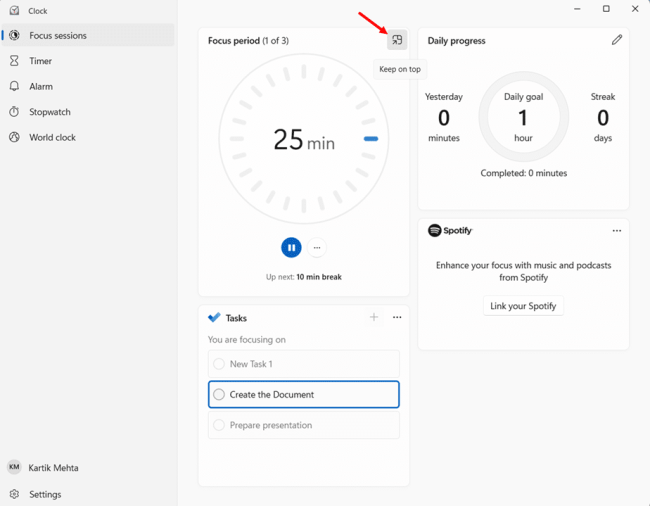
- Click the Keep on Top pin icon in the upper-right corner of the active session window to convert the timer into a floating mini-widget that stays visible above other windows.
Recommended starting durations:
– 25 minutes — Short focus sessions, ideal for first-time users
– 45 minutes — Writing, coding, or moderately demanding focus work
– 95 minutes — Deep work blocks for high-intensity tasks
Method 2: Open Focus Sessions From Notification Center
The Notification Center method takes under five seconds from keyboard shortcut to active session.
Best suited for: Quick Pomodoros between meetings, fast notification silencing, and anyone who values speed over configuration depth.
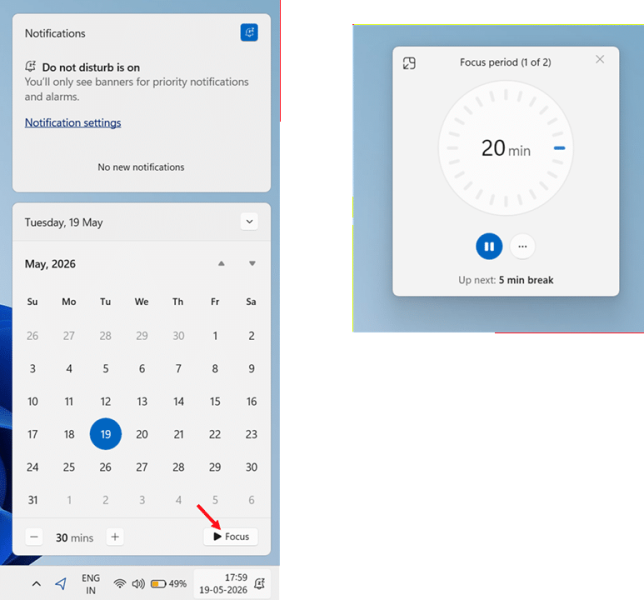
- Press Windows key + N to open the Notification Center, or click the date and time area in the bottom-right corner of the taskbar.
- Locate the Focus section below the calendar pane at the bottom of the Notification Center.
- Use the + and – buttons next to the duration value to set the session length.
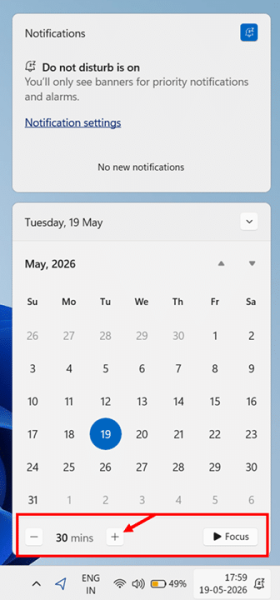
- Click Focus to start the session; the notification window closes and a Focus timer appears at the top‑right corner of the desktop
Method 3: Open Focus Sessions Through Settings
The Settings app method configures default behaviour that applies to every future focus session, including the four notification suppression toggles.
Best suited for: First-time setup of persistent defaults, users who want fine-grained control over notification handling, and anyone configuring Focus Sessions on a new device.
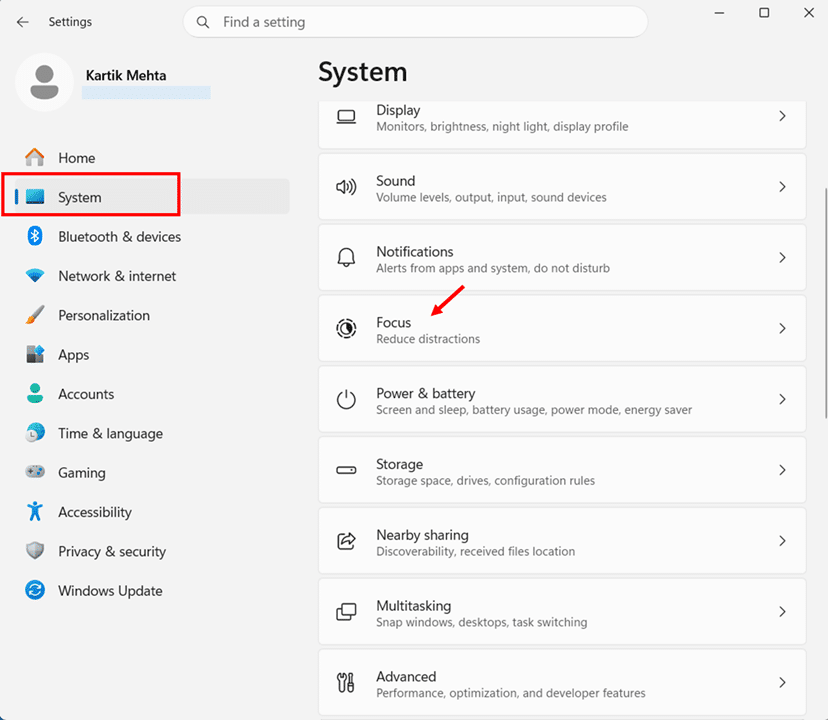
- Press Windows key + I to open the Settings app.
- Click System in the left navigation pane.
- Scroll down and select Focus from the right-side panel.
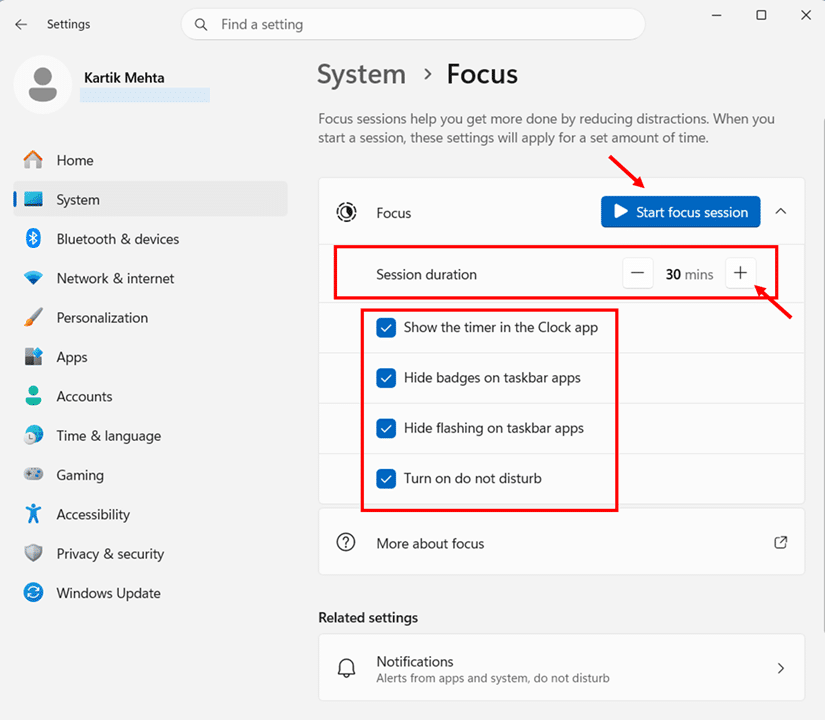
- Adjust the Session duration field using the + and – buttons to set the default length.
- Check the four notification checkboxes to your preference:
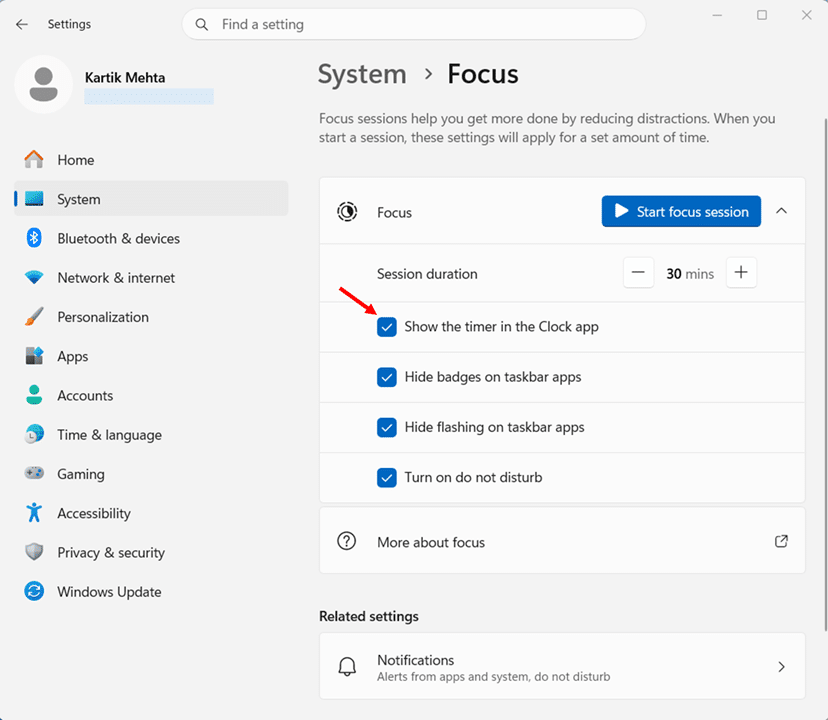
Show the timer in the Clock app — Displays the countdown timer when a session is running
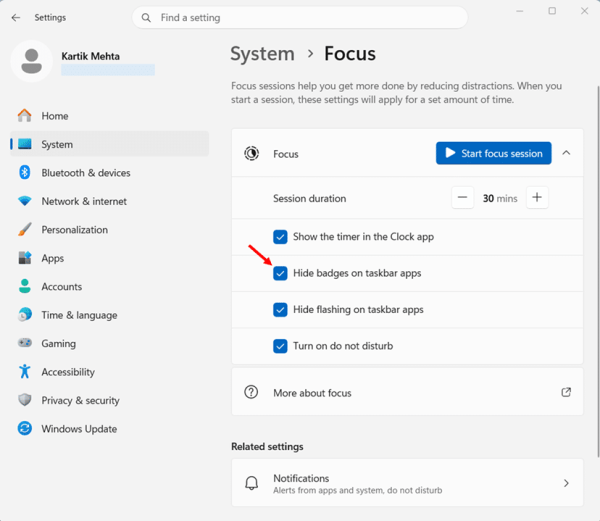
Hide badges on taskbar apps — Removes red notification dots from taskbar icons during sessions
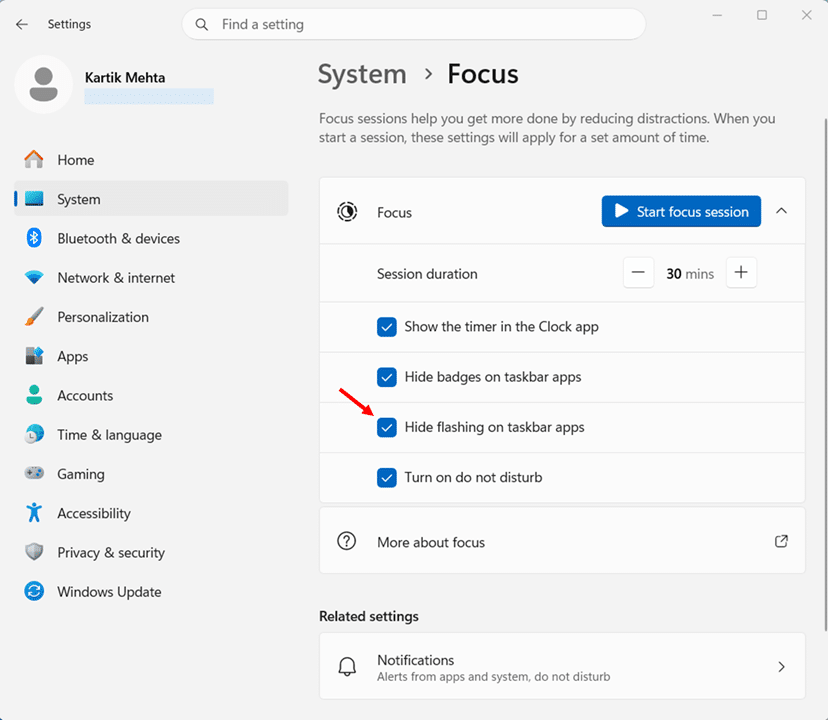
Hide flashing on taskbar apps — Prevents apps from blinking to demand attention
Turn on do not disturb — Silences all toast notifications system-wide during sessions
- Click Start focus session at the top of the page to begin a session with these settings applied.
Recommendation: Leave all four notification checkboxes enabled. Disabling any of them defeats the purpose of using Focus Sessions in the first place.
How to Customise Focus Sessions Settings
Focus Sessions settings are stored in two locations: the Clock app Settings page for session-specific behaviour (Focus period, Break period, sounds, Spotify visibility), and Windows Settings for system-wide notification handling.
How to Customize Focus and Break Periods in the Clock App
The Clock app’s Focus sessions settings let you fine-tune exactly how long you work and rest, which sounds play at the end of a focus period or break, and whether the optional Spotify tile appears during a session. By configuring these options once in Clock > Settings, you can build a Pomodoro-style routine that matches your own pace instead of relying on Windows’ automatic defaults.
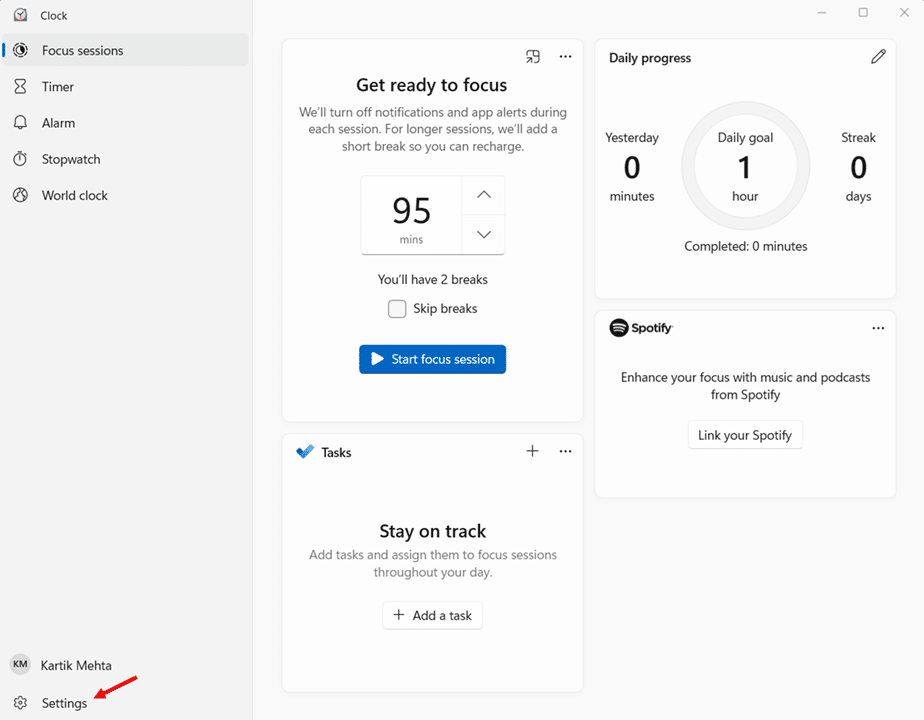
Open Focus Sessions settings in Clock
- Press Windows key + S, type Clock, and press Enter to launch the Clock app.
- Click the Settings gear icon in the bottom-left corner.
Set the length of each focus period
- Select Focus periods to expand the group.
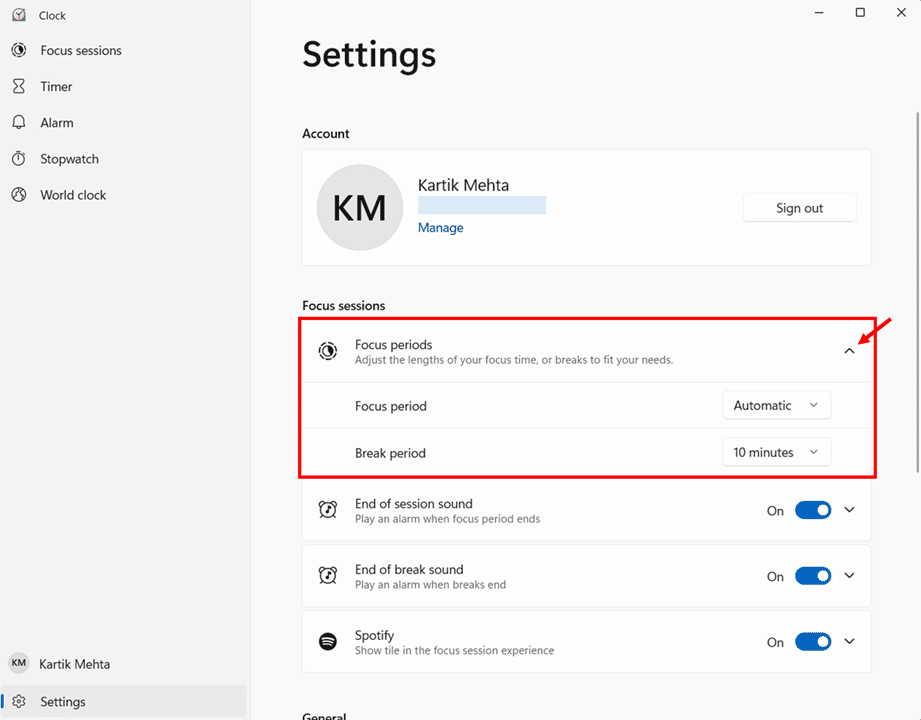
- Click the Focus period dropdown to see options such as Automatic, 10 minutes, 15 minutes, 20 minutes, 25 minutes, 30 minutes, 35 minutes, 40 minutes, 45 minutes, and 1 hour.
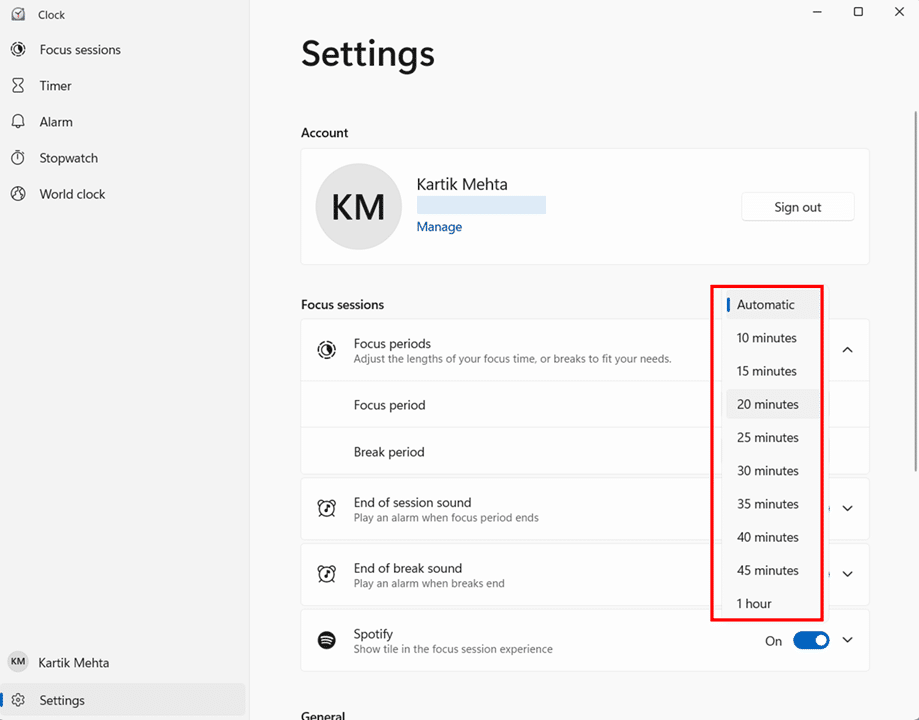
- Select Automatic if you want Windows to choose focus lengths based on your overall session duration, or pick a fixed value such as 25 minutes if you prefer consistent, Pomodoro-style blocks.
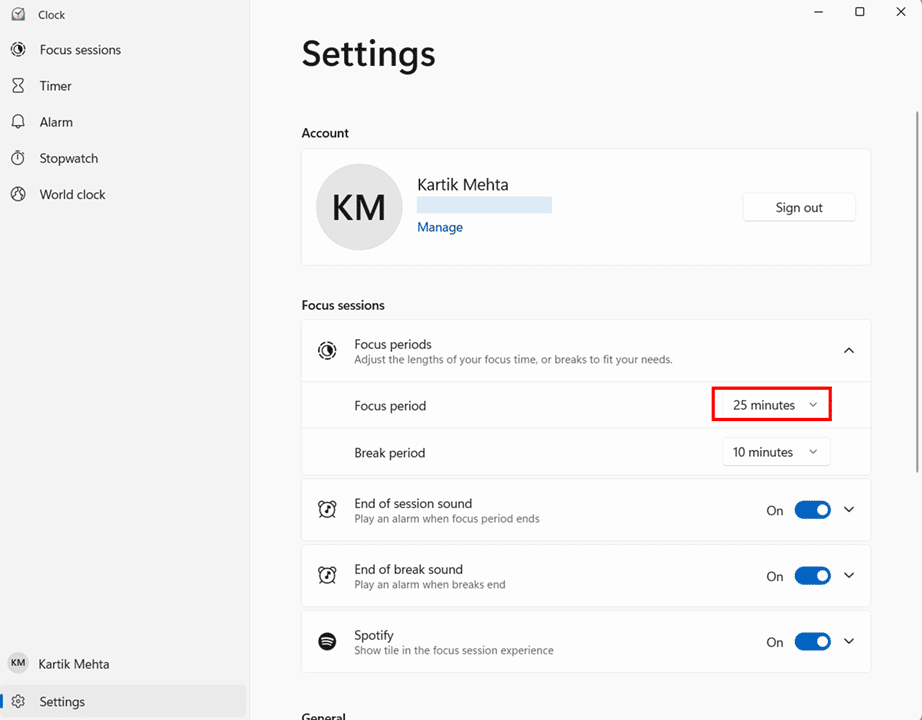
Choosing a fixed Focus period makes your sessions more predictable. For example, you might always work in 25-minute bursts for writing, or 45-minute stretches for coding and troubleshooting.
Configure End Of Session and End Of Break sounds
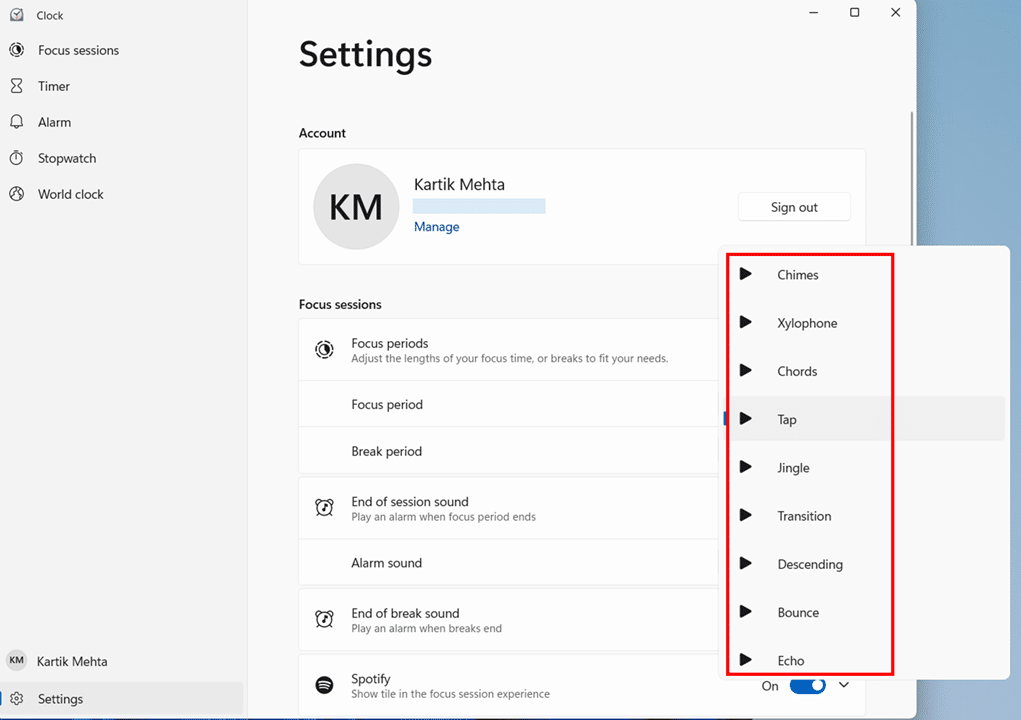
- Expand End of session sound, turn the toggle On if it is not already enabled.
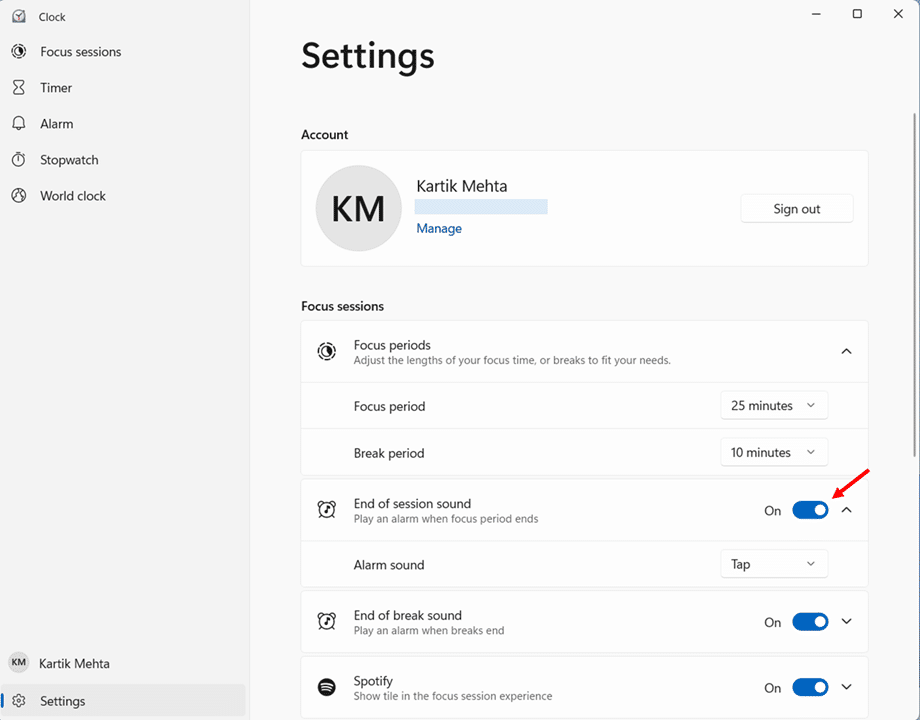
- Select a sound from the dropdown so an alarm plays when each focus period finishes.
- Expand End of break sound, turn the toggle On.
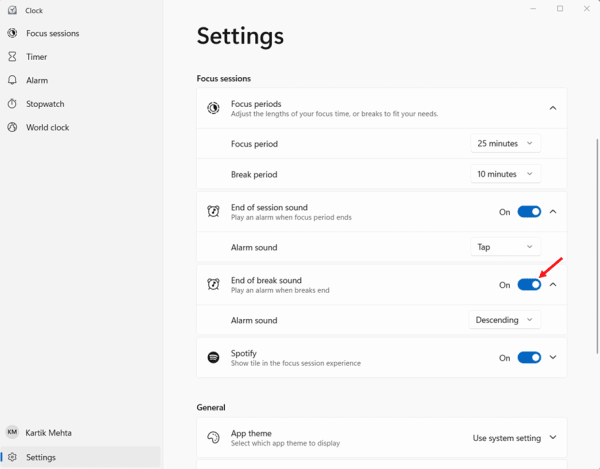
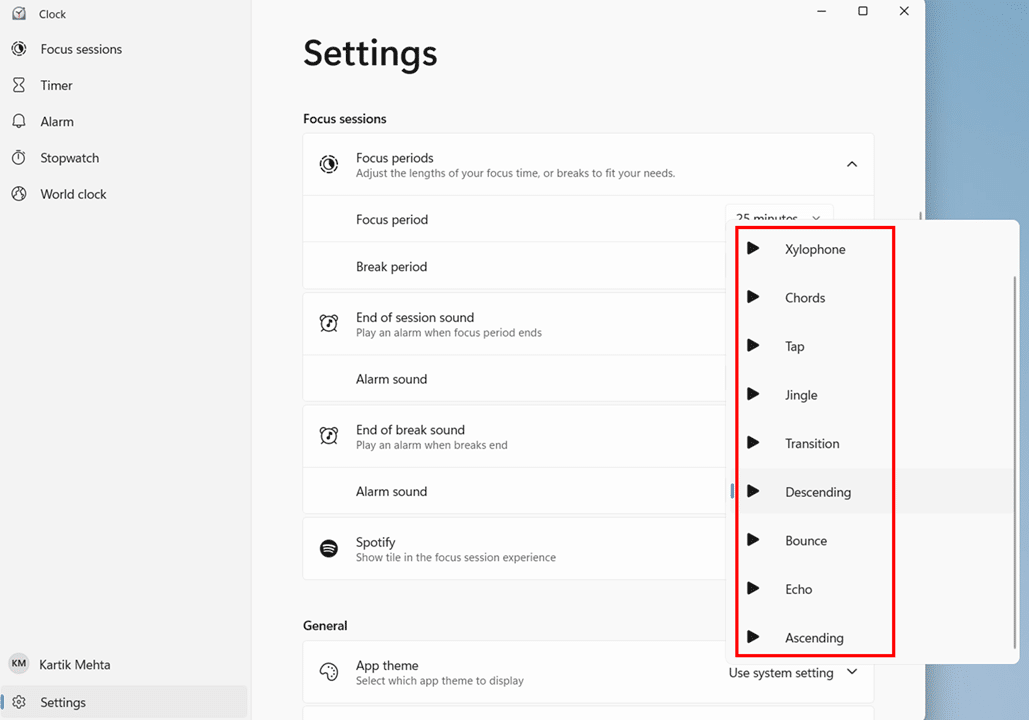
- Select a sound from the dropdown, so you hear a clear alert when breaks end
These audio cues are especially useful if you step away from the keyboard or work on a different monitor, since you can rely on sound rather than constantly checking the timer.
Configure Show or hide the Spotify tile in the Clock App
- Locate the Spotify option under Focus sessions and use the toggle to turn it On if you want the Spotify tile to appear in the Focus Sessions view or Off if you prefer to hide it.
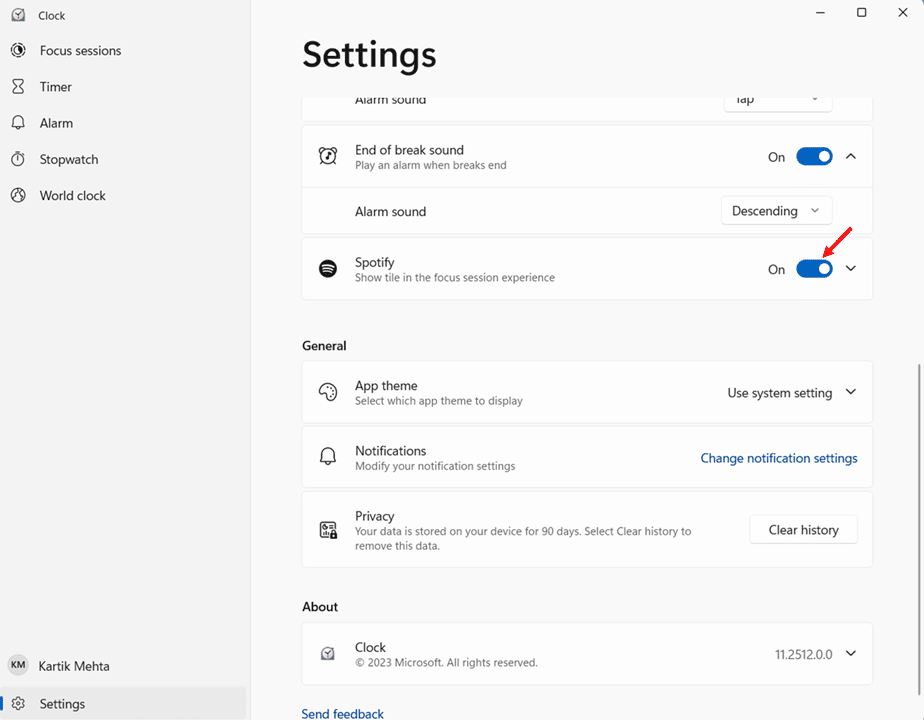
When it is on, you can link your Spotify account and control playlists or podcasts directly inside the Clock app; when it is off, the Focus Sessions interface stays cleaner for users who prefer silence or another audio player.
Configure Focus Settings and Do Not Disturb in Windows 11 Setting
Windows 11 lets you control how Focus behaves and how Do not disturb handles notifications, which makes Focus Sessions practical for real work rather than just another timer. Once these settings are configured properly, Windows can automatically reduce alerts, hide distracting taskbar activity, and still allow a small number of priority notifications to come through when needed.
Open Focus settings in Windows 11 Setting
- Click Start, select Settings, and then select System in the left-hand pane.
- Select Focus under System to open the Windows focus settings page, where you can control how future focus sessions behave.
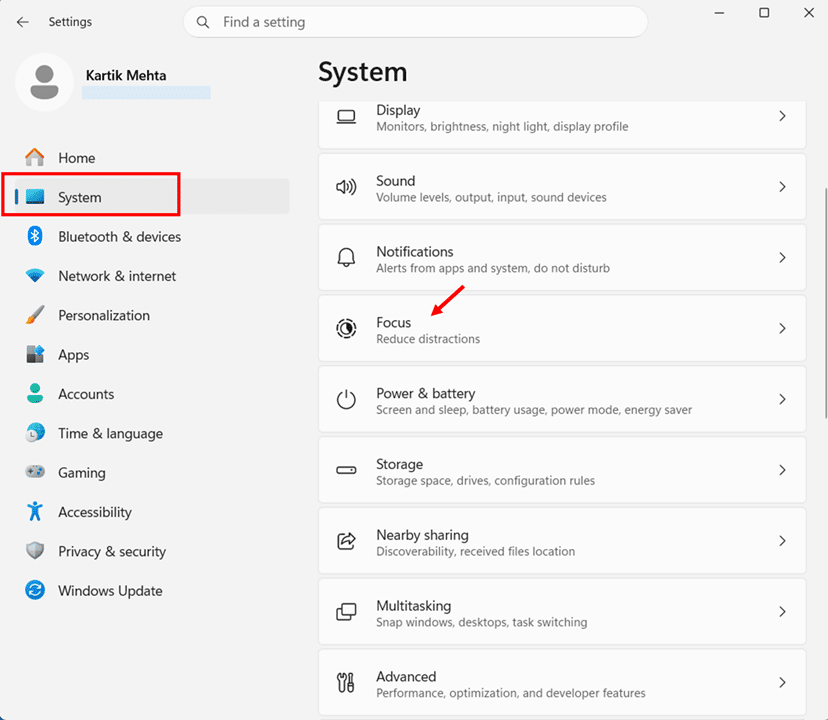
This page is separate from the Clock app settings because it controls system-wide notification behavior during Focus rather than timer and break customization.
Configure Focus options for future sessions
- Review the options under Focus.
- Select Show the timer in the Clock app if you want each focus session to stay visible inside the Clock app while it runs.
- Select Hide badges on taskbar apps if you want Windows to remove unread-count indicators from taskbar icons during Focus.
- Select Hide flashing on taskbar apps if you want Windows to stop apps from flashing in the taskbar to attract your attention while Focus is active.
- Select Turn on do not disturb if you want Windows to enable Do not disturb automatically every time you start a Focus session.
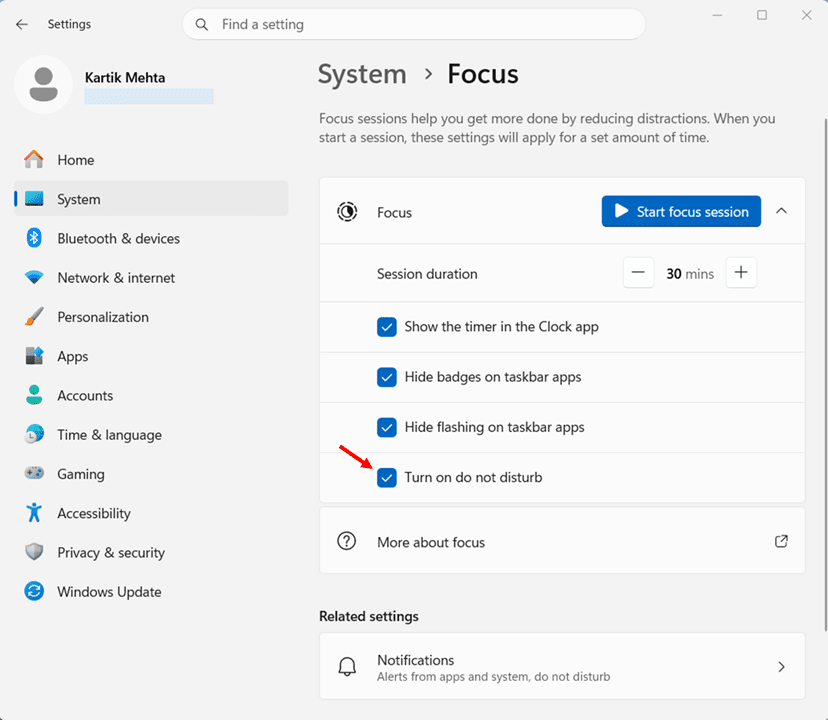
These small visual changes matter more than many users expect, because even silent notifications can still break concentration when icons flash, or badge counts keep changing.
Configure Priority Notifications for Urgent Messages
Priority notifications let specific apps, contacts, and alert types bypass Focus mode for urgent messages.
- Press Windows key + I to open the Settings app.
- Navigate to System, then click Notifications.
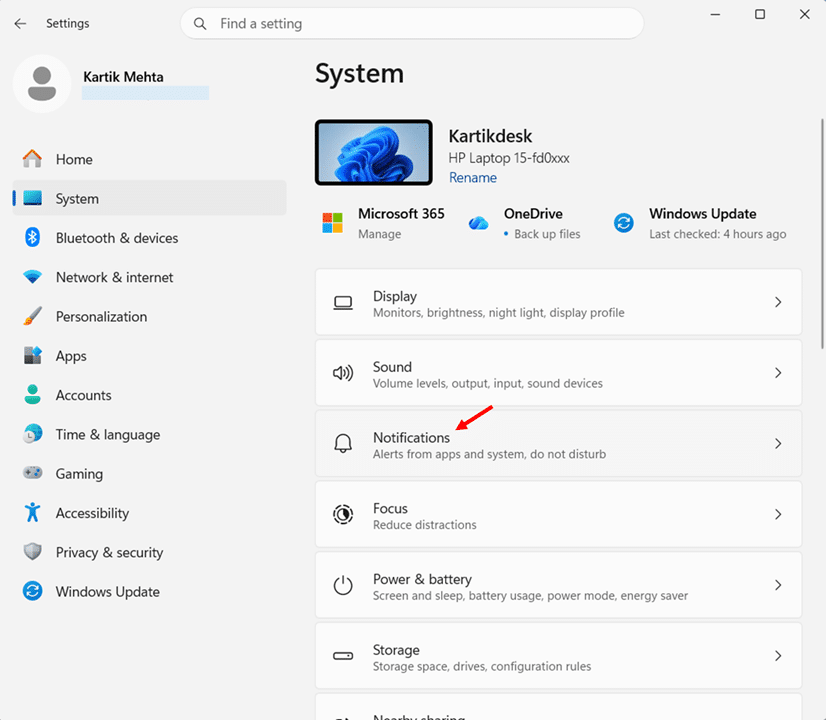
- Scroll down and click Set priority notifications.
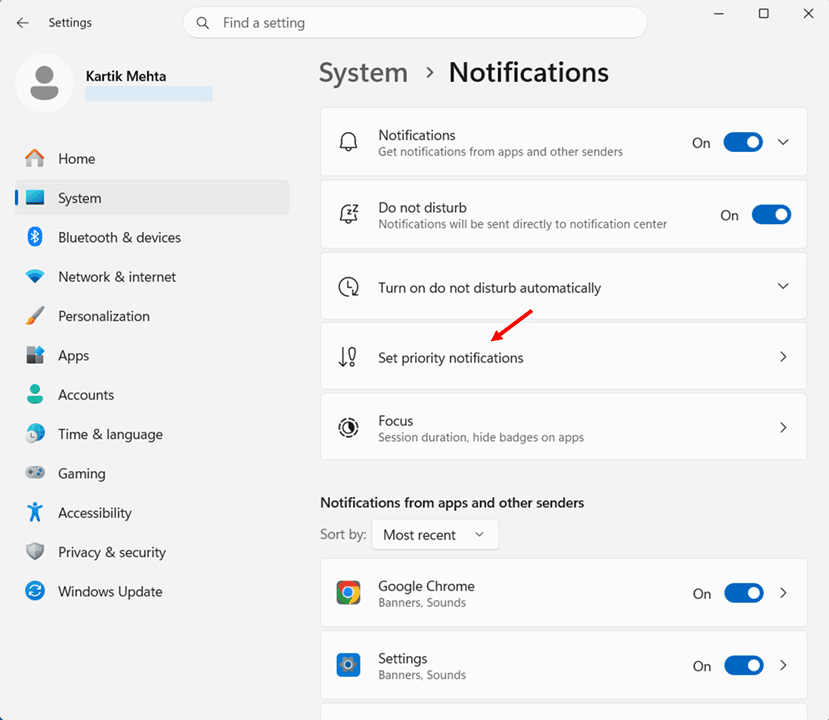
- Select Show incoming calls, including VoIP on to allow calls from WhatsApp, Teams, or Zoom during focus sessions.
- Select Show reminders, regardless of app used on to allow calendar reminders to break through.
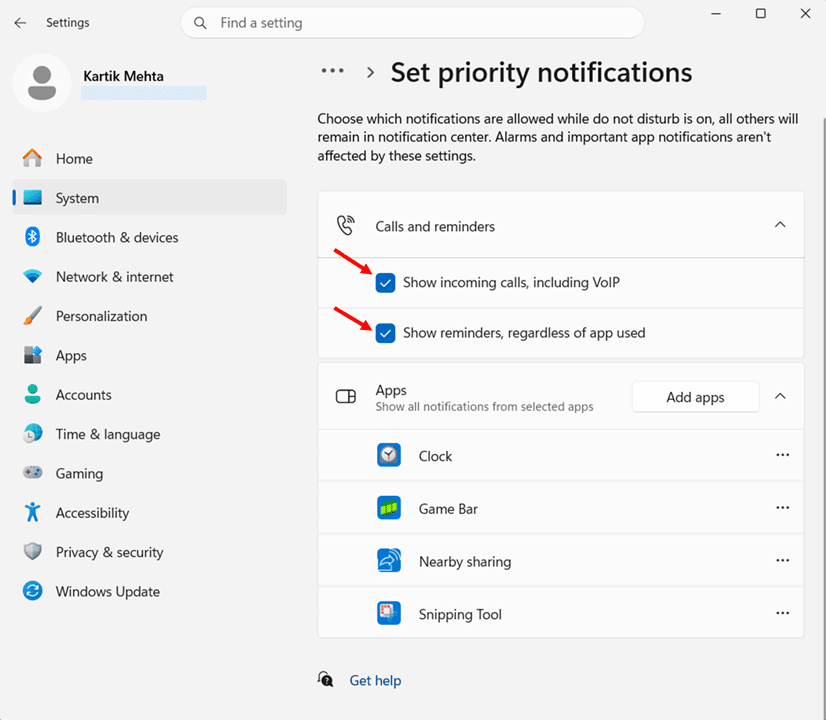
- Click Add apps under the Apps section to whitelist specific critical applications such as Microsoft Teams, Outlook, Phone Link, or monitoring tools..
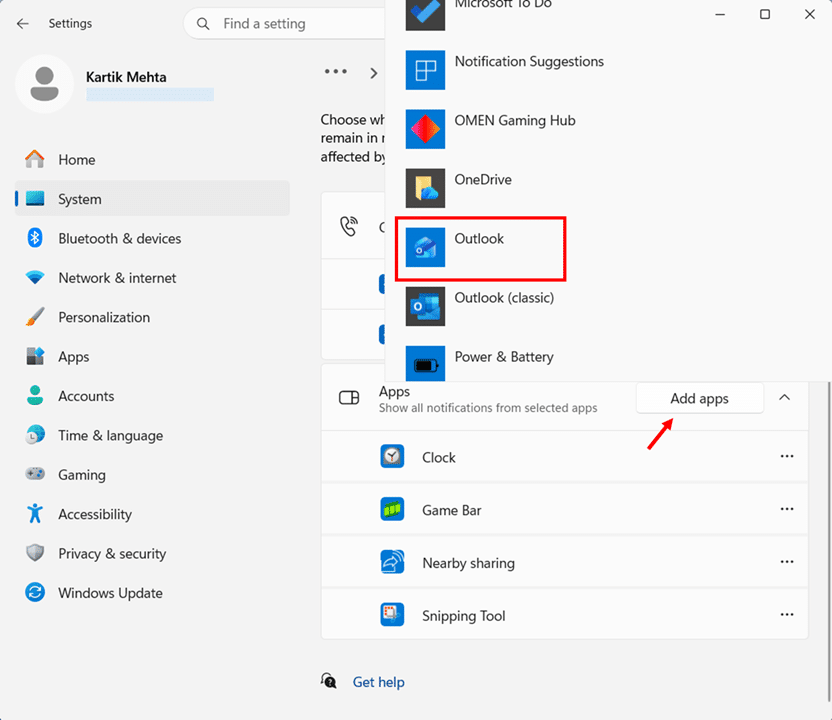
Recommendation: Keep the priority list short and intentional. Skip social media apps, news apps, and anything promotional.
How to Start Your Focus Session Using Clock App
The Clock app gives you the most complete Focus Sessions experience in Windows 11 by bringing the timer, tasks, daily progress, break handling, and optional Spotify controls into one workspace. Starting a Focus Session here involves more than clicking Start focus session.
This section walks through the complete workflow: first you set the session duration and breaks, then you add or select a task to work on, optionally link Spotify for background audio, start and monitor the session, and finally pause, resume, or end the session cleanly. Following this sequence makes the feature easier to understand because each action builds on the previous one, turning the Clock app into a practical control center for focused work rather than just a simple timer.
Open the Focus Sessions screen
- Press Windows key + S to open Windows Search, type Clock, and press Enter to launch the Clock app.
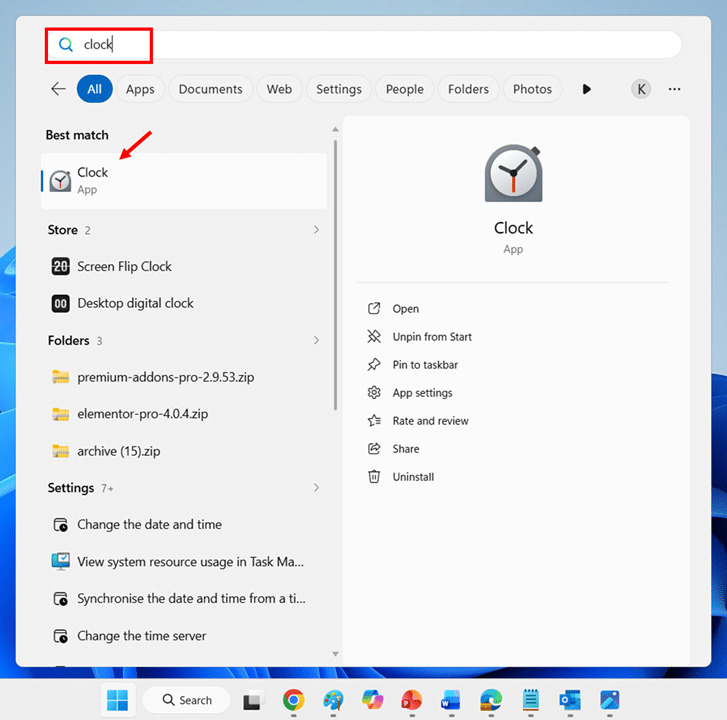
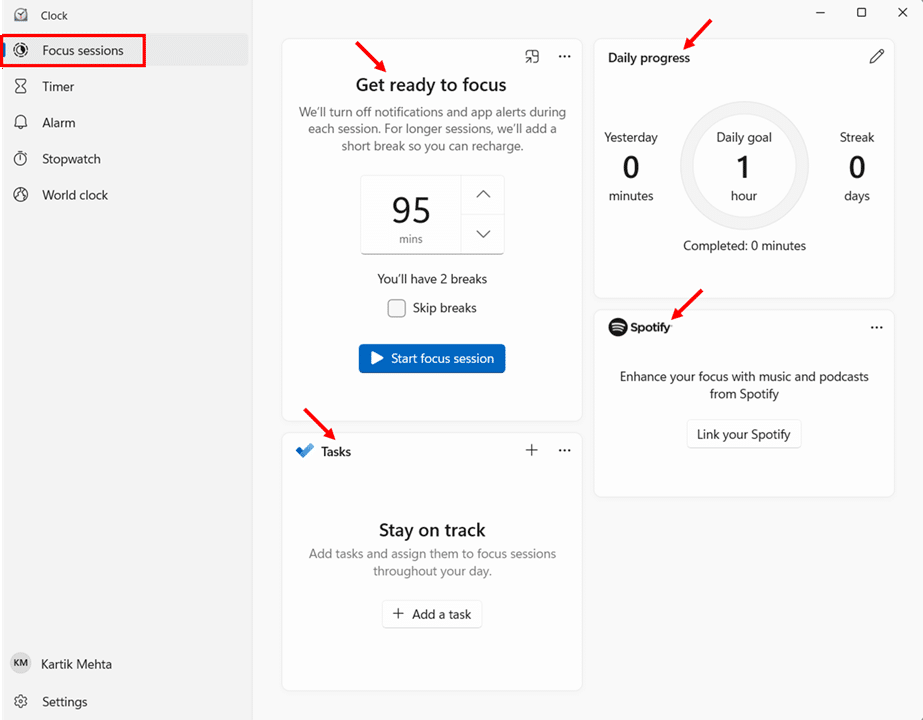
- Click the Focus sessions tab in the left sidebar, identified by a pie-chart-style icon at the top of the menu.
- Identify the four sections that appear: Focus session at the top-left, Daily progress at the top-right, Tasks at the bottom-left, and Spotify at the bottom-right.
Step 2: Set Your Session Duration
The session duration controls how long the focus session runs without interruption.
- Locate the duration display in the Get ready to focus section, which by default shows 30 minutes.
- Click the up arrow button next to the duration to increase the time in 5-minute increments, or click the down arrow button to decrease it.
- Set the duration anywhere between 5 minutes and 240 minutes (4 hours) based on the planned work.
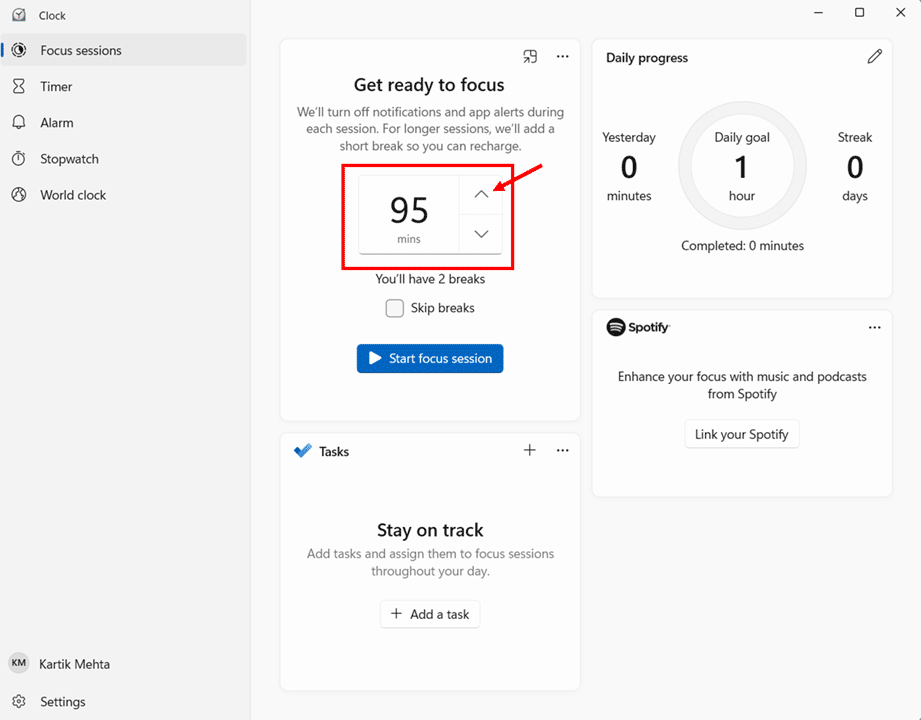
- Confirm the selection by checking the displayed time before moving to the next step.
Step 3: Decide Whether to Skip Breaks
For shorter sessions or deep flow work that should not be interrupted, breaks can be disabled entirely.
- Locate the Skip breaks checkbox below the duration display.
- Check the Skip breaks option to remove all breaks from the session for one continuous focus block.
- Leave it unchecked to enable automatic breaks based on the selected duration.
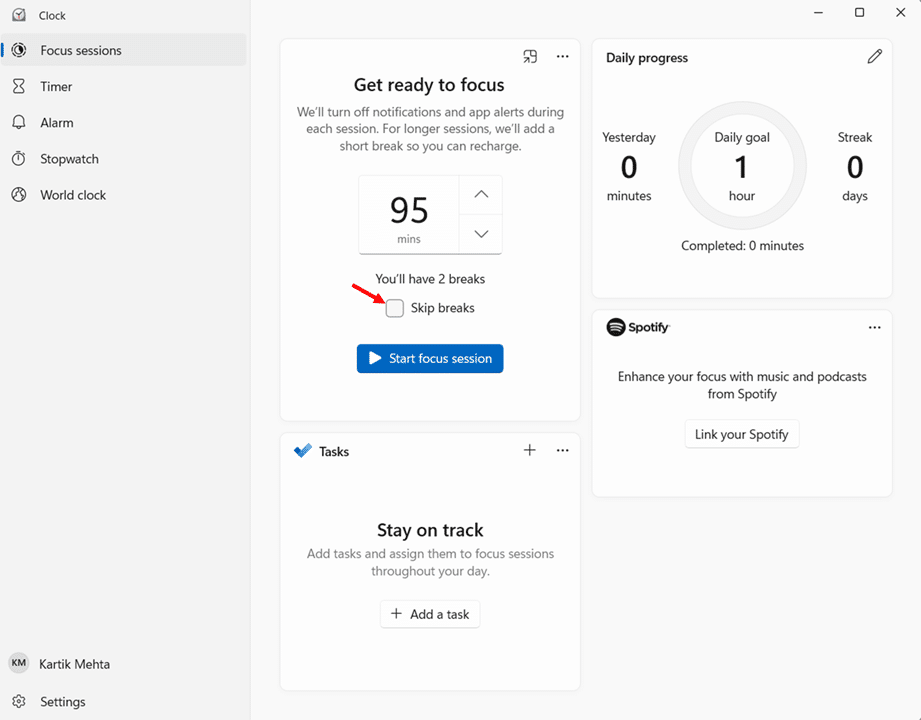
Recommendation: Skip breaks only for sessions under 30 minutes. For longer sessions, breaks protect against burnout and the cognitive performance drop that hits after extended focused work.
Integrate Microsoft To Do with Focus Sessions
Linking Microsoft To Do tasks to focus sessions ties each session to a specific deliverable.
When you link a specific Microsoft To Do task to a focus session, three things happen:
- You eliminate decision paralysis at the moment the timer starts (no “what should I work on?” anxiety)
- The task remains visible during the entire session, anchoring your attention to the actual goal
- You can mark the task complete the second you finish, capturing progress without breaking flow
Sign In with Your Microsoft Account
The integration requires one prerequisite: you need to sign in to the Clock app with the same Microsoft account that holds your To Do tasks.
- Open the Clock app and click the Focus sessions tab.
- If you are already sign in to Windows 11 with your Microsoft account you will be already sign in in the cloud app with the same account
Link and Select Tasks Before a Session
- Locate the Tasks widget in the bottom-left section of the Focus Sessions interface.
- To add a new task without leaving the Clock app, click the + (Add a task) button in the Tasks panel and type the task name.
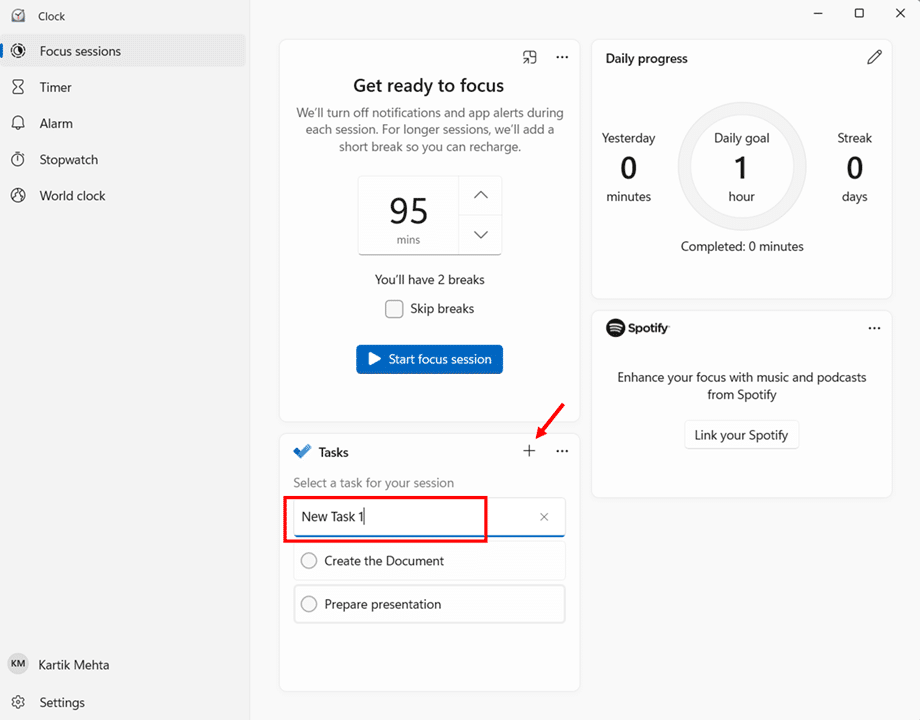
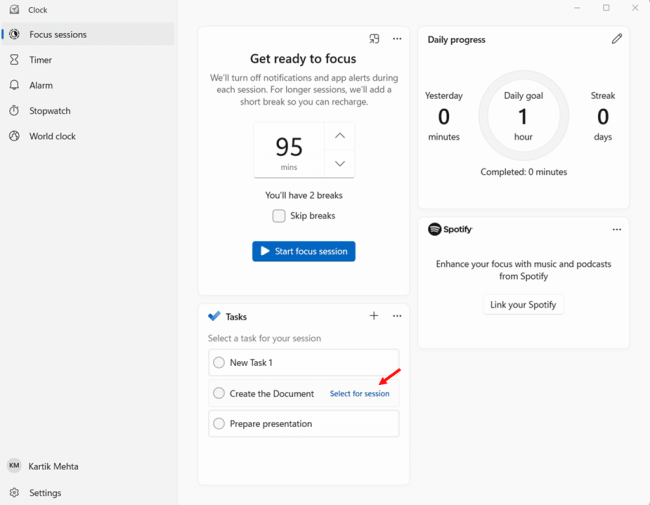
- Hover over the task you want to work on and click the Select for session link that appears on the right side of that task row.
- The selected task is outlined with a blue border, and the link changes to Deselect.
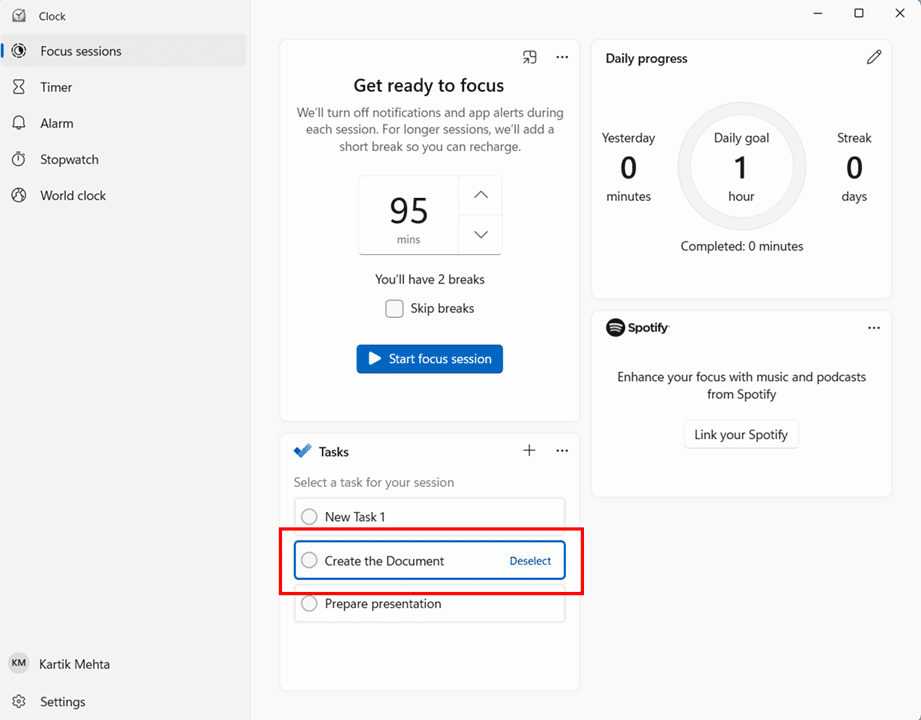
- To choose a different task, click Deselect on the current task, then click Select for session on the one you want instead.
Step 5: Click Start Focus Session
- Click the Start focus session button at the bottom of the Focus session panel.
- Watch the interface transition into the active session view, with the countdown timer now displayed prominently.
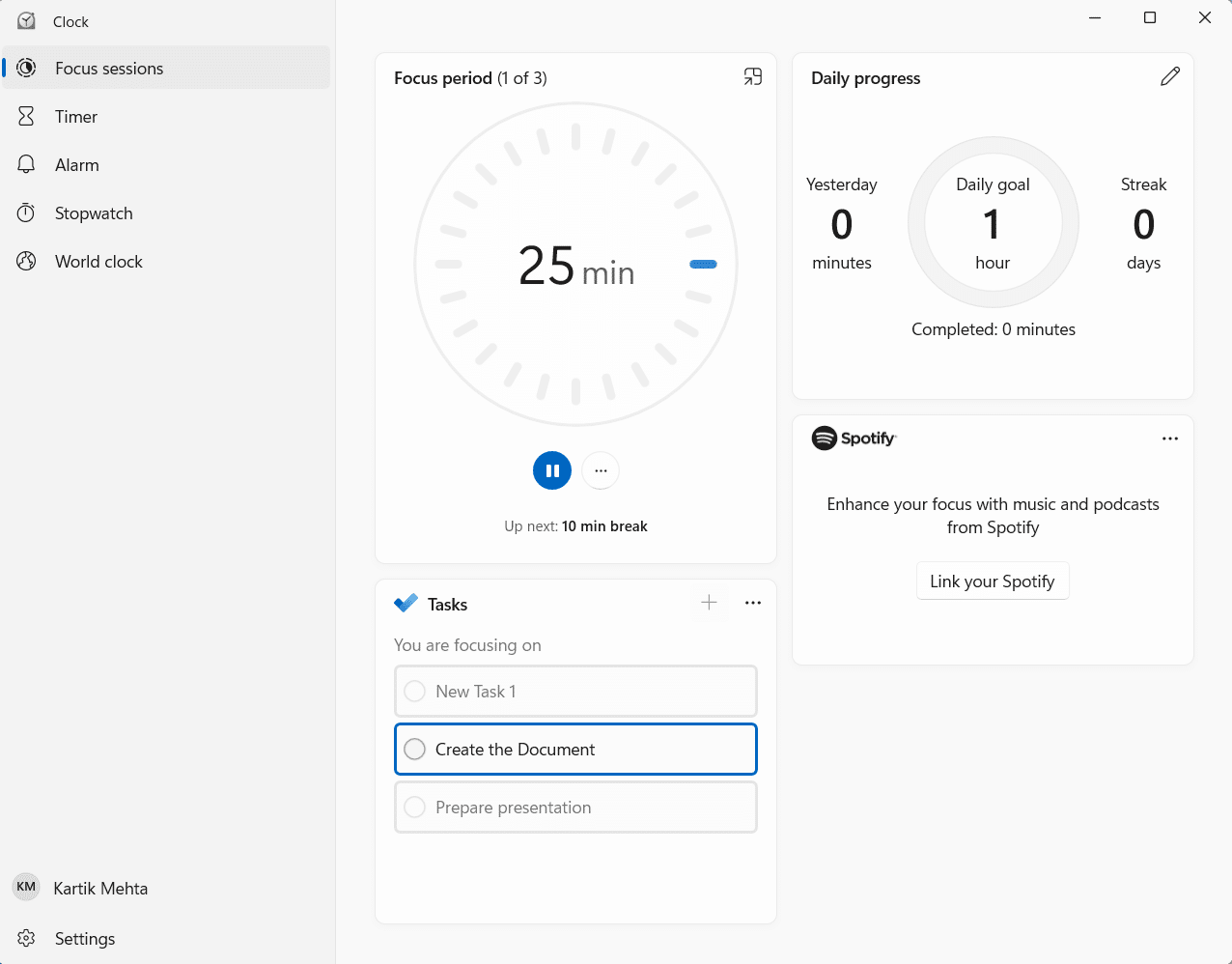
- Begin working on the chosen task immediately while the timer runs in the background.
Step 6: Use Keep on Top to Pin the Mini Timer
By default, the Clock app shows the countdown timer in its own window. Switching to another app means losing visibility of remaining time. The Keep on Top feature solves this by floating a compact timer above all other windows.
- Locate the Keep on Top button in the upper-right corner of the active focus session window, identified by a pin-shaped icon.
- Click Keep on Top to convert the full Clock app into a compact mini-timer widget.
- Continue working in other apps while the mini-timer floats above all windows showing remaining time.
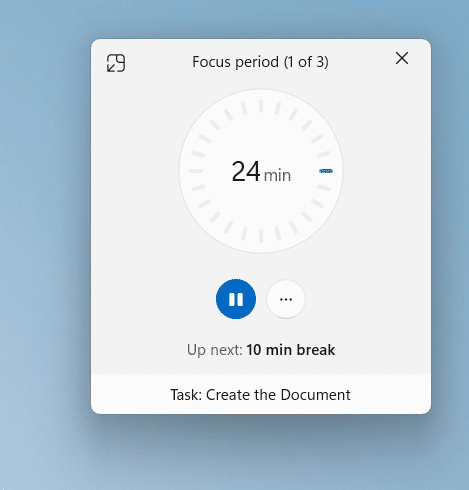
- Click the Keep on Top button again to expand the timer back into the full Clock app window if needed.
Ending a Session Early
To end a session before the timer reaches zero:
- Open the Clock app or click the active focus timer to bring the session controls into view.
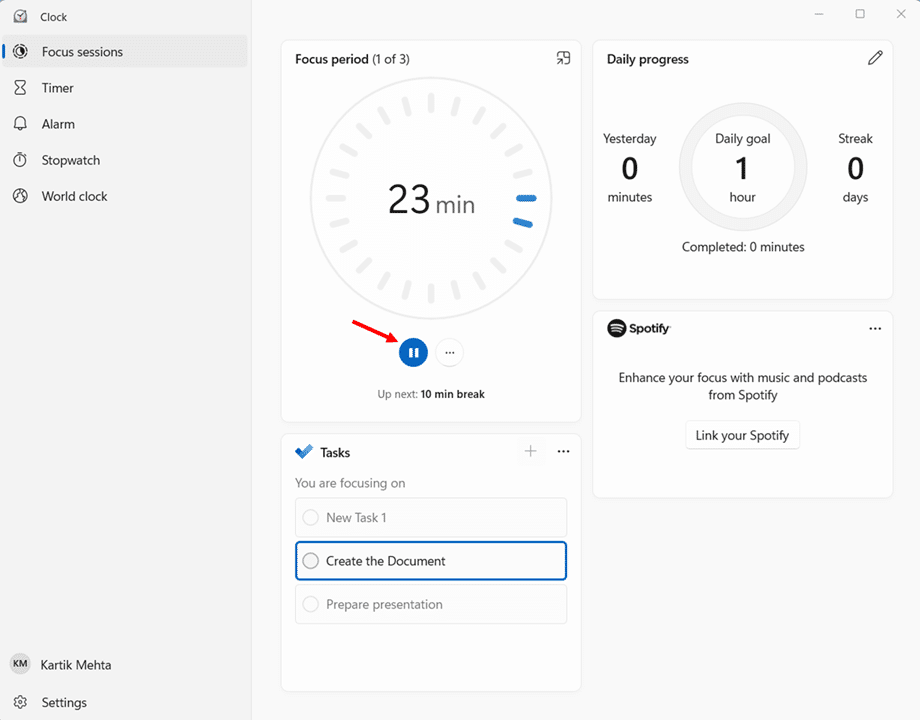
- If only Pause and the ellipsis (⋯) buttons appear, click Pause first to halt the timer.
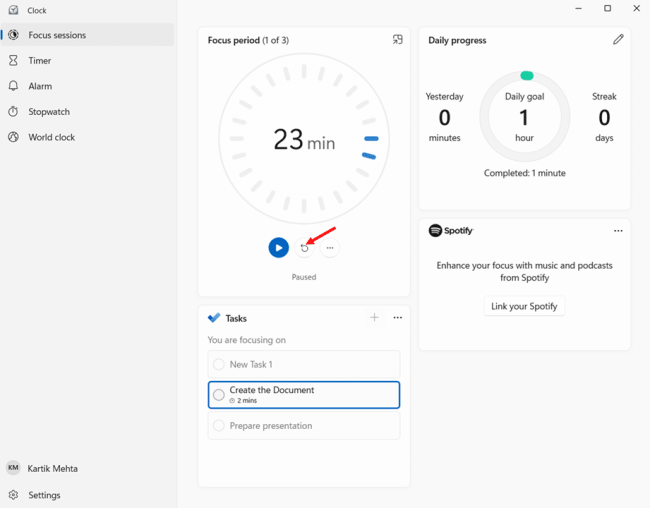
- Click the Reset button that appears after pausing to fully end the session and return to the duration selection screen.
Troubleshooting Common Focus Sessions Issues
Even when Focus Sessions works perfectly for most users, you might run into problems eventually. Apps glitch, updates break things, integrations stop responding, and sometimes the Clock app just refuses to cooperate.
Below are the most commonly reported Focus Sessions issues along with the actual fixes that work. Each fix is grounded in either Microsoft Q&A community responses or independent reporting from Windows-focused outlets. I have indicated the source for each solution where applicable.
Issue 1: Clock App Will Not Open or Crashes on Launch
This is the most fundamental issue you can hit. If the Clock app does not open, you cannot access Focus Sessions at all.
- Press Windows key + I to open the Settings app.
- Navigate to Apps, then click Installed apps.
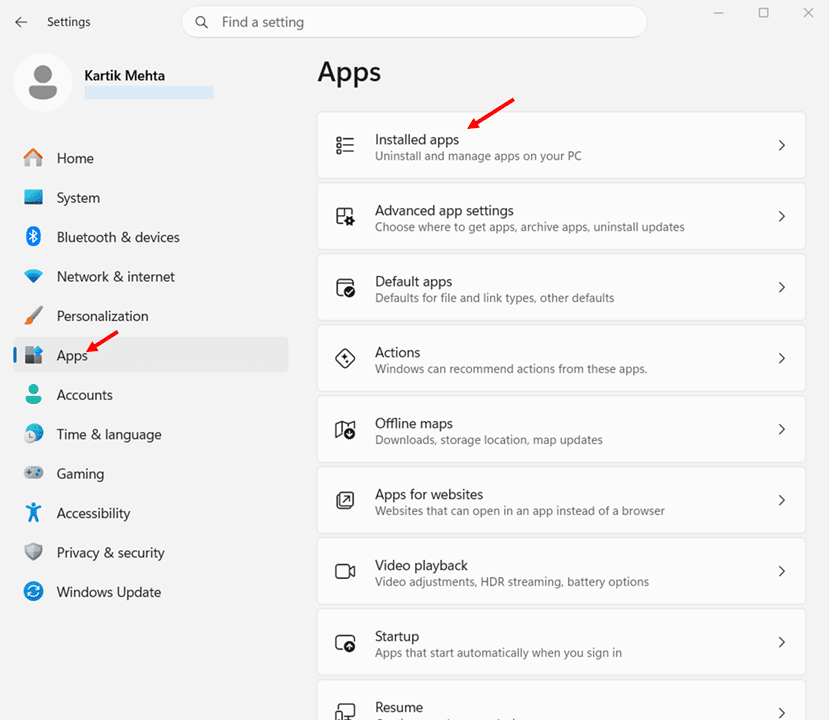
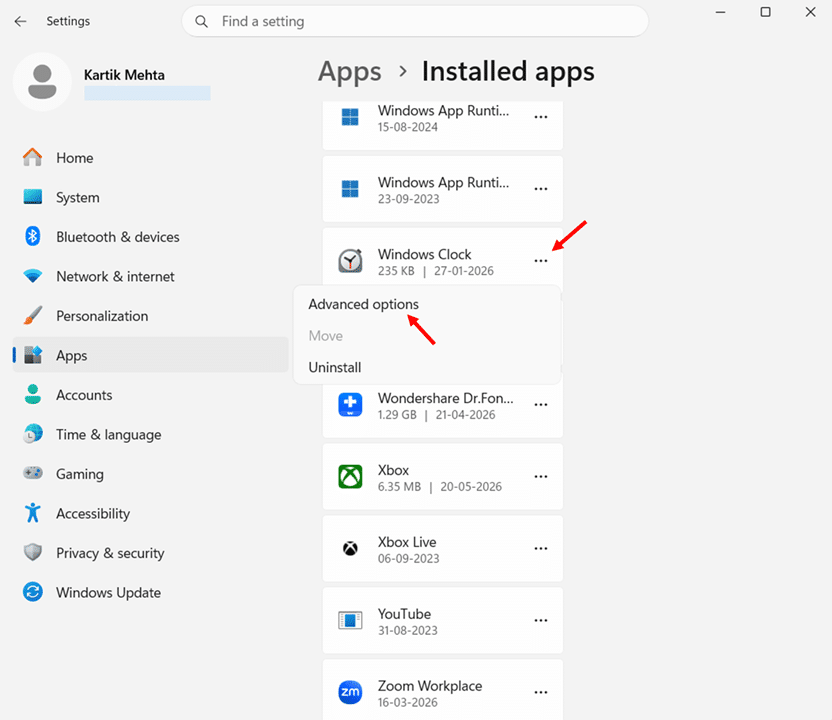
- Locate Clock in the app list and click the three-dot menu next to it.
- Select Advanced options to open the app management page.
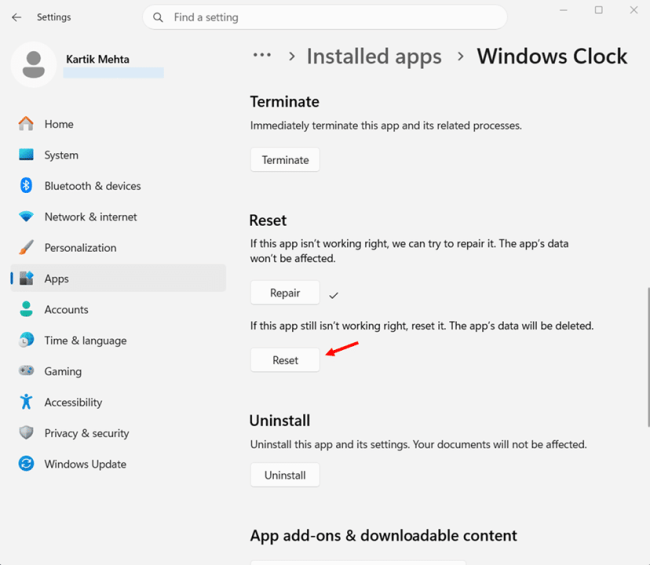
- Click the Repair button first to fix the app without losing data.
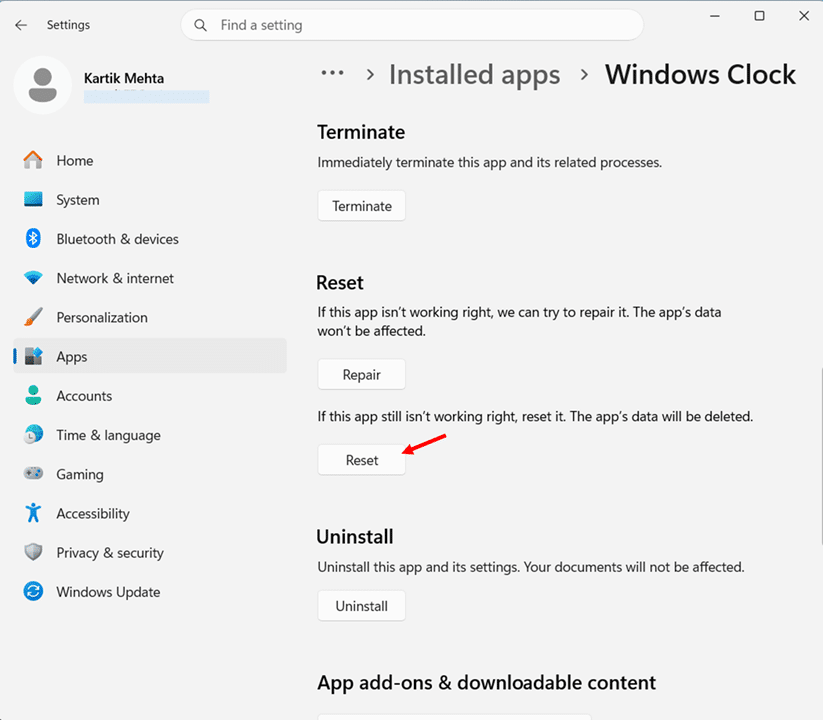
- Click the Reset button if Repair does not resolve the issue, which clears all app data and restores defaults.
- Restart your computer and attempt to open the Clock app again.
If the issue persists after Reset, the problem may be with corrupted system files. Try running SFC and DISM repair commands:
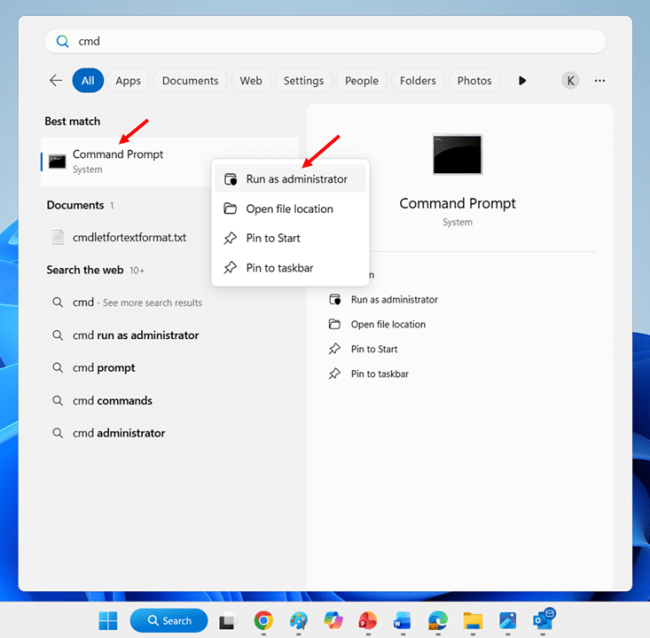
- Press Windows key + S, type cmd, right-click Command Prompt, and select Run as administrator.
- Run the command sfc /scannow and press Enter to scan and repair system files.
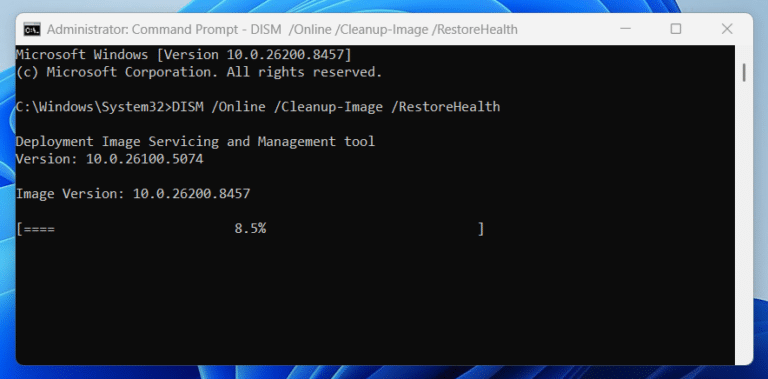
- Run the command DISM /Online /Cleanup-Image /RestoreHealth and press Enter to repair the Windows image.
- Restart your computer once both commands complete.
Issue 2: Notifications Still Appearing During a Focus Session
If notifications keep breaking through during your focus sessions, the problem is almost always a misconfigured Do Not Disturb setting or an app on your priority list that should not be there.
- Press Windows key + I to open the Settings app.
- Navigate to System, then click Focus to open the Focus configuration page.
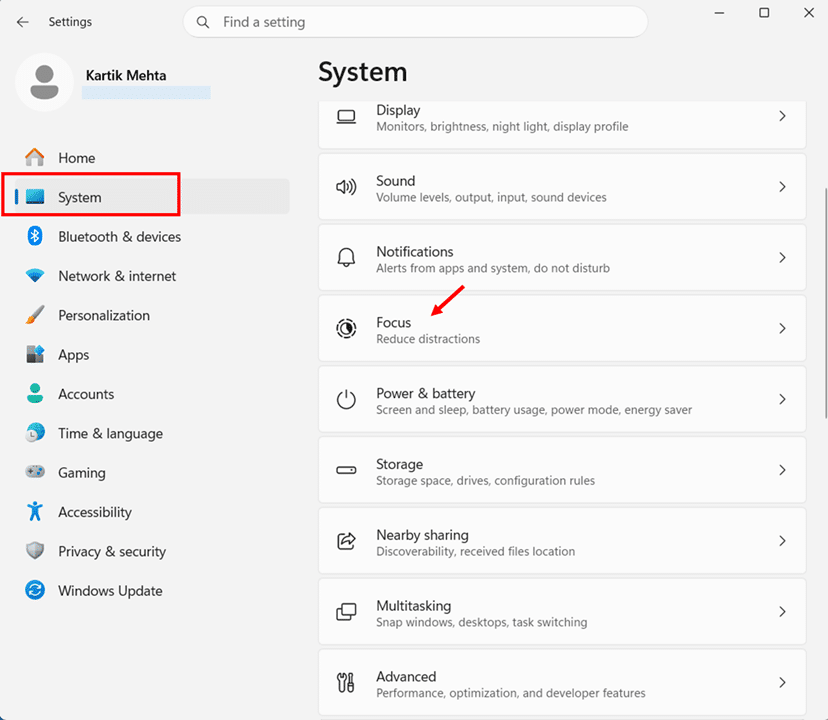
- Confirm the Turn on do not disturb checkbox is enabled, since this is what silences notifications during sessions.
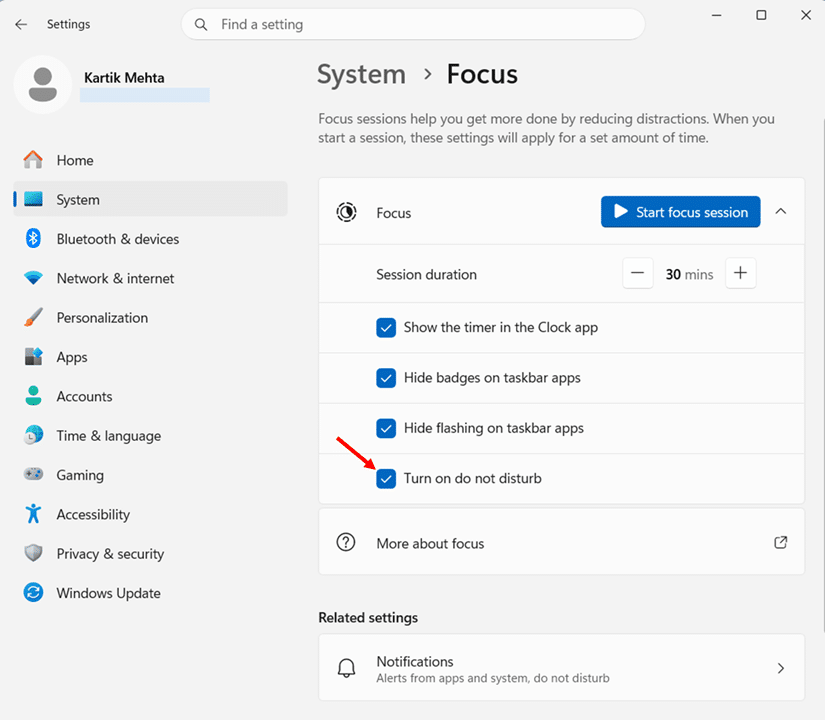
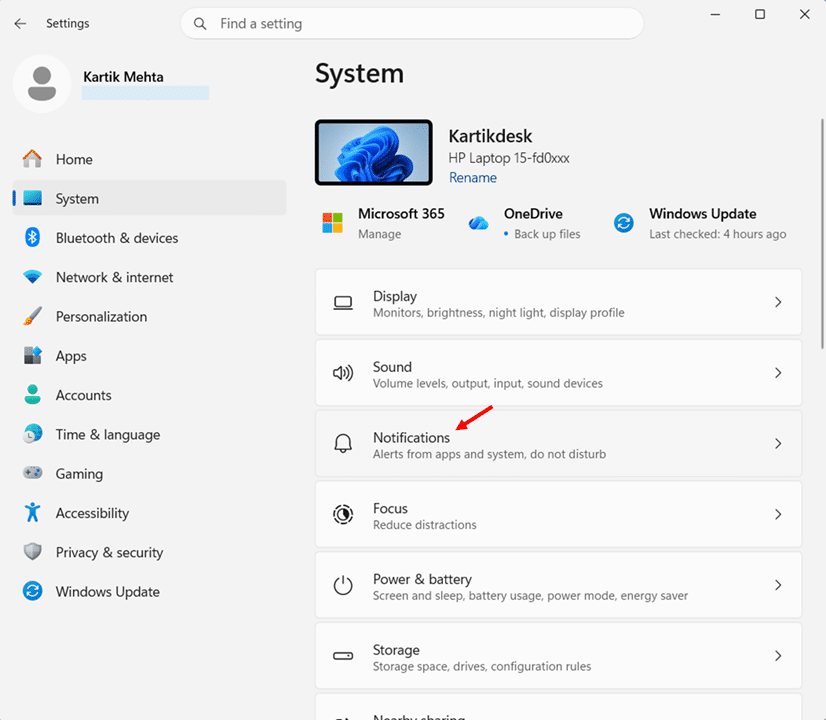
- Click the Notifications link under Related settings to review which apps can break through.
- Locate the Do not disturb section and click Set priority notifications.
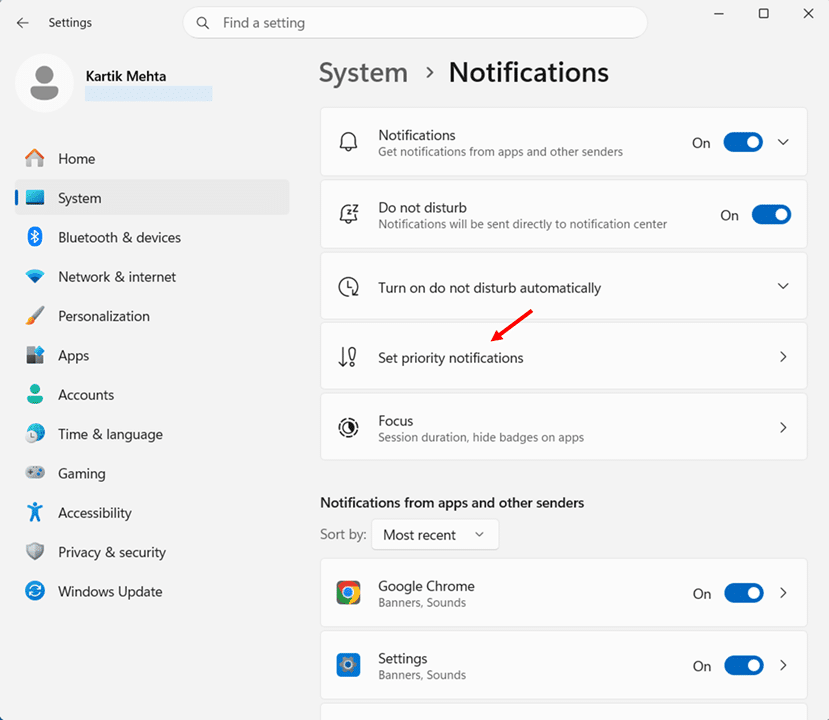
- Toggle off any apps that should not be allowed to interrupt your focus sessions.
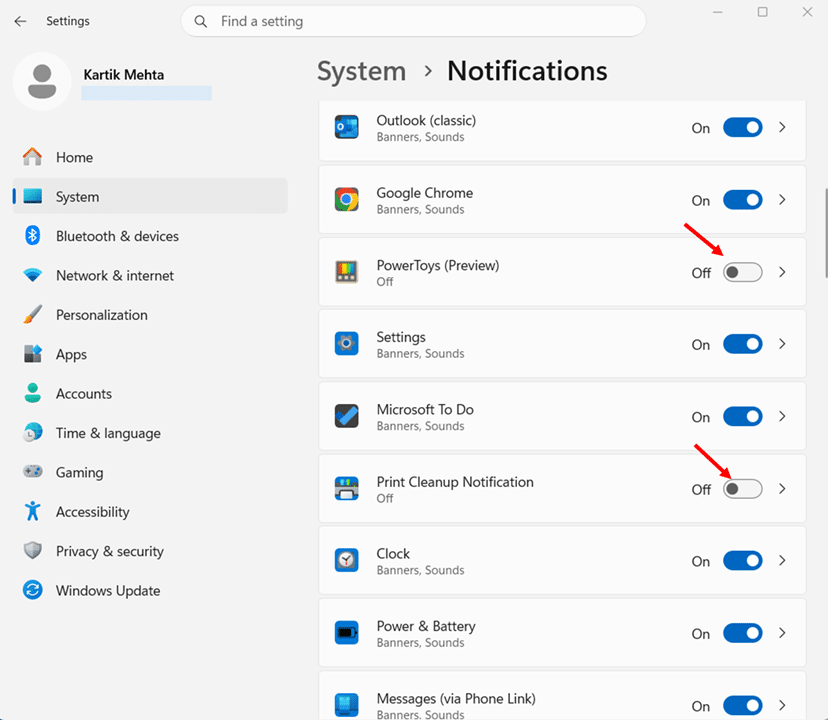
- Verify that Show incoming calls, including VoIP matches your preferences, since this controls call notifications.
If notifications still appear, the underlying Do Not Disturb mode may not be triggering at all. Check that the Show the timer in the Clock app and Turn on do not disturb boxes are both checked under Settings then System then Focus.
Conclusion
You now have four working methods to use Focus Sessions on Windows 11, along with a clear checklist of system prerequisites, Microsoft To Do integration setup, customisation options, and troubleshooting fixes.
If you are a casual user running quick focus blocks between meetings, the Notification Center method gets you started in under five seconds. If you are a power user who wants linked tasks and granular control, the Clock app method gives you the full interface. For persistent defaults across every future session, the Settings app handles system-wide configuration.
Which method worked best for your setup: Clock app, Notification Center, Settings, or Taskbar Clock? And if you hit a specific error or scenario this guide did not cover, drop it in the comments, happy to help you troubleshoot.
Frequently Asked Questions (FAQs)
Yes. Focus Sessions works on all Windows 11 editions (Home, Pro, Enterprise, Education) as long as the device is running version 22H2 or later with the Microsoft Clock app installed.
Yes. Focus Sessions run without any account sign-in. A Microsoft account is only required if you want to link Microsoft To Do tasks to focus sessions.
When the focus period is set to Automatic, the Clock app calculates focus block lengths based on your total session duration. For example, a 45-minute session becomes two 20-minute focus blocks with a 5-minute break in between. Sessions of 30 minutes or less run as one continuous block with no breaks.
Yes. The timer, breaks, and notification silencing all work without an internet connection. Only the Microsoft To Do task linking needs a connection to sync your tasks.
Yes. During an active session, click Pause to stop the timer, then click it again to resume from where you stopped. Pausing does not end the session or reset the timer.
No. The session continues running in the background with the timer, and Do Not Disturb stays active until the session ends. You can reopen the Clock app or use the Keep on Top mini-timer to check remaining time.

