
How much of your working week disappears just looking for things? More than you would guess, and it is not new. McKinsey’s 2012 “The social economy” report found employees spend about 1.8 hours a day, roughly 9.3 hours a week, searching for and gathering information. More than a decade on, Atlassian’s latest State of Teams 2025 report finds executives and teams alike still spend a quarter of the workweek searching for information. That is more than a full working day, every week, lost before the real work even begins.
This is exactly the problem Google NotebookLM, now officially called Gemini Notebook, sets out to solve. Instead of answering from the open internet like a typical chatbot, it answers only from the sources you give it, and it cites every claim so you can verify it in seconds.
In this comprehensive review, you will find a clear, feature-by-feature breakdown of NotebookLM’s capabilities, a look at its pricing tiers, an honest summary of the pros and cons, and guidance on who should and should not use it.
Whether you manage three reference documents or three hundred, this analysis will help you decide if NotebookLM deserves a place in your workflow.
Table of Contents
What Is Google NotebookLM?
Think of Google NotebookLM as a research assistant that has actually read everything you hand it. You upload your documents, and it reads, understands, and answers your questions using only those sources. Nothing is invented, and nothing is pulled from a random corner of the internet.
NotebookLM is an AI-powered research and note-taking tool built by Google Labs, the team behind many of Google’s early-stage experiments. It first appeared at Google I/O in 2023 under the codename Project Tailwind, then launched publicly as NotebookLM. The “LM” simply stands for Language Model, and the whole tool runs on Google’s Gemini models. In July 2026, Google renamed the tool to Gemini Notebook, though many people still refer to it by its original name, NotebookLM.
So what makes it different from a normal chatbot? One word: grounding. A general AI assistant answers from its vast training data, which is why it sometimes makes things up. NotebookLM works the other way around. It stays locked to the sources you give it, whether those are PDFs, Google Docs, Slides, websites, YouTube videos, or audio files. When it answers, it adds inline citations that point straight back to the exact passage. You can click a citation and check the original in seconds. That single design choice is why so many researchers, students, and IT professionals trust it with dense, detailed material.
Here is a simple way to picture it. A search engine sends you out to find answers across the open web. NotebookLM brings the answers to you from a private library you have already curated. Everything lives inside a “notebook,” and you can keep as many notebooks as you need, one per project, client, or topic.
It is also very accessible. Anyone with a Google account can use NotebookLM for free, with paid tiers available for heavier use. You reach it through notebooklm.google.com or the mobile apps on iOS and Android.
In short, NotebookLM is not trying to replace your thinking. It is built to speed up the slow part, reading and organizing, so you can spend your time on the work that actually needs your judgment.
More Than a Chatbot: How NotebookLM Actually Works
If you have used ChatGPT or Gemini, you already know the basic rhythm: you ask, the AI answers from everything it learned during training. NotebookLM flips that model. It only knows what you teach it. Upload a document, and it becomes an expert on that document and nothing else. This is called grounding, and it is the single most important idea to understand before you start.
Here is what happens under the hood, in plain terms. When you add a source, NotebookLM reads and indexes the full text. When you ask a question, it searches that indexed material, pulls the relevant passages, and writes an answer built only from them. Every answer carries inline citations, so you can click a number and jump to the exact line that backs up the claim. No guessing whether the AI is reliable. You simply check the source yourself.
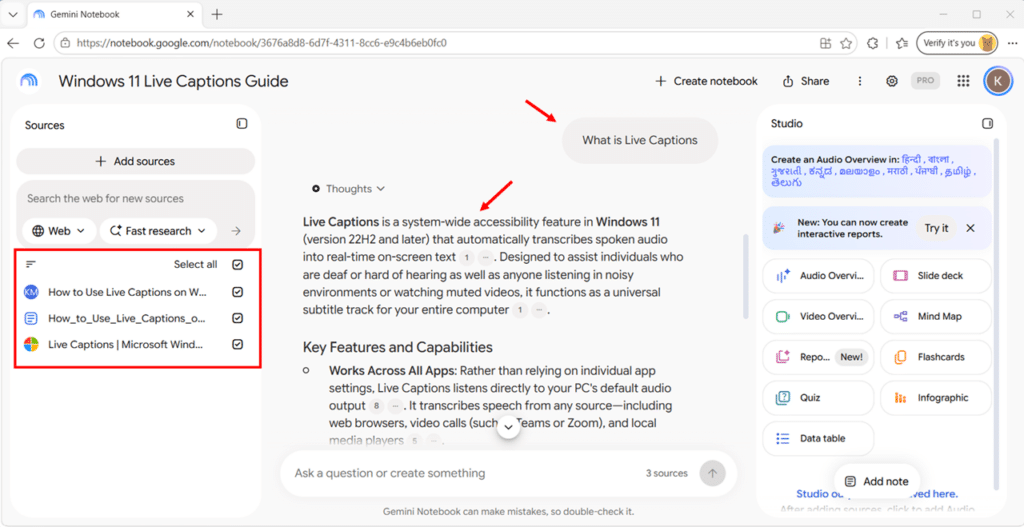
The whole experience sits in a clean three-panel workspace, and learning these three panels is really all you need to get going:
- Sources (left): your library. Upload PDFs, Google Docs, Slides, websites, YouTube links, and audio here. Check or uncheck each source to control exactly what the AI reads for a given question.
- Chat (center): where you ask questions and get grounded, cited answers. Think of it as a subject expert who has memorized only your materials.
- Studio (right): where you turn those sources into new formats, such as audio overviews, mind maps, and study guides.
A helpful way to think about it: Sources is what goes in, Chat is where you understand it, and Studio is what comes out.
All of this runs on Google’s Gemini models, which handle the reading, reasoning, and writing. Because the answers stay tied to your verified material, NotebookLM is far less likely to hallucinate than a general chatbot. Which is exactly why it has become a trusted tool for serious research.
One clarification worth noting: this strict source-only behavior applies in the standalone Gemini Notebook once you have added sources.If you open the same notebook through the Gemini app instead, the chat there can also use the open web, which the next section explains.
Two Ways to Access Your Notebooks
Here is something that trips up a lot of new users, so it is worth being clear about. Your notebooks live in one place, but you can open them through two different doors, and each door behaves differently.
Through the Gemini app (gemini.google.com)
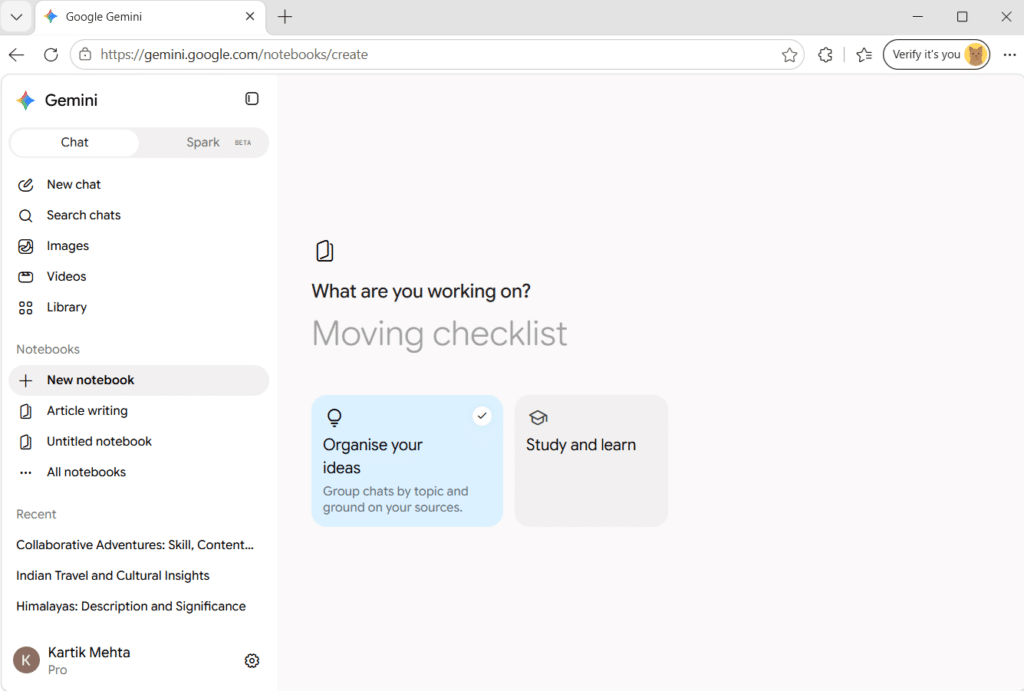
Your notebooks appear in the left sidebar of the Gemini app. When you chat here, you are talking to Gemini itself, so your notebook sources sit alongside its full toolkit.
Google puts it plainly: your chats in Gemini app notebooks “can include web searches and use of any Gemini tools.” In other words, this route is web-enabled. It will answer general questions and pull live information from the internet, treating your sources as added context rather than the only context.
This is why a notebook opened here will happily tell you the capital of India.
Through the Standalone Gemini Notebook (notebook.google.com)
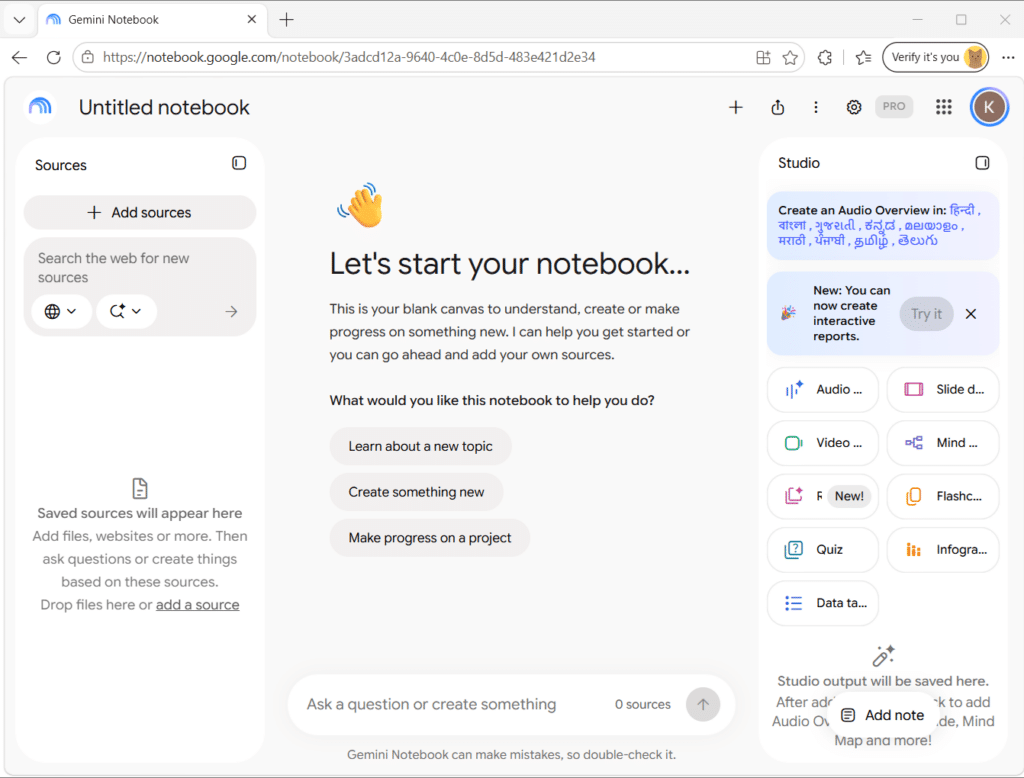
This is the classic three-panel app: Sources on the left, chat in the middle, Studio on the right. Here the chat is source-grounded. Google describes it as “designed to answer questions based on the information provided in your uploaded sources,” with clear inline citations. Once you add sources, it answers only from them. This is the route to use when you need answers tied strictly to your own documents.
The two stay in sync automatically, so a source you add in one shows up in the other. Pick the door by your goal: the Gemini app for research plus open-web reasoning, the standalone site for strict, cited, source-only answers. There is now a third way in too: your notebooks also appear in AI Mode in Google Search, covered under Integrations below.
Google NotebookLM Core Features and Capabilities
What began as a simple question-and-answer tool has grown into a full research-to-output studio. Here are the core capabilities you will actually use, grouped the way they appear inside the app.
Note: The Studio outputs below are the standalone Gemini Notebook toolkit (notebook.google.com), which has generally led on features. The Gemini app route offers a different mix, covered in “What the Gemini App Route Adds” at the end of this section. Google updates both often, so treat this as a snapshot.
Source Chat and Citations:
The Chat panel is the heart of NotebookLM. You ask a question in plain language, and it answers using only your uploaded sources.
- Grounded answers with inline citations: every claim links back to the exact passage, so verifying a point takes one click.
- Auto-generated overview: when you add sources, Gemini Notebook produces a summary with key topics and suggested questions to get you moving.
- Saved notes: keep useful answers in the notebook and even add them back as sources.
Audio Overviews
This is the feature that made NotebookLM go viral. It turns dense material into a podcast-style conversation powered by AI hosts.
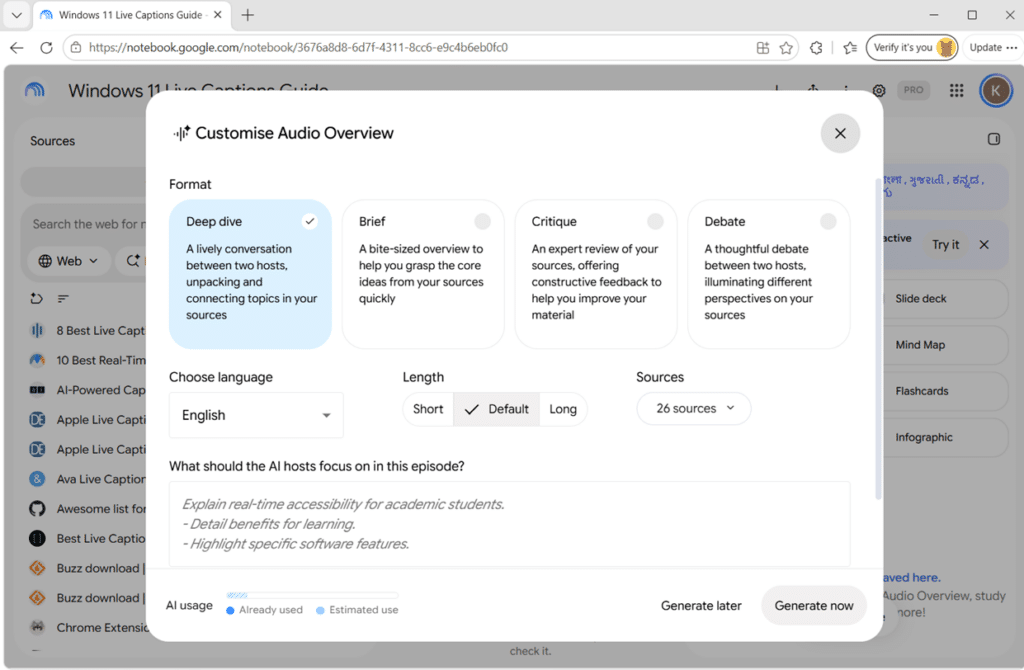
- Four formats: Deep Dive (a lively conversation between two hosts that unpacks and connects topics in your sources), Brief (a bite-sized overview to grasp the core ideas quickly), Critique (an expert review offering constructive feedback to improve your material), and Debate (a thoughtful debate between two hosts showing different perspectives on your sources).
- Focused prompts: tell it what to emphasize, for example “focus on the financial risks” or “explain this for a beginner.”
- Interactive Mode: join the conversation by voice and ask the hosts to explain a concept differently or add more detail.
- 80+ languages: generate overviews in more than 80 languages, with length options (Short, Default, Long) available in English.
Video Overviews and Visual Outputs
When reading and listening are not enough, NotebookLM turns your sources into something you can watch.
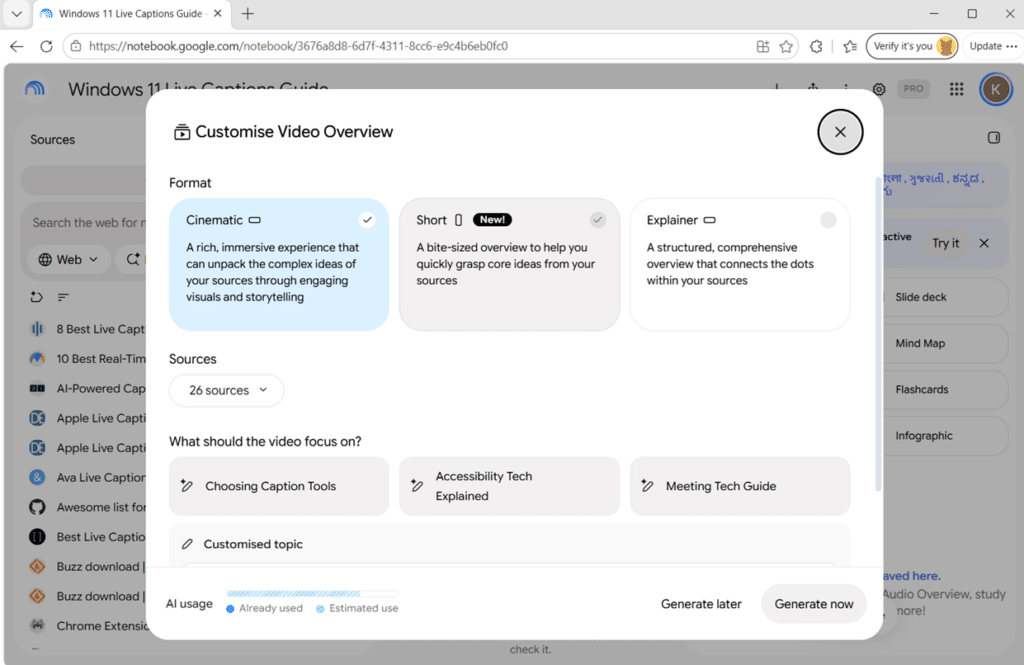
- Narrated video explainers: animated visuals, on-screen text, and voice-over built from your material.
- Three formats: Cinematic (a rich, immersive experience that unpacks complex ideas through engaging visuals and storytelling), Short (a bite-sized overview to grasp core ideas quickly), and Explainer (a structured, comprehensive overview that connects the dots within your sources).
- Slide decks and infographics: generate presentation-ready decks and visual one-pagers, with export options to tools like Google Slides.
Studio Tools
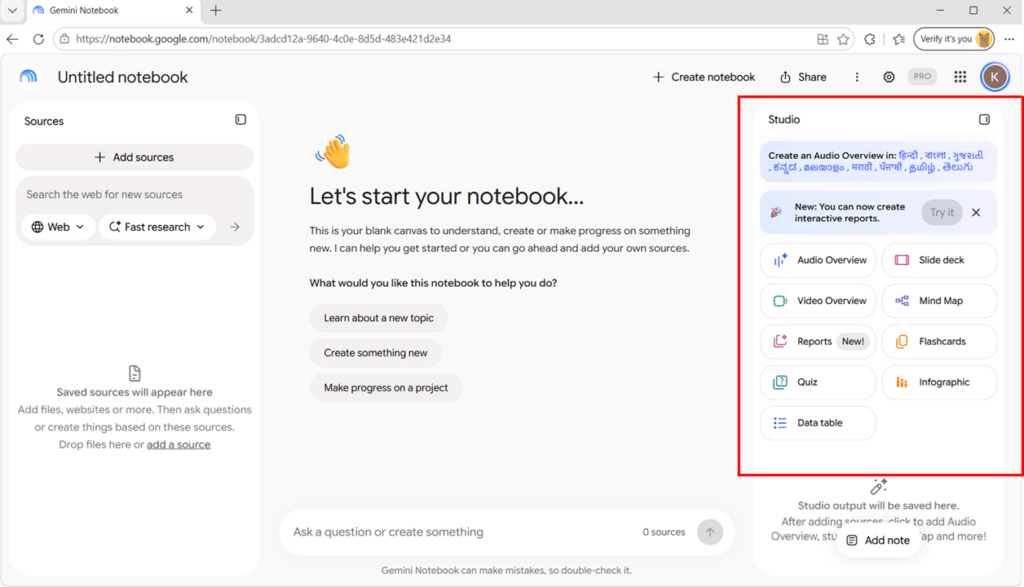
Beyond audio and video, the Studio panel transforms your sources into other formats for understanding and sharing.
- Interactive mind maps: see how ideas connect across documents, then click any node to dig deeper.
- Reports: generate reports from your sources in formats such as study guides, briefing documents, FAQs, and timelines, and now interactive reports.
- Flashcards and quizzes: built-in tools for revision and testing.
- Data tables: pull structured information out of your sources into a table you can scan or reuse.
In short, Studio turns one set of sources into several different output formats.
Deep Research and Source Discovery:
NotebookLM is no longer sealed off from the web when you need it to look outward.
- Source discovery: describe a topic and let NotebookLM suggest and pull in relevant sources to add to your notebook.
- Fast versus Deep Research: Fast Research quickly pulls in web or Drive sources that match your query, while Deep Research can browse hundreds of sites and compile a multi-page report in minutes.
- Still grounded: anything it finds becomes a source you can review and cite, so the trust model stays intact.
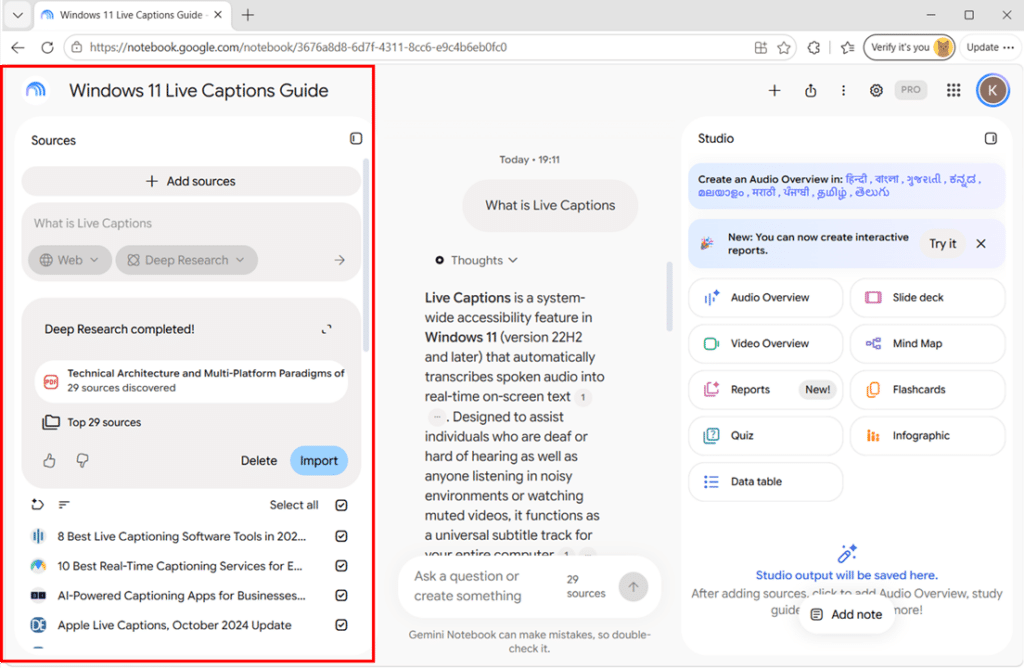
Together, these features make NotebookLM more than a question-and-answer tool: it helps you understand a body of material and turn it into different formats.
What the Gemini App Route Adds (and What It Drops)
Everything above is the standalone Gemini Notebook toolkit. Open the same notebook through the Gemini app instead, and the feature mix changes. Here is what you gain, and what you give up.
What you gain:
- Live web search: Gemini answers using your sources alongside the open web, so you are not limited to what you uploaded.
- The full Gemini toolkit: image generation, Canvas, and Gemini’s other tools work right inside the notebook.
- Memory and custom instructions: notebook memory persists your sources and conversation across sessions; custom instructions set the response tone.
- A project workspace: organize chats and files together with continuous history, more like a project than a one-off search.
- Study notebooks: dedicated study tools in the Gemini app, with Keep Activity enabled.
What you give up:
- Strict grounding: because the chat can reach the web, answers are no longer limited to your sources, so the source-only guarantee does not apply on this route.
- Studio output limitations: Video Overview and Infographic generation is available only in the standalone Gemini Notebook; the Gemini app route does not support these outputs.
Tip: Use the Gemini app route when you want to create and reason broadly, and switch to the standalone app when you need cited, source-only answers or the full Studio output set.
Supported Sources and Upload Limits
NotebookLM is only as good as what you feed it. The good news is that it accepts a wide range of material, and in 2026 that range is broader than ever. Here is what you can upload, how your sources stay current, and where the limits sit across the free and paid tiers.
Supported Source Types
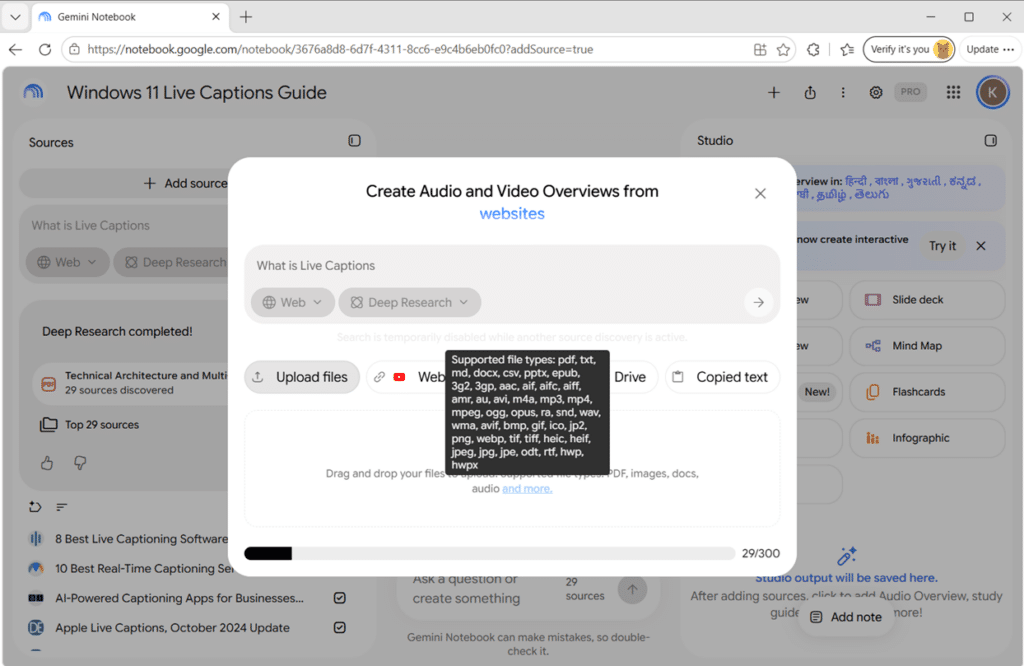
NotebookLM handles most of the formats you already work with every day.
- Documents: PDF, Microsoft Word (.docx), PowerPoint (.pptx), plain text (.txt), Markdown (.md), Rich Text (.rtf), and OpenDocument Text (.odt)
- Google Workspace files: Google Docs, Slides, and Sheets, with the smoothest results inside the Google ecosystem
- Spreadsheets and data: Google Sheets (up to 100k tokens) and CSV files; native Excel (.xlsx) is not on Google’s supported list, so export to CSV first
- Images: PNG, JPG, WEBP, GIF, BMP, TIFF, and HEIC image files
- Web pages: paste any public URL to pull in an article or report
- Audio and video: YouTube links, plus audio files such as MP3, WAV, M4A, AAC, and OGG, and video files such as MP4 and AVI, so lectures and recordings become searchable
- eBooks and notes: EPUB files, pasted text, and even handwritten notes it can read
Google Drive Sync and Living Connections
This is a feature many people miss, and it saves real time.
- Automatic syncing: connected Google Docs and Sheets update inside your notebook whenever the original file changes
- No manual re-upload: you are not stuck replacing a document every time you edit it
- Best for teams: everyone keeps working from the current version, not last week’s copy
Source and Upload Limits by Tier
Limits are set across four tiers that Google restructured in late 2025: Free, Plus, Pro, and Ultra. The numbers below reflect what is widely reported in 2026.
Google NotebookLM Integration Capabilities
NotebookLM does not live in isolation. Because it is a Google product, it plugs neatly into tools you may already use every day, and in 2026 those connections have grown noticeably deeper.
Google Workspace and Drive
NotebookLM connects directly to Google Drive, so you can pull in Docs, Slides, and Sheets without downloading and re-uploading anything.
Even better, connected Docs and Sheets stay synced, so when the original file changes, your notebook updates on its own.
The bigger shift in 2026 is the two-way link with the Gemini app. Notebooks now appear in the Gemini sidebar, and sources you add in one place show up in the other. In practice, you get NotebookLM’s strict, cited accuracy alongside Gemini’s wider set of tools and web access, without juggling tabs.
Google Classroom (for educators)
For teachers, the Classroom integration is especially useful. Educators can create and assign NotebookLM notebooks directly inside Google Classroom, and students can build their own personal class notebooks from the Gemini tab.
.That turns a semester’s readings, lecture recordings, and handouts into a study companion the whole class can use. In 2026 Gemini in Google Classroom expanded to users of all ages, so it is no longer limited to students 18 years of age and older
Note: The Google Classroom integration requires a Google Workspace for Education account, with an admin enabling Gemini Notebook access for teachers and students. It is not available on a personal Google account.
AI Mode in Google Search
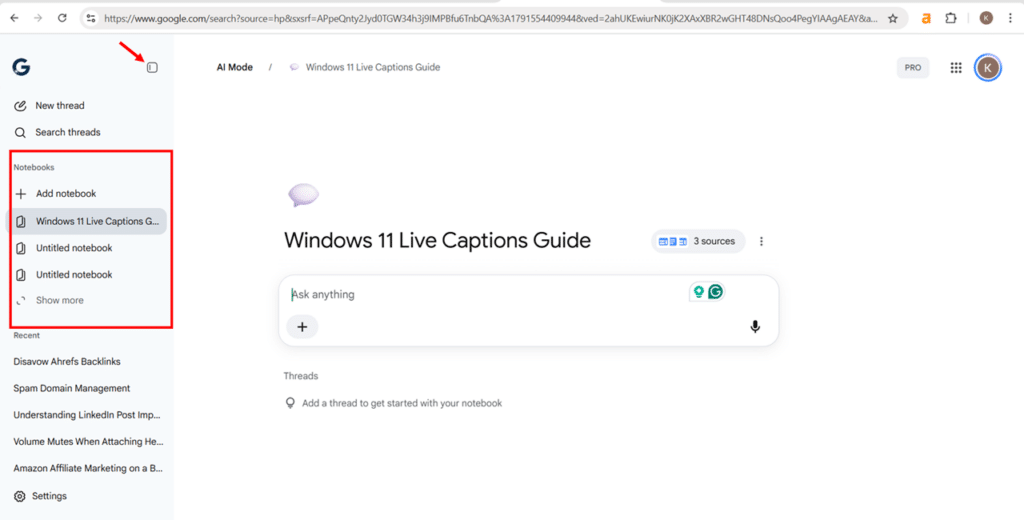
The newest way to reach your notebooks is now available in Google Search. Notebooks you create in Gemini Notebook automatically appear in AI Mode in Google Search, where you can view them, chat with them, and have changes sync back.
In AI Mode, your notebooks appear in the left sidebar under Notebooks, which you open from the sidebar button if it is collapsed. There are limits worth knowing: AI Mode cannot generate the Studio outputs (no Audio or Video Overviews, Infographics, or Slide Decks there), it is not available in the European Economic Area, and responses are English-only for now
Mobile Apps
NotebookLM has dedicated apps for both iOS and Android, so your notebooks travel with you. The mobile experience suits the way many people actually consume this content: generating an Audio Overview and listening on a commute, or checking a cited answer between meetings.
Notebook access inside the Gemini mobile app is now available on Android and iOS.
Ecosystem Lock-In Considerations
NotebookLM’s integrations are excellent, but they point almost entirely inward, toward Google’s own ecosystem. There is no broad library of third-party connectors to tools like Notion, Slack, or Microsoft 365, and no public integration marketplace.
If your work is already stored in Google Drive and Workspace, this is a genuine strength and everything feels seamless. If it does not, you will spend time exporting files into Google formats to get the cleanest results. The deeper you build inside NotebookLM, the more your research workflow is tied to Google.
Google NotebookLM Pricing
Let me clear up the most common point of confusion first: you cannot buy NotebookLM on its own. The free version is free forever, and paid upgrades come bundled inside Google’s wider AI subscriptions: Google AI Plus, Pro, and Ultra.
What you pay for is two things: capacity, meaning more sources, more notebooks, and higher usage limits; and, on the higher tiers, higher access to Google’s Gemini models, so Pro and Ultra can tap more capable model access than the free tier.
In 2026 Google moved Gemini Notebook from fixed daily caps to a flexible, consumption-based model. Your allowance now depends on prompt complexity, chat length, the number of sources, and the features you use, and it refreshes roughly every five hours rather than once a day. Heavier outputs, such as Video Overviews, use more of your allowance.
Which Plan Fits You
For most people, the free plan is more than enough. With 100 notebooks and 50 sources each, it comfortably covers study, personal research, and small projects. You only need to look at paid tiers when you regularly hit the source cap or run out of your usage allowance.
- Plus is the cheapest step up, roughly doubling the free limits. Good for steady, light-to-moderate use.
- Pro suits heavy researchers and content creators who generate audio and video often, or need up to 300 sources in one notebook.
- Ultra is for power users running large investigations, with the highest limits of any tier.
Students and Organizations
Students in some regions can get Google AI Pro at a reduced rate with a verified student email, so check the current offer before paying full price. Larger teams can buy NotebookLM Enterprise through Google Cloud instead of a consumer plan, which adds admin controls and compliance features for business use.
Google NotebookLM Pros
- Answers you can trust: Because every response is grounded in your own sources and backed by inline citations, NotebookLM rarely makes things up. You can verify any claim in one click, which is a big deal for serious research.
- A free tier that actually delivers: The free plan includes 100 notebooks with up to 50 sources each, plus the core features, so most people never need to pay.
- Turns reading into listening and watching: Audio Overviews, Video Overviews, and mind maps let you absorb dense material in whatever format suits you, all generated from a single set of sources.
- Fast synthesis across many documents: Upload dozens of files and get connected insights, summaries, and answers in minutes, not hours. It is excellent at spotting themes and contradictions across sources.
- Simple, approachable interface: The three-panel layout is easy to learn so that you can get real value in your first ten minutes without a manual.
- Deep Google integration: Drive syncing, Google Classroom support, and the new two-way link with the Gemini app make it feel at home if you already live in Google Workspace.
- Broad source support: PDFs, Google Docs, websites, YouTube videos, audio files, and more all go into one notebook, so your research stays in a single place.
Additional pros on the Gemini app route (on top of the shared pros above):
- Live web search: answers draw on the open web alongside your sources, so you are not limited to what you uploaded.
- The full Gemini toolkit: image generation, Canvas, and Gemini’s other tools work right inside the notebook.
- Notebook memory and custom instructions: it remembers your sources and ongoing discussion, and you can set a preferred tone for replies.
- A project-style workspace: organize chats and files together with continuous history, more like a project than a one-off search.
Google NotebookLM Cons
- Tied to the Google ecosystem: The integrations point almost entirely inward. There are no connectors for tools like Notion, Slack, or Microsoft 365, and non-Google files work best only after you convert them. If you do not live in Google Workspace, some friction is unavoidable.
- Data use depends on your account type: on a free or personal account, giving feedback sends your uploads and outputs to Google for human review and model training; on Google Workspace Business or Enterprise, your uploads, queries, and responses are not used for training, not human-reviewed, and stay within your organization.
- It cannot fix weak sources: NotebookLM is only as good as what you feed it. Upload thin or biased material and you will get thin or biased answers. It organizes and explains, it does not fact-check your sources for you.
- Free limits are easy to hit for heavy users: The 50-source cap per notebook and the free tier’s standard usage limits will frustrate power users, pushing them toward a paid plan.
- Newer formats have limited reach: Some of the latest outputs, such as cinematic Video Overviews and certain languages, are restricted to higher tiers or to English, so your experience depends on your plan and region.
- No standalone purchase: You cannot buy NotebookLM by itself. Paid limits come bundled into Google’s wider AI subscriptions, which may mean paying for features you do not need.
Additional cons on the Gemini app route (on top of the shared cons above):
- No strict source-only guarantee: because this route can reach the open web, answers are not confined to your uploads, so the grounding and anti-hallucination edge weakens.
- Weaker privacy posture: content here falls under Gemini Apps Activity, and even with that turned off, feedback-related material including a notebook’s Gemini chats can be collected and reviewed by trained teams.
- Fewer rich outputs: the Gemini app route cannot generate some of the standout Studio outputs, such as Video Overviews and Infographics. To create those, you switch to the standalone app.
- Still catching up on features: the Gemini app notebook has trailed the standalone app, with things like website sources and study-notebook creation arriving there later.
- No extra capacity: because the two sync, notebooks you create here count against the same capped allowance, so you do not get a separate pool.
Who Should (And Shouldn't) Use Google NotebookLM
NotebookLM is not for everyone, and that is a good thing. It is built for a specific job: understanding material you already have. Here is who gets the most out of it, and who should look elsewhere.
Who Should Use NotebookLM
- Students and exam-takers: Turn lecture notes, textbooks, and recordings into study guides, quizzes, flashcards, and Audio Overviews you can revise with on the go.
- Researchers and analysts: Anyone juggling dozens of papers, reports, or case files will value fast synthesis and cited answers across a large body of sources.
- Educators: The Google Classroom integration lets teachers assign notebooks and build a shared knowledge base from course material, with admin controls for safety.
- IT professionals and power users: Ideal for building a private reference library from documentation, runbooks, and vendor guides that you query again and again.
- Content creators: Repurpose research into podcasts, mind maps, and slide decks without starting each format from scratch.
- Busy professionals: If you drown in PDFs and meeting notes, NotebookLM gives you the key points in minutes, with sources to verify.
Who Should NOT Use NotebookLM
- People who need open-web brainstorming: If you want the AI to generate ideas freely from everything it knows, a general chatbot like Gemini or ChatGPT is the better fit, or simply open your notebook through the Gemini app instead of the standalone site.
- Teams with strict data rules, mind the account: On a free personal account, be careful with confidential material and avoid the web-enabled Gemini app route. On Google Workspace Business or Enterprise, your uploads, queries, and responses are not used for training, not human-reviewed, and stay within your organization. Even then it does not cover every regime: it is not HIPAA compliant, so check your specific requirements before uploading regulated data.
- Non-Google workflows: If your work is stored in Notion, Microsoft 365, or other non-Google tools, the lack of connectors means constant exporting, and the friction may outweigh the benefit.
The simplest test: if you have good sources and want to understand them deeply, NotebookLM is excellent. If you want the AI to think beyond your material, look elsewhere.
My Final Words
What I like most about NotebookLM is how it changes your relationship with information. It lets you:
- Turn dense documents into podcasts, mind maps, and study guides in minutes
- Keep every project in its own searchable notebook, kept private on a Workspace Business or Enterprise plan
Is it perfect? No. You are tied to the Google ecosystem, and heavy users will hit the free limits. But for accuracy and ease of use, few tools come close.
My advice for getting real value:
- Start with the free plan and one real project
- Upload three documents and generate an Audio Overview
- Build a study guide or mind map to see how it connects ideas
- Upgrade only when a limit actually slows you down
For students, researchers, and busy professionals, NotebookLM is one of the rare AI tools that makes you sharper rather than lazier. Open a notebook, give it ten minutes, and let the results speak for themselves.
If this review helped, bookmark the blog for more hands-on AI tool breakdowns.
Frequently Asked Questions (FAQs)
Yes. Google renamed NotebookLM to Gemini Notebook in July 2026. Both names refer to the same product.
Yes. The free plan costs nothing and includes 100 notebooks with 50 sources each. Higher limits come bundled in the Google AI Plus, Pro, and Ultra subscriptions rather than as a standalone purchase.
Fifty on the free plan, 300 on Pro, and on Ultra either 500 on the 20 TB plan or 600 on the 30 TB plan.
The Gemini app at gemini.google.com is web-enabled and answers using your sources alongside the open web. The standalone Gemini Notebook at notebook.google.com is source-grounded and answers only from your uploaded sources, with citations.
No. It is not HIPAA compliant, so do not upload protected health information regardless of your plan.
Yes. It has dedicated iOS and Android apps, and notebook access is also available in the Gemini mobile app on both platforms.