
You copy an address, then you copy a phone number. The address is gone.
The default Windows clipboard holds one item at a time, and everything you copied before it disappears. If you copy and paste all day, you lose work to this constantly.
Search for a fix, and you hit another problem. Several top-ranking clipboard manager roundups are written by clipboard tool vendors, and each one ranks its own product first.
This article is not one of those. I have spent 24 years in enterprise IT, and I use Windows 11 every working day.
I installed all seven tools on the same Windows 11 Pro 25H2 machine and ran one identical test in each. I used the same recall, search, pinning, and paste checks for every tool. The rankings below come from that test.
If you want to explore more productivity-boosting Windows features, see my guide to 10 Windows 11 hidden features you’re probably not using.
Table of Contents
My Top Picks
CopyQ: Best free clipboard manager overall
- The scripting engine automates clipboard operations and text transformations.
- Tabs organize clips into groups that stay put instead of scrolling away.
- Stored clips can be edited in place before pasting.
- CopyQ runs on Windows, macOS, and Linux.
- Price: Free and open source.
ClipboardFusion: Best for pasting without formatting
- Automatic text scrubbing removes formatting on copy.
- Macros apply custom transformations to clipboard contents.
- The Pro tier syncs clips across computers and mobile devices.
- Global hotkeys cover over 25 clipboard actions straight from the keyboard.
- Free for personal use; Pro Standard: $19 USD lifetime.
ClipClip: Best for organizing snippets
- Organizes clips into folders and collections by project or task.
- Permanently saved snippets for repeated pastes such as email replies and code blocks.
- Edits and translates clipboard text without leaving the app.
- Price: Free.
PowerToys Advanced Paste: Best Microsoft add-on
- Every transformation binds to its own global keyboard shortcut.
- Paste as file creates .txt, .html, or .png output from the clipboard.
- Transcodes audio and video to .mp3 or .mp4 locally.
- Free and open source, inside PowerToys.
What Is a Clipboard Manager
A clipboard manager records everything you copy and keeps it in a searchable history. Instead of holding one item, it holds hundreds or thousands, and you paste any of them whenever you need to.
The standard Windows clipboard works differently. It stores only one item, and the moment you copy something new, it overwrites the previous item. There is no warning and no recovery.
A clipboard manager sits between you and that limitation. It watches the clipboard, saves each copied item as it arrives, and gives you a window or hotkey to bring back any saved item. Most tools in this article store text, images, links, and files.
The better tools go further. They let you search your history, pin items you reuse, organize clips into folders, strip formatting before pasting, and sync your clipboard between machines.
You already have a basic version of this. Windows 11 includes Clipboard History; press Win + V to open it. It stores up to 25 items, syncs them through your Microsoft account if you switch that on, and lets you pin items you want to keep.
Here is what most roundups will not tell you. If you copy and paste a few times a day, Windows 11 Clipboard History is enough, and you don’t need to install anything. The tools in this article are for people who hit its limits. The 25 item cap, the missing search, and the history that clears on restart.
All 7 Clipboard Managers, Ranked
Here are all nine clipboard managers in ranked order.
- CopyQ, best free clipboard manager overall
- ClipboardFusion, best for pasting without formatting
- ClipClip, best for organizing snippets
- PowerToys Advanced Paste, best Microsoft add-on
- ArsClip, best for paste automation
- Clipdiary, best for long term history
- Windows 11 Clipboard History, best if you install nothing
1. CopyQ
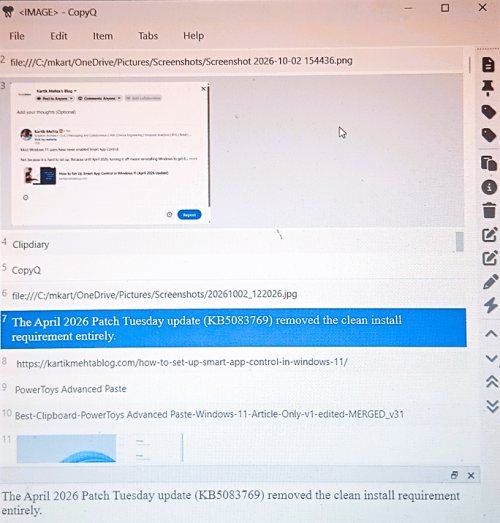
CopyQ is the clipboard manager for people who want to program their clipboard, not just extend it.
It is a free, open source tool that runs on Windows, macOS, and Linux. Alongside a searchable history, it includes a scripting engine and a command line interface, so you can automate clipboard operations and wire them into other tools.
A free , open source, and scripting engine that automates any clipboard task, is the whole reason CopyQ is number one
Key Features we Liked
- The scripting engine automates clipboard operations and transforms text on copy or paste.
- The command line interface lets you read, write, and manipulate clipboard content from the terminal. It works with bash scripts and task schedulers.
- Global shortcuts can be triggered from any application. Built-in actions include paste current time, paste as plain text, copy next/previous item, and toggle clipboard storing.
- Tabs organize clips into custom categories like Work, Code, or Links.
- CopyQ supports text, HTML, images, URLs, and custom MIME types.
- Search covers the full history with regex support for precise matches.
- You can pin any clip. Pinned items are preserved from being overwritten.
- Item notes let you attach context to any clipboard entry.
- Tagging groups related items for later filtering.
- Tabs and items can be encrypted, but this requires installing GnuPG separately.
- Directory sync moves your clipboard across machines through a shared folder like Dropbox, Google Drive, or a network drive.
- Themes include light, dark, and custom CSS-like styles.
- The built-in editor lets you fix or reformat any saved clip inline.
- Import and export clip data through the File menu (Ctrl+Shift+I to import, Ctrl+S to export).
The Honest Limitation
CopyQ requires technical knowledge. The features that justify its ranking, scripting and custom commands all take time to learn.
Pros
- Free and open source under GPLv3, with no paid tier.
- The only tool on this list with a full scripting engine and command line interface.
- No hard cap on clipboard items.
- Pinning, notes, tagging, and tab encryption for organization.
- Directory sync uses any file sync service, no vendor account needed.
- Cross platform: Windows, macOS, and Linux.
Cons
- Steep learning curve for anything beyond basic history.
- The interface is utilitarian and configuration heavy compared with polished paid tools.
- Encryption requires installing GnuPG separately, not built in.
Pricing
Free and open source under GPLv3. No paid tier, trial terms, or license purchase. Donations accepted through the project site.
My Take
If you only install one tool from this list, install CopyQ. It replaces the default Windows clipboard that holds only one item, and gives you a searchable history at no cost. Raise the maximum number of items in history from the default 200 in Preferences on first run. Ignore the scripting engine and command line interface unless you write code, and the tool still works well as a basic clipboard history.
2. ClipboardFusion
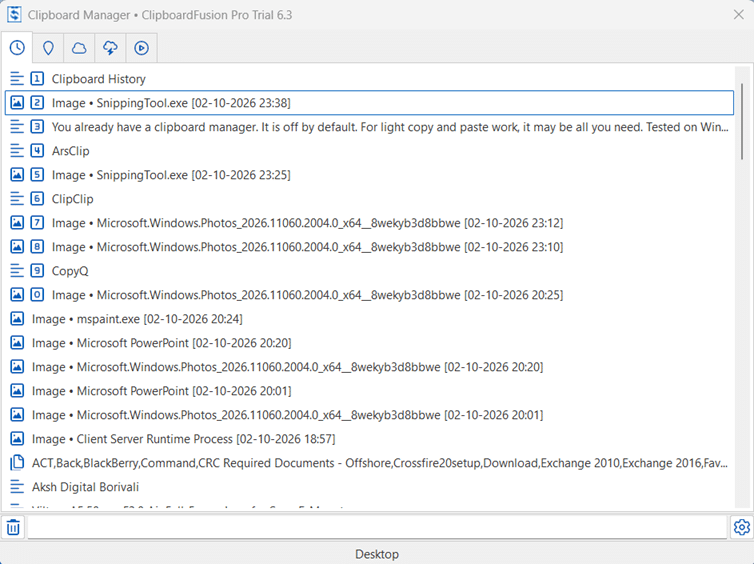
ClipboardFusion fixes the most common clipboard complaint: formatting that follows text wherever you paste it. Tested on Windows 11 Pro 25H2 with ClipboardFusion Pro Trial 6.3.
ClipboardFusion scrubs text copied to the clipboard. Instead of stripping formatting when you paste, it strips formatting when you copy, so every paste arrives clean without a special shortcut.
Password managers like 1Password, KeePass, and LastPass are pre-excluded from clipboard capture out of the box, so passwords never enter the clipboard history
Scrubbing formatting on copy, rather than on paste, is the whole reason ClipboardFusion is number two.
Key Features we Liked
- Automatic text scrubbing removes formatting at the moment of copy, so pasted text arrives clean everywhere.
- Macros are written in C# in the integrated editor. They transform clipboard contents when triggered, enabling repeatable text cleanup operations.
- The Pro tier syncs clips across computers and mobile devices through a Binary Fortress account.
- History limits are configurable, and pinned custom clips stay available no matter how much history turns over.
- Configurable global hotkeys cover over 25 clipboard actions, so common tasks run from the keyboard without opening any window. Example actions you can bind include Show History Menu, Sync current Clipboard text, Clear the Clipboard History, and Pause Resume ClipboardFusion. Reserving hotkeys for the two or three actions you use daily turns ClipboardFusion into a keyboard driven workflow.
- Drag items from the Clipboard Manager window directly into other programs, so you place a stored clip exactly where you want it without switching applications and pasting.
- Application Exceptions let you exclude specific applications from clipboard capture. Password managers like 1Password, KeePass, and LastPass are pre-configured out of the box. Each exception can match by process filename, command line parameters, window text, or window class. Per-app rules can also auto-delete history items after a set number of days or clear the clipboard after a set time.
- Quick Clipboard History Select and Quick Local Pinned Item Select paste any of the last 10 items with a HotKey modifier plus 0-9.
- Runs on Windows, macOS, iOS, Android, web, and Chrome extension.
- The default list in the Clipboard Manager is configurable, choosing which of the five lists (History, Pinned, Online Recent, Online Pinned, or Macros) opens focused first, so the Clipboard Manager fits your primary use case.
The Honest Limitation
The free version covers scrubbing, a basic history, hotkeys, macros, and manual triggers. Syncing across devices and automatic triggers that run on clipboard change or on a timer require the paid Pro license.
Pros
- Scrub on copy removes the formatting problem at its source.
- Established developer with a long maintained product line.
- The free tier exists and covers core scrubbing use.
- Macros let you do custom text transformations without a separate tool.
- Cross-platform coverage from Windows and macOS to iOS, Android, web, and Chrome extension.
- Password managers are excluded from clipboard capture out of the box, a real security default not seen in the rest of the list.
Cons
- Sync and advanced macro features require the Pro license.
- Sync requires a Binary Fortress account.
- The free version is licensed for personal use only, so readers on company machines need a Pro license from day one (ClipboardFusion EULA).
Pricing
The free version of ClipboardFusion is for personal use only; company use requires a Pro license. A Pro Standard license costs $19 USD per machine, and a Pro Personal license costs $29 USD and covers every personal computer in your house plus one company computer that only you use. A Site license costs $199 USD, and an Enterprise license costs $899 USD. Every license is a lifetime license valid for all future versions, and every download includes a 30-day Pro trial. Prices verified on the vendor site, 8 September 2026.
My Take
If formatted text is your main clipboard complaint, this is the tool that removes it at the moment of copy. Use the free version at home, and budget $19 USD per machine for company use, because the free licence covers personal use only.
3. ClipClip
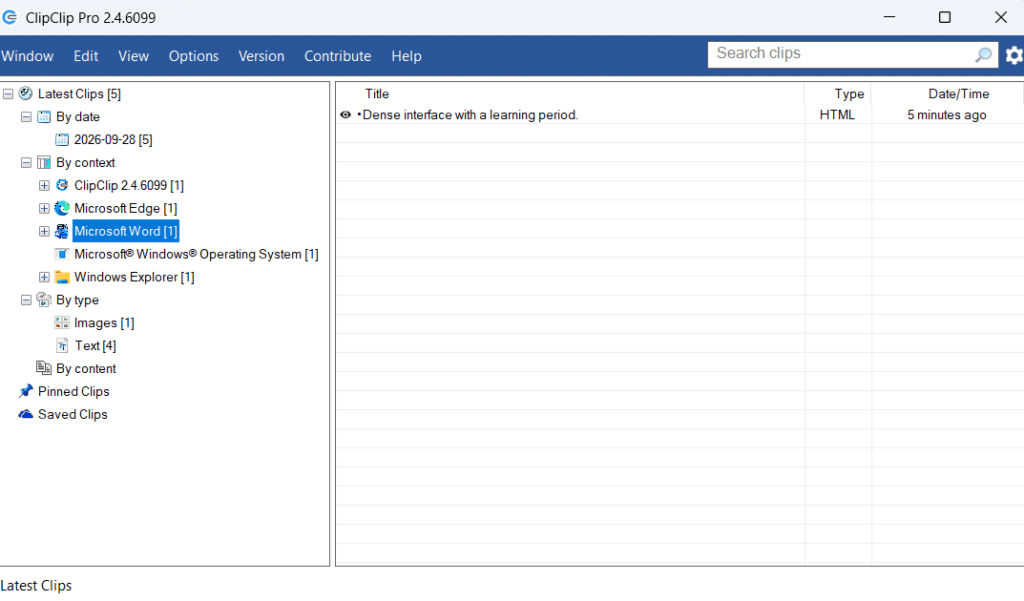
ClipClip organizes your clipboard into folders and saved snippets, and that structure is what makes it useful.
It is a free Windows tool built around organization. Copied items land in a history as usual, but the difference is what happens next. You can file clips into folders and collections, save them permanently as snippets, and edit or translate them without leaving the app.
Folders for your clipboard are the whole reason ClipClip is number four.
Key Features we Liked
- Folders and collections organize clips by project or task, rather than a single flat history.
- ClipClip stores up to 1,000 clips, saved locally with encryption.
- Plain text, rich text, and HTML clips each have a built-in editor, so you can fix a clip before pasting it.
- Image clips can be resized, drawn on, blurred, and annotated inside ClipClip.
- To translate a clip, right-click on it, choose Translate and use clip, and pick a target language. The translated text comes back as a new clip. ClipClip supports Google Translate, DeepL, Translate.com, and Bing Translate as the translation providers.
- Clips can be filtered by date, context, or type.
- Connect ClipClip to Google Drive, OneDrive, or Dropbox, and your clips are saved in that cloud platform. You can then use the same clips on your other computers.
The Honest Limitation
ClipClip shows you everything at once. The window carries several panes and options, and your first days go into learning which of them you actually need. If you want a minimal popup history, this tool will feel heavy.
Pros
- Free access to the full organizational feature set.
- Saved snippets remove retyping for daily repeated text.
- Editing and translation happen inside the app.
- One library handles text, links, images, and files.
Cons
- Steep learning curve to understand all features
Pricing
Free for personal use. A one-time Commercial License costs $49 USD per user for commercial use
My Take
If you type the same replies every day, ClipClip lets you save them as snippets and organize them into folders, so you paste each one instead of retyping it. Spend your first session saving your five or ten most repeated replies, because ClipClip has no value until real snippets are stored in it. If you only want to recall recently copied items, without saving and organizing snippets, CopyQ covers that job without the folder system.
4. PowerToys Advanced Paste
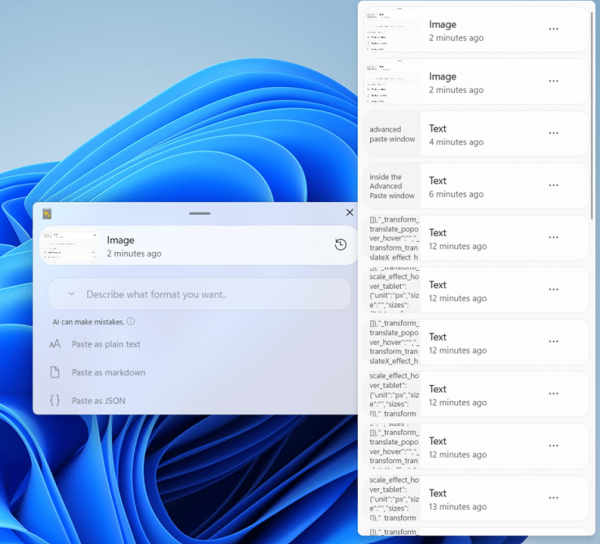
PowerToys Advanced Paste is mainly a paste transformer. It changes what is on your clipboard right now and pastes the new version. It can also give you access to the Windows Clipboard History from its own window, so you can modify past clips as well. For this, turn on Windows Clipboard History (Win + V), and enable the Access Clipboard History checkbox in the Advanced Paste settings.
It comes as a free module inside Microsoft PowerToys. You press Win + Shift + V (the default shortcut), and the Advanced Paste window opens.
From that window you can paste the clipboard content as plain text, Markdown, JSON, or a file. You can also extract text from an image, convert audio or video, or run an AI transform.
Advanced Paste offers paste transformations that no other tool in this list matches, is why Advanced Paste ranks number three.
Key Features we Liked
Advanced Paste features
- The Advanced Paste window lets you pick plain text, Markdown, or JSON. The tool then pastes the clipboard content in that format.
- Every transformation can be given its own global shortcut in PowerToys Settings. A frequent conversion like paste as plain text then runs from one keystroke, without opening the window.
- Paste as file turns the clipboard content into a .txt, .html, or .png file at the destination.
- Image to text pulls text out of a copied image using local OCR. Screenshots become editable text without any online service.
- Transcode saves a copied audio or video file as .mp3 or .mp4 (H.264/AAC). It runs locally through the Windows media pipeline.
- AI paste is optional. It works with online providers such as OpenAI, Azure OpenAI, Google, Mistral, or Azure AI Inference. It also works with a local model through Foundry Local, Ollama, or Phi Silica.
- Access Clipboard History is an optional setting that opens the Windows Clipboard History panel from the Advanced Paste window.
PowerToys features
- The module ships inside PowerToys. There is no separate install or vendor to manage.
- Feature updates arrive through PowerToys releases. New paste formats are added over time.
The Honest Limitation
Advanced Paste needs access to Windows Clipboard History to show past clipboard items.
Pros
- Free, open source, and maintained by Microsoft.
- The paste transforms happen at the moment you paste. You do not paste then clean up.
- No separate install or vendor, since it ships inside PowerToys.
- It runs alongside a Clipboard History, so the two tools complement each other.
Cons
- No clipboard history of any kind.
- AI paste through a cloud AI service like OpenAI or Google needs your own API key. That usage is billed by the service
Pricing
Free and open source as part of Microsoft PowerToys. The AI powered paste option requires the user’s own OpenAI API key, and that usage is billed by OpenAI at OpenAI’s rates, outside the tool.
My Take
If you already run PowerToys, enable Advanced Paste today and use the paste as plain text option first.
Advanced Paste does not replace a tool like CopyQ, because it has no lasting history of its own and depends on the Windows Clipboard History, which clears at restart
Install it together with a history manager, so one tool recalls old clips and the other converts the current one.
5. ArsClip
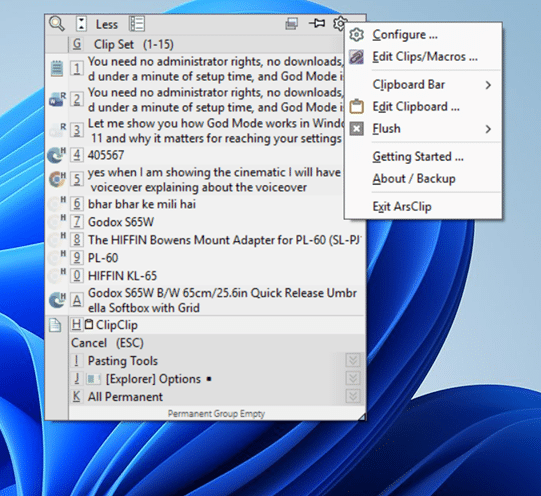
ArsClip is a freeware clipboard tool for Windows. It focuses on one job, saving you time on repeated paste work. Tested on Windows 11 25H2 with ArsClip 5.46.
Every clip you copy goes into a rolling history. Items you use often can be saved as Permanent Clips. The vendor also calls these Macros. A Permanent Clip can run keystrokes and commands. It can also be assigned its own global hotkey.
You call the paste popup with a hotkey, by holding the right mouse button, or through a trigger window. The popup opens where you are typing. You pick a clip from the list, and the tool pastes it.
Configuration lives in one window. It covers hotkeys, clipboard monitoring, popup behavior, popup presentation, and optional features. A Configuration Mode dropdown offers Basic, Standard, or Expand All views to control how much of the settings tree is expanded. A Search button finds any option quickly.
First-time tip. The first time you use the right-click hold trigger, ArsClip shows a one-time confirmation dialog. It asks you to keep the default setting. Click Yes, and the popup then opens with your clip history.
ArsClip is number five for one reason. A Permanent Clip contains keystrokes and commands. When triggered, it simulates the keystrokes and executes the commands.
Key Features we Liked
- The paste popup can be triggered by a hotkey, by holding right-click, or by a trigger window.
- Permanent Clips, also called Macros, can run keystrokes and commands. Each one can be given a global hotkey. They automate tasks like form filling, template creation, and web searches.
- ArsClip supports Picture, Rich Text, File Copy, Unicode, and HTML.
- The optional Clipboard Bar is a floating viewer that shows the current clip on your clipboard. You toggle it from the system tray menu, resize it as needed, move it on screen using the small “P” grip in its corner, and drag content from it into other apps. It shows only the current clip, not the clip history. For clip history, you use the paste popup instead.
- Per-program options let you set clipboard behavior for individual apps. You can add any program and configure paste method, mouse trigger, focus mode, and monitoring on a per-app basis. Nine common apps come pre-populated, including Chrome, Excel, Word, Outlook, and Edge.
- An optional Global Clipboard shares clips with other Windows and Android devices.
The Honest Limitation
The ArsClip interface is dated, and its configuration options take time to learn. The interface has not been modernized, and users on high resolution displays have reported blurry rendering.
Pros
- Freeware with no paid tier.
- Runs portable from a zip. No installer is needed.
- The only tool in this list with Permanent Clips that run keystrokes and commands.
- Three trigger methods for the popup, so it fits different working styles.
Cons
- Dated interface compared with other tools in this list.
- Macro configuration takes time to learn.
Pricing
Freeware. The source code is included in the download. It cannot be modified and redistributed for commercial gain as a new product
My Take
If you paste the same set of items repeatedly, for example filling forms or entering data field by field, ArsClip is the only tool here with Permanent Clips that automate paste sequences with keystrokes and commands. If you paste one item at a time, CopyQ covers the same core job and adds stronger search across a larger history.
6. Clipdiary
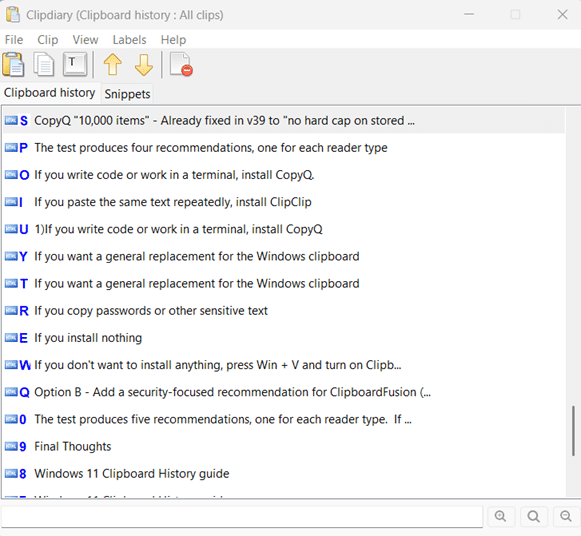
Clipdiary is a Windows clipboard manager built around permanent retention. Every copied item goes into a local database. Tested on Windows 11 25H2 with Clipdiary 5.7.
The database persists across restarts. Something you copied last week is as recoverable as something you copied a minute ago (verified across multiple Windows restarts on Clipdiary 5.7). Clipdiary supports Starred Clips and Labels to organize important items into your own categories.
The tool stores plain text, RTF, HTML, images (BMP), and files. Your data stays on your computer with no servers or cloud services.
For sensitive workflows, Clipdiary offers password protection that encrypts the clipboard database.
Beyond history, Clipdiary includes Snippets. You store frequently used text and insert it in a few clicks.
In the test session, clips remained in the history across multiple Windows restarts. Items copied hours before restart appeared at the top of the list on next launch. The 50,000-item cap is high enough that regular use will not push older items out for a very long time.
A clipboard history that survives restarts by design is the whole reason Clipdiary is number seven.
Key Features we Liked
- A local database keeps every copied item across restarts and sessions. Items from days or weeks ago are recoverable from one continuous history.
- Stores up to 50,000 clips in the local database, five times CopyQ’s default cap.
- Search covers the full stored history.
- Custom labels with filtered views. The Manage labels dialog lets you add your own labels, rename or delete them, and reorder or sort the list. Assign a label to any clip with a keyboard shortcut. Then filter the entire history to show only clips with that label using Keyboard Shortcut.
- Snippets store frequently used text and templates that insert in a few clicks.
- Password protection encrypts the clipboard database and Snippets.
- Clip metadata display. Each clip shows the source application, source window title, source URL when copied from a browser, and creation timestamp alongside its content.
- Data stays local on your computer. No servers, no cloud.
- Supports plain text, RTF, HTML, images (BMP), and files as clip formats.
- A portable version runs without installation. It leaves no Windows registry changes and can run from a USB flash drive
The Honest Limitation
The last public release, version 5.7, dates from December 2021. Nearly five years without a new release raises questions about active development compared with open source alternatives like CopyQ.
Pros
- Database persists across restarts by design, not as an optional setting.
- Up to 50,000 clips stored locally, a genuine differentiator against CopyQ.
- Custom labels with filtered views organize a flat history into workspaces.
- Password protection with true database encryption.
- Data stays local on your computer.
- A portable version exists.
Cons
- Version 5.7 has not been updated since December 2021.
- Labels must be assigned manually. Clipdiary has no rule-based or automatic labeling by source app or content type.
- Password protection is tucked behind an Actions dropdown inside a settings sub-node. Not obvious to find.
- No backup option for the clipboard history database. Only the Snippets database has backup settings.
- A paid license is required after the 60-day evaluation unless you qualify for the free personal license conditions.
Pricing
Clipdiary is a try before you buy program with a 60-day evaluation period. A Personal License costs $19.99 USD as a lifetime license for non-commercial home use, a Business License costs $29.99 USD for business, academic, or government environments, and an Extended License costs $39.99 USD for up to five computers owned by family members, including a work PC.
A free personal licence is available when any one of these conditions applies.
- The program runs on a private computer that is not used for work.
- The program is used for work and your average combined income over the previous six months is under $1,500 USD per month.
- The program is used in a not for profit organisation.
You claim the free licence by opening the Help menu in Clipdiary and clicking Activate Free. Every purchase includes free upgrades for 12 months and a 30 day money back guarantee. Prices verified on clipdiary.com, 8 September 2026.
My Take
- If you want every copied item kept forever with no limit, Clipdiary sells exactly that for $19.99 USD, and most readers do not need it because Ditto stores thousands of items at no cost once you raise its saved copies limit.
- Before paying, check the free personal licence conditions, because Clipdiary is free on a private computer not used for work, and you claim the licence by opening the Help menu in Clipdiary and clicking Activate Free.
7. Windows 11 Clipboard History (Win + V)
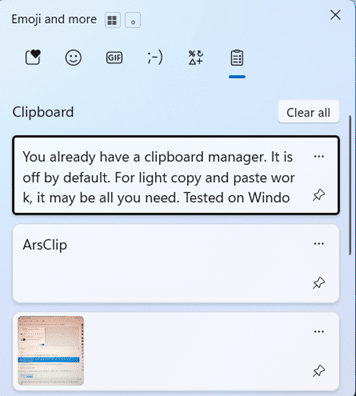
You already have a clipboard manager. It is off by default. For light copy and paste work, it may be all you need. Tested on Windows 11 25H2.
Windows 11 ships with Clipboard History built in. Press Win + V and click Turn on. From that point, every item you copy is added to the panel, up to 25 at a time in text, HTML, and bitmap formats. It syncs across your devices when you sign in with a Microsoft account or work/school account. The Win + V window also holds the emoji, GIF, and symbol panels
Being already installed on every Windows 11 machine is the whole reason Clipboard History is on this list.
Key Features we Liked
- The panel stores up to 25 recent items in text, HTML, and bitmap formats.
- Each item can be up to 4 MB. Anything larger works with normal Ctrl+V but does not appear in the history.
- Sync works with a Microsoft account or a work/school account.
- You can pin any clip. Pinned items survive the 25 item rotation, the Clear all action, and Windows restart.
The Honest Limitation
Everything about it is capped. 25 items, 4 MB per item, no search, no folders, no files, and unpinned history clears when you restart. It is a recent items panel, not a clipboard database, and heavy copy-paste work hits every one of those limits.
Pros
- Already installed on every Windows 11 machine, enabled with one keystroke and one toggle.
- Microsoft account sync moves clips between your devices with no third party involved.
- Pinning keeps chosen items through rotation and restarts.
- Nothing to install, update, or uninstall.
Cons
- 25 item cap with no way to raise it.
- 4 MB per item cap.
- No search across stored items.
- Does not store files from File Explorer.
- Unpinned history clears on restart.
Pricing
Free. Included with Windows 11 on every edition. No license, tier, or purchase.
My Take
If you copy and paste a few times a day, switch this on and install nothing. Pin the two or three items you paste most often. When you need search, larger capacity, or reach the 25 item cap, install CopyQ.
For a complete walkthrough on enabling and using Windows 11 Clipboard History, see our guide: How to Use Clipboard History in Windows 11.
Summary Comparison Table
| Tool | Best For | Starting Price | Cloud Sync | Rating |
|---|---|---|---|---|
| 1. CopyQ | Best free clipboard manager overall | Free | No | 4.6 |
| 2. ClipboardFusion | Best for pasting without formatting | Free (personal use), Pro $19 | Yes, Pro tier | 4.4 |
| 3. ClipClip | Best for organizing snippets | Free | Yes, via Google Drive, OneDrive, or Dropbox | 4.2 |
| 4. PowerToys Advanced Paste | Best for paste transformations | Free | No | 4.0 |
| 5. ArsClip | Best for paste automation | Free | No | 3.9 |
| 6. Clipdiary | Best for long term history | Free (home) or $19.99 | No | 3.6 |
| 7. Windows 11 Clipboard History | Best if you install nothing | Free, built-in | Yes, Microsoft account | 3.4 |
Final Thoughts
The test produces five recommendations, one for each reader type.
If you write code or work in a terminal, install CopyQ. The scripting engine and the command line interface let you automate clipboard operations, and no other tool on this list provides either capability. CopyQ requires some setup before the scripting features become useful, and the result is a clipboard you control with your own scripts.
If you paste the same text repeatedly, install ClipClip. Save each item you currently retype, such as standard replies, email sign-offs, addresses, and code blocks, as a snippet once and file it in a folder. After that, you paste each item from the menu instead of typing it again.
If you want a general replacement for the Windows clipboard, install CopyQ. CopyQ is free, has no hard cap on stored items, and finds any stored clip through search. CopyQ is the recommendation for most readers of this article.
If you copy passwords or other sensitive text, install ClipboardFusion. Password managers like 1Password, KeePass, and LastPass are pre-excluded from clipboard capture out of the box, so passwords never enter your clipboard history.
If you don’t want to install anything, press Win + V and turn on Clipboard History. That single setting change gives you 25 clipboard slots instead of one.
One tip applies to every tool on this list. Pin the items you paste most often. Windows 11 Clipboard History provides pinning, CopyQ provides pinned items, ClipClip provides saved snippets, ClipboardFusion provides pinned clips, and ArsClip provides permanent clips. Pinning your email address, signature, and standard replies removes the search step for the items you paste daily.