


An SSD records its own health data. The SSD controller tracks wear, spare capacity, temperature, and error counts throughout the life of the drive. Windows 11 can read this data, so you can check SSD health in a few minutes without installing any software.
Windows 11 includes two built-in methods for this. Settings shows Estimated remaining life, Available spare, and Temperature for NVMe SSDs. PowerShell shows wear, temperature, and error counters for each physical disk.
If you still use the wmic diskdrive get status command, it no longer works. Microsoft removed the WMIC utility from Windows 11 versions 24H2 and 25H2 in August 2026, and it is no longer available as a Feature on Demand (Microsoft Support). PowerShell replaces it.
In this guide, I show you five methods to check SSD health in Windows 11 and explain what each health value means. I tested every step on my Windows 11 Pro 26H2 PC.
Table of Contents
What SSD Health Values Mean in Windows 11
Settings and PowerShell show the same SSD health data under different names. The table below maps them.
| Health value | Name in Settings | Name in PowerShell |
|---|---|---|
| Drive life | Estimated remaining life | Wear |
| Reserve capacity | Available spare | Not available |
| Temperature | Temperature | Temperature, TemperatureMax |
| Errors | Not available | ReadErrorsUncorrected, WriteErrorsUncorrected |
Estimated Remaining Life and Wear
Microsoft defines Wear as the storage device wear indicator in percentage; at 100 percent, the estimated wear limit has been reached. A value of 100 means the rated endurance is consumed, but it may not indicate a device failure. Plan a replacement when the value approaches 100.
Note: Wear shows the percentage of rated life used, counting up from 0 to 100, while Estimated remaining life in Settings shows the same estimate as life left, counting down from 100%
On many NVMe SSDs, PowerShell returns Wear 0 even on a used drive, so a Wear value of 0 does not mean the drive is new.
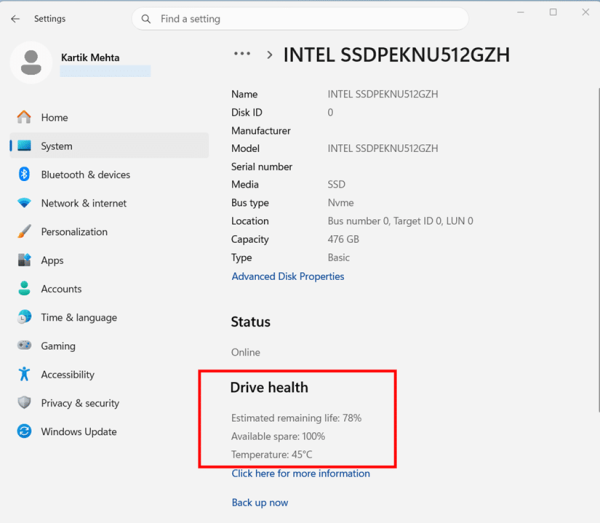
On my Intel SSD, Settings shows Estimated remaining life of 78%, while PowerShell shows Wear 0. CrystalDiskInfo shows the same drive at 78% health, with a Percentage Used raw value of 16 in hexadecimal, which is 22%. For NVMe SSDs, use the Estimated remaining life value in Settings, CrystalDiskInfo or the SSD manufacturer’s tool.
Available Spare
Available spare is the reserve capacity the manufacturer sets aside to replace failed blocks. The value starts at 100% and decreases over time. When it falls below the manufacturer’s safety threshold, Windows 11 shows the warning Spare capacity is low.
Temperature
PowerShell shows Temperature and TemperatureMax. TemperatureMax is the maximum temperature in degrees Celsius at which the drive can operate normally. If Temperature stays close to TemperatureMax during normal use, check the cooling of the PC.
Read and Write Errors
Watch the uncorrected error counters. A non-zero ReadErrorsUncorrected value does not necessarily mean the disk is failing, but a value that keeps increasing needs attention.
Critical Warnings in Windows Settings
Settings shows these warnings only when the drive reports a problem. A healthy drive does not show them.
Windows 11 shows a notification when an NVMe SSD reports one of three critical warnings.
Back up your data as soon as any of these warnings appear.
How to Check SSD Health in Windows 11 Settings
The Settings app checks SSD health in Windows 11 without any extra software. This method works only for NVMe SSDs, because Windows only monitors NVMe SSDs and not SATA SSDs or hard disk drives.
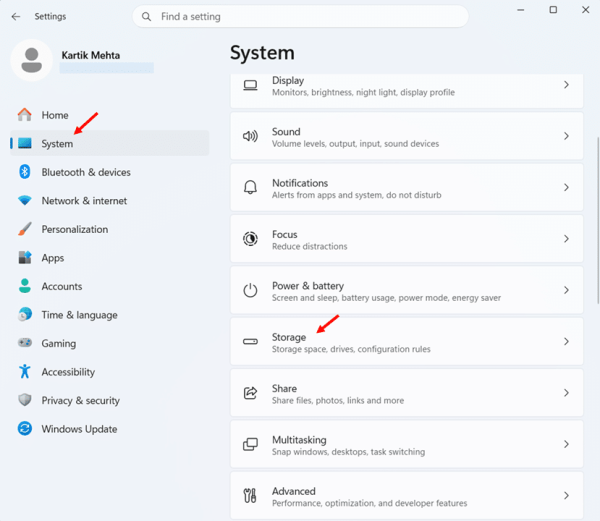
- Press Windows + I to open Settings.
- Select System in the left pane, and select Storage on the right.
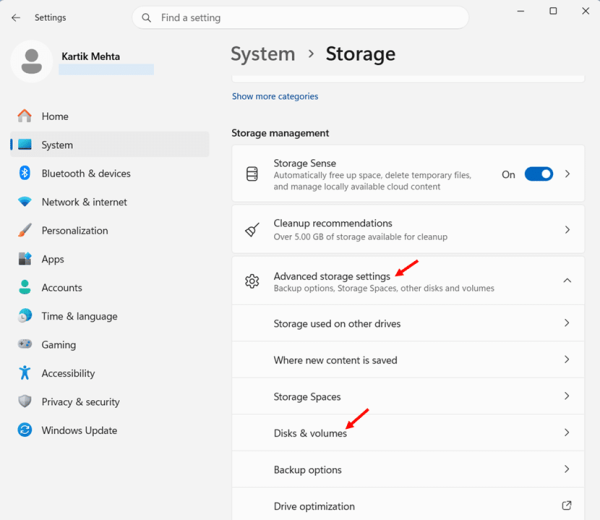
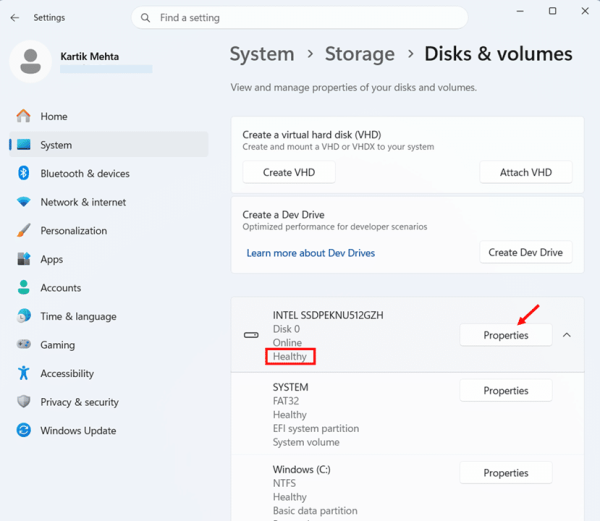
- Scroll down to Storage management, expand Advanced storage settings, and select Disks & volumes. Windows lists each disk with a status such as Healthy under each NVMe SSD.
- Select your SSD and select Properties to open the disk properties page.
- Scroll to the Drive health section to see Estimated remaining life, Available spare, and Temperature.
If Windows detects a problem, it shows a critical warning notification. Select the notification to open the same Properties page with the warning details.
Note: For external SSDs settings do not show Drive health for my SanDisk Extreme portable SSD connected over USB. Its properties page has no Drive health section.
How to Check SSD Health with PowerShell
PowerShell shows health status, wear, temperature, and error counters for each physical disk, including SATA SSDs that do not appear in the Drive health section of Settings. The Get-StorageReliabilityCounter cmdlet reads counters for device temperature, errors, wear, and the time the device has been in use.
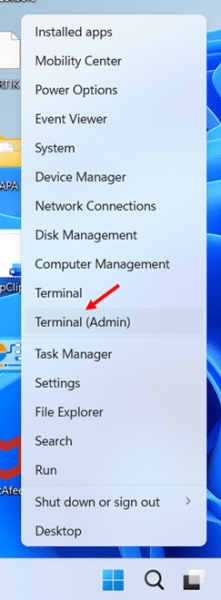
- Right-click the Start button, select Terminal (Admin), and select Yes in the User Account Control dialog box. Windows Terminal opens with administrator rights.
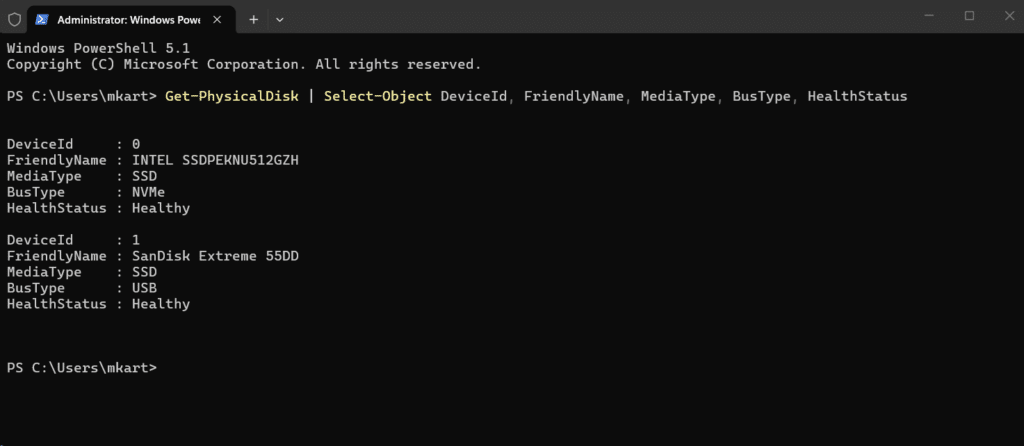
- Copy the following command, paste it into Terminal, and press Enter. PowerShell lists each drive with its device number, model name, drive type, connection type, and health status.
Get-PhysicalDisk | Select-Object DeviceId, FriendlyName, MediaType, BusType, HealthStatus
- Copy the following command, paste it into Terminal, and press Enter. PowerShell lists the wear, temperature, uncorrected errors, and power-on hours for each drive.
Get-PhysicalDisk | Get-StorageReliabilityCounter | Select-Object DeviceId, Wear, Temperature, TemperatureMax, ReadErrorsUncorrected, WriteErrorsUncorrected, PowerOnHours
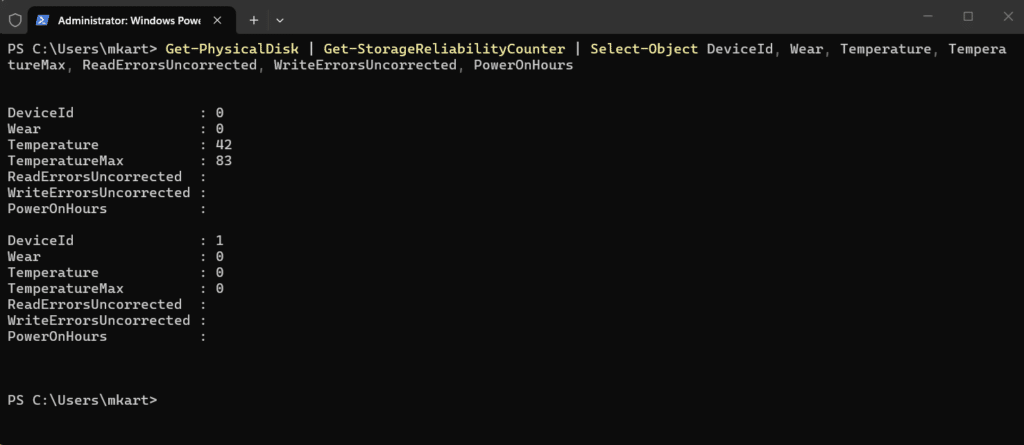
- Match the DeviceId value in both results to find the counters for your SSD. The DeviceId of each reliability counter is the same as the DeviceId of its physical disk.
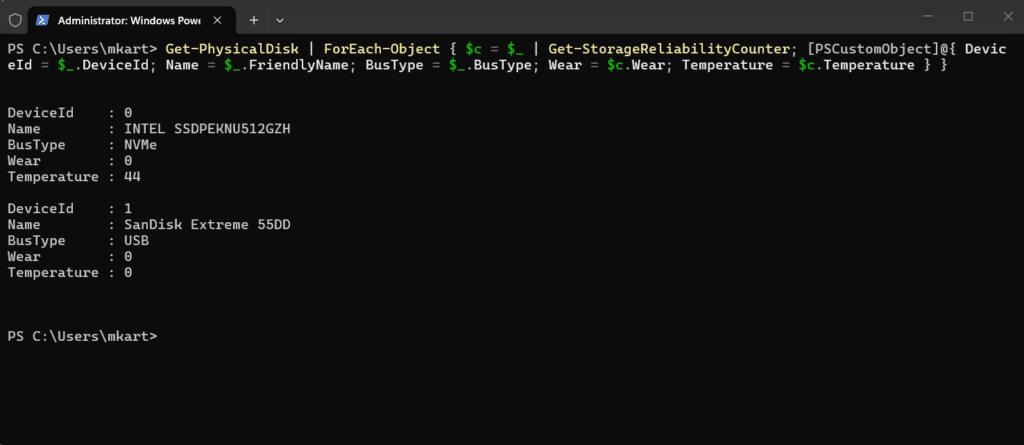
- Check all values in one table. Run the following command to see the name, connection type, Wear and Temperature of each drive in one table. The BusType column shows whether the drive is connected through NVMe, SATA or USB.
Get-PhysicalDisk | ForEach-Object { $c = $_ | Get-StorageReliabilityCounter; [PSCustomObject]@{ DeviceId = $_.DeviceId; Name = $_.FriendlyName; BusType = $_.BusType; Wear = $c.Wear; Temperature = $c.Temperature } }
HealthStatus Values
Microsoft defines these four values for physical disks.
Note: For external SSDs on my SanDisk Extreme portable SSD connected over USB, PowerShell shows Wear 0 and Temperature 0.
Troubleshooting
Wear or another value shows 0. If your drive or storage driver does not report a counter to Windows, PowerShell can show that value as 0. A Wear value of 0 does not mean the drive is new. On an NVMe SSD, check Estimated remaining life in Settings or Percentage Used in CrystalDiskInfo instead. Use the SSD manufacturer’s tool to read any value that PowerShell does not show
PowerShell returns an access error. Close Terminal, open Terminal (Admin), and run the command again.
The commands fail with a not recognised error. The Terminal tab is running Command Prompt. Select the down arrow in the Terminal tab bar, select Windows PowerShell, and run the command again.
How to Check SSD Health with Manufacturer Tools
SSD manufacturers provide free Windows tools that show full SMART data and install firmware updates. Use a manufacturer tool when Settings does not show Drive health for your SSD or when PowerShell returns a Wear value of 0.
Find Your SSD Manufacturer
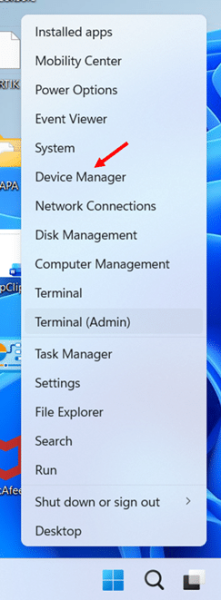
- Right-click the Start button and select Device Manager.
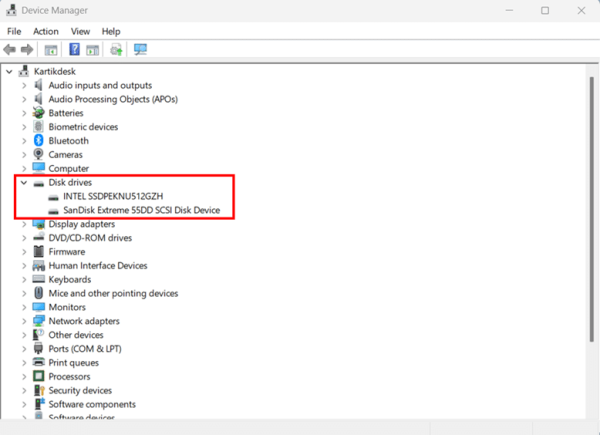
- Expand Disk drives to see the model name of each drive. The model name includes the manufacturer or brand, for example Samsung or Kingston.
The FriendlyName column in the PowerShell method also shows the model name.
SSD Health Tools by Manufacturer
Download each tool only from the manufacturer’s website.
SanDisk Dashboard. https://support-en.sandisk.com/app/products/downloads/softwaredownloads The Overview page shows the health and status of the drive.
Crucial Storage Executive. https://www.crucial.com/support/storage-executive Storage Executive is available only for 64-bit Windows. Micron exited the Crucial consumer business in February 2026 but continues to provide warranty service and support for Crucial products
Kingston SSD Manager. https://www.kingston.com/ssdmanager Kingston SSD Manager requires administrator privileges and does not support SSDs in USB enclosures (Kingston).
Check SSD Health in Sandisk Dashboard
The steps below use Sandisk Dashboard 5.3.2.4 for WD, WD_BLACK and SanDisk SSDs. Other manufacturer tools use different menu names.
- Visit the Sandisk Support website, download the Sandisk Dashboard app, and install it on your computer.
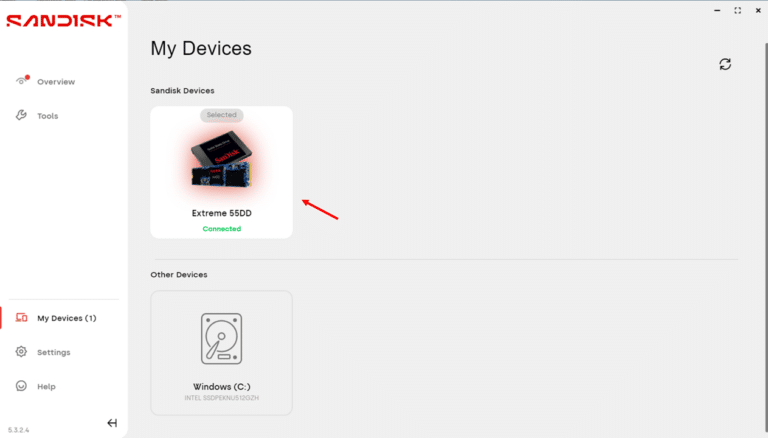
- Open Sandisk Dashboard, and select your drive under My Devices if more than one drive is connected.
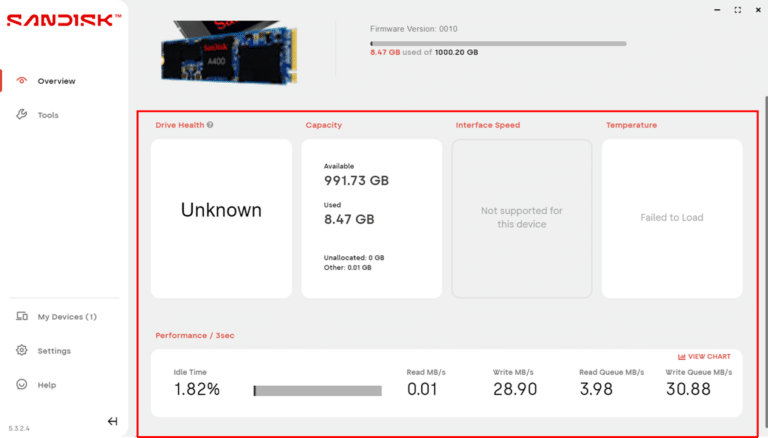
- Select Overview to see Drive Health, Capacity, Interface Speed and Temperature.
- Select Tools, and then select RUN SHORT or RUN EXTENDED under Diagnostic to run a S.M.A.R.T. test.
- Select CHECK FOR UPDATES under Firmware Update to check for new firmware.
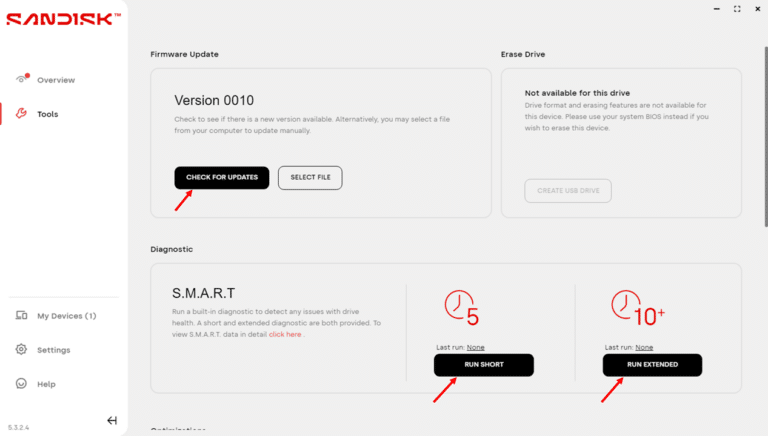
Steps 3 and 4 show full health data for internal Sandisk SSDs. For an external SSD connected through USB, Dashboard may not show health data. See the next section for what I found on my SanDisk Extreme
What Sandisk Dashboard Shows on My SanDisk Extreme Portable SSD V2 (SDSSDE61-1T00)
I tested Sandisk Dashboard 5.3.2.4 on my SanDisk Extreme Portable SSD V2 1 TB connected over USB. Sandisk Dashboard automatically scans for SanDisk SSDs when it opens. The Overview page shows the model name and firmware version of the selected drive. To see the serial number and other details, select the ⓘ icon in the top-right corner to open Drive Summary.
What works
- Drive Summary shows the model name, model number, serial number and 4K alignment. On my drive, it shows the model as Extreme 55DD. Windows Settings does not show the serial number for this drive.
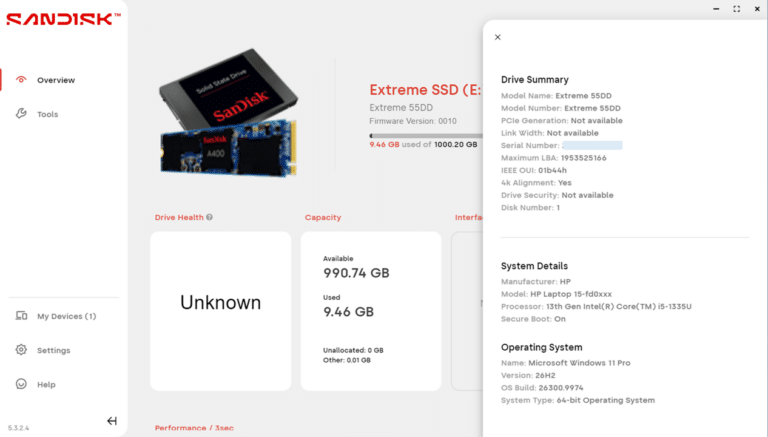
- Counterfeit SanDisk portable SSDs are sold online. Dashboard shows the serial number printed on the drive case (Dashboard Release Notes). Compare it with the serial number on the drive label and the box to confirm that the drive is genuine (SanDisk Community).
- Overview shows the used and available capacity, and live performance values such as idle time and read and write speed.
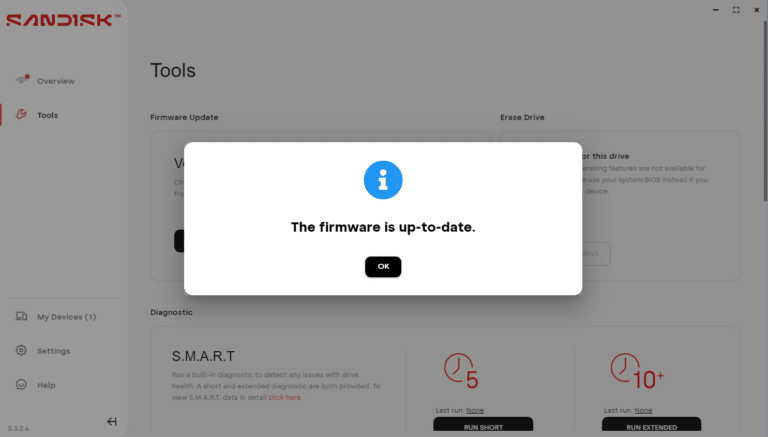
- Firmware Update under Tools shows the installed firmware version and checks for new firmware when you select CHECK FOR UPDATES. On my drive, the firmware version is 0010 and Dashboard showed that the firmware is up to date.
What does not work
- Drive Health shows Unknown.
- Temperature shows Failed to Load.
- Interface Speed shows Not supported for this device.
- PCIe Generation, Link Width and Drive Security in Drive Summary show Not available.
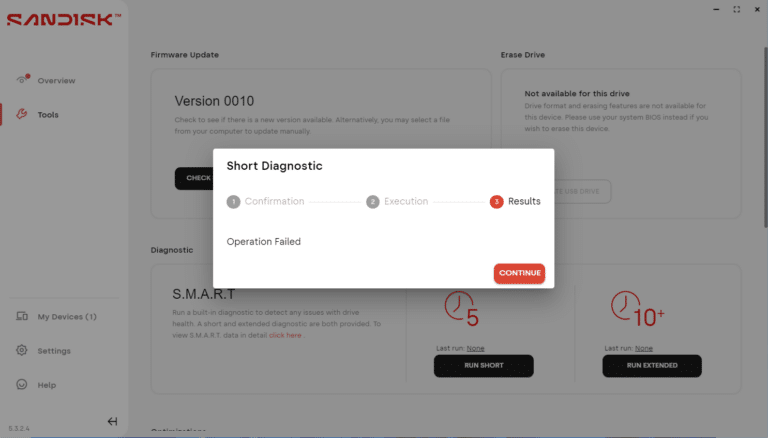
- The S.M.A.R.T. Short Diagnostic test ends with Operation Failed.
- Erase Drive shows Not available for this drive.
How to Check SSD Health with CrystalDiskInfo
CrystalDiskInfo is a free, open-source tool that reads the SMART data of SATA and NVMe drives from any manufacturer and shows a color-coded health status. Use the ZIP version because it runs without installation and does not include the advertising app that the installer version bundles.
- Open https://crystalmark.info/en/download/ in your browser, and download the installer under CrystalDiskInfo Standard Edition, for example CrystalDiskInfo9_9_5.exe.
- Double-click the downloaded file, and select Yes in the User Account Control dialog box.
- Follow the setup steps to install CrystalDiskInfo.
- Open CrystalDiskInfo from the Start menu, and select Yes in the User Account Control dialog box. The top of the window shows an icon for each drive with its health status, temperature and drive letters.
- Select the icon for your SSD to see its Health Status and Temperature in the top-left corner of the window.
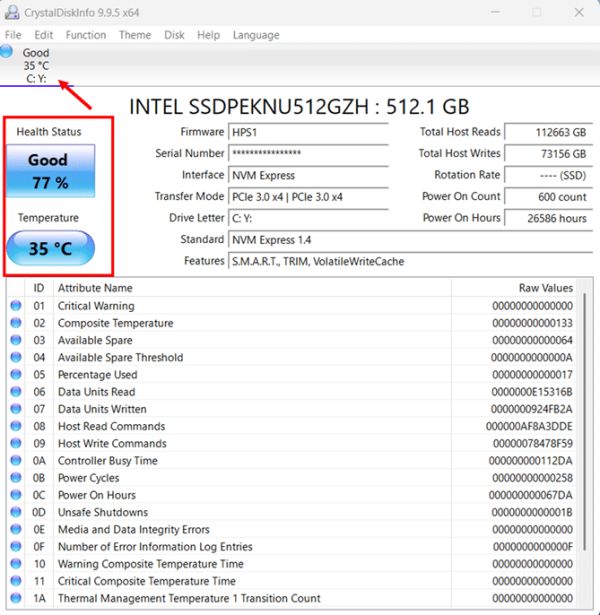
Note: For external SSDs CrystalDiskInfo 9.9.5 does not list my SanDisk Extreme portable SSD, even with all USB options turned on, although another user reports that CrystalDiskInfo shows SMART data for the same SanDisk Extreme model.
CrystalDiskInfo Health Status
CrystalDiskInfo shows one of four health statuses. The table below explains what each status means.
| Status | Colour | What it means |
|---|---|---|
| Good | Blue | CrystalDiskInfo has not detected a problem. |
| Caution | Yellow | One or more monitored values show a sign of deterioration or a potential problem. |
| Bad | Red | The drive reports a serious problem, such as remaining life below the manufacturer's threshold. |
| Unknown | Grey | CrystalDiskInfo cannot read health data from the drive. |
The attribute list at the bottom of the window shows the raw SMART values, such as Available Spare, Percentage Used and Media and Data Integrity Errors.
Caution or Bad status. Back up your data to another drive first. Changing the CrystalDiskInfo threshold settings only changes the displayed status and does not repair the drive
How to Check for File System Errors with CHKDSK
CHKDSK does not measure SSD health. SSD health values describe the drive’s physical condition, while CHKDSK checks a volume’s file system and metadata for logical and physical errors. A drive can report Healthy status and still have file system errors, so run CHKDSK when files fail to open or Windows reports disk errors.
Run Error Checking in File Explorer
- Press Windows + E to open File Explorer, and select This PC in the left pane.
- Right-click your SSD drive, for example, Local Disk (C:), and select Properties.
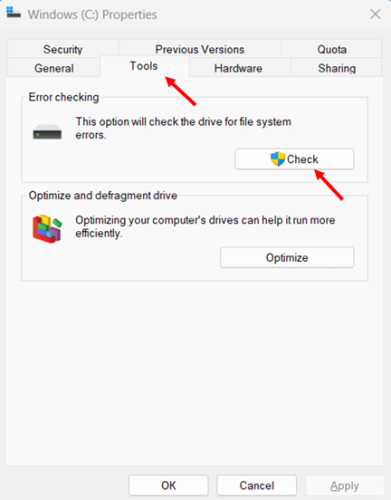
- Select the Tools tab, select Check under Error checking, and select Yes if the User Account Control dialog box appears.
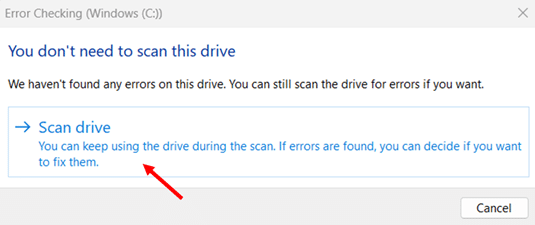
- Select Scan drive. If Windows has not found any errors, the dialog box shows You don’t need to scan this drive, but you can still scan it. You can keep using the drive during the scan, and if Windows finds errors, you can decide whether to fix them.
Run CHKDSK from Terminal
- Right-click the Start button, select Terminal (Admin), and select Yes in the User Account Control dialog box.
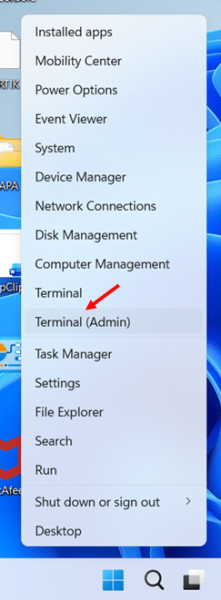
- Select the down arrow next to the open tab, and select Command Prompt, since Terminal opens PowerShell by default. A new Command Prompt tab opens with administrator rights.
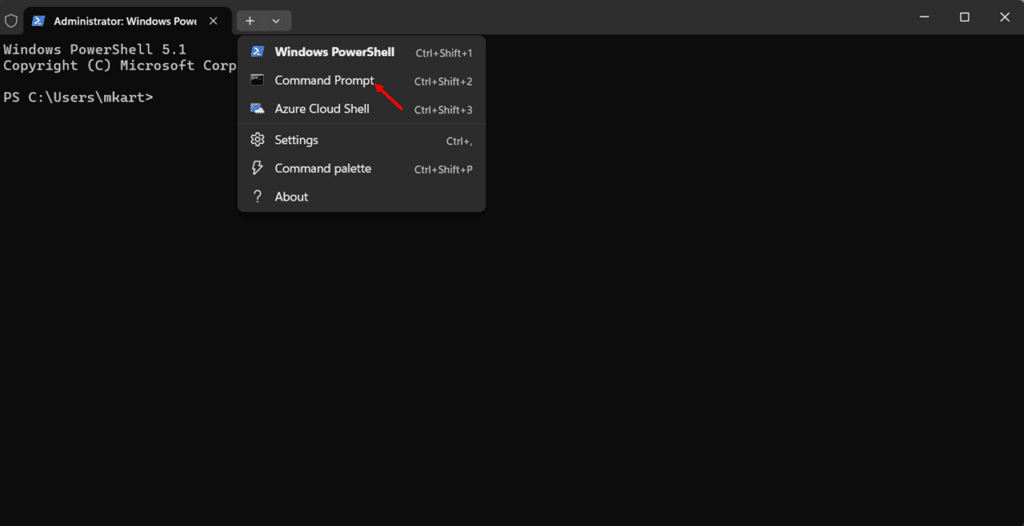
You can also open a Command Prompt window as administrator directly, without Terminal.
- Type the following command and press Enter to scan drive C: while Windows keeps running. CHKDSK lists any file system errors it finds.
chkdsk C: /scan
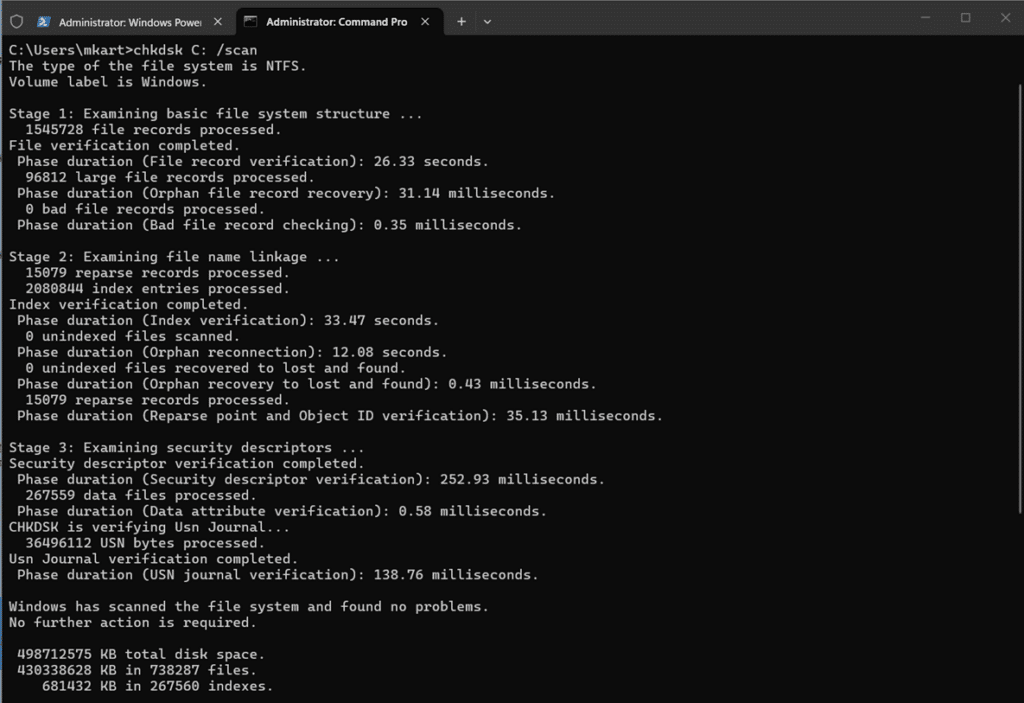
- If CHKDSK reports errors, type the following command and press Enter to repair them. For the Windows drive, type Y to schedule the repair and restart the PC.
chkdsk C: /spotfix
The /scan and /spotfix parameters work only on NTFS volumes. If CHKDSK finds new errors after each repair, check the SSD health again with the methods in this guide and back up your data.
When to Replace Your SSD
Back up your data and plan an SSD replacement when you see any of the following signs.
- Windows 11 shows the critical warning Spare capacity is low, Reliability is degraded, or Drive is set to read-only.
- PowerShell shows a Wear value close to 100, which means the estimated wear limit is almost reached.
- PowerShell shows a HealthStatus of Warning or Unhealthy.
- The ReadErrorsUncorrected or WriteErrorsUncorrected value increases between checks.
- CrystalDiskInfo shows a Bad
- CHKDSK finds new file system errors after each repair.
Before you buy a new SSD, check the warranty status of your current drive in the manufacturer tool or on the manufacturer’s support website.
Conclusion
Windows 11 gives you two built-in ways to check SSD health. Settings shows Estimated remaining life, Available spare, and Temperature for NVMe SSDs, and PowerShell shows health status, wear, and error counters for each drive. When you need full SMART data or a firmware update, use the SSD manufacturer’s tool or CrystalDiskInfo.
I recommend checking SSD health once a month and backing up your data as soon as Windows shows a critical warning. A Wear value close to 100, a falling Available spare value, or rising uncorrected errors tell you to plan a replacement. If you manage many devices, the Intune Remediations script lets you track every SSD from one place.
Check your SSD health now with the Settings method, and tell me in the comments which method you use and what your drive reports.
Windows only monitors NVMe SSDs in Settings and does not monitor SATA SSDs or hard disk drives. Use PowerShell, the manufacturer’s tool, or CrystalDiskInfo for these drives.
The wmic diskdrive get status command no longer works because Microsoft removed WMIC from Windows 11. Run the PowerShell command from Command Prompt instead.
powershell -Command “Get-PhysicalDisk | Select-Object FriendlyName, HealthStatus”
A higher estimated remaining life is better. CrystalDiskInfo shows Caution for many SSDs when the remaining life reaches 10% or less. Plan a replacement before the drive reaches that level.
No. CHKDSK checks the file system and file system metadata of a volume for errors. Use Settings, PowerShell, or a health tool to check the physical condition of the SSD.
No. The Optimize Drives tool in Windows 11 runs retrim on SSDs and defragments only hard disk drives. Retrim tells the SSD which sectors are no longer in use, and Windows runs it automatically.
Windows 11 shows a notification automatically when an NVMe SSD reports a critical warning. Check SSD health manually once a month, and check it immediately if the PC freezes, slows down, or reports disk errors.
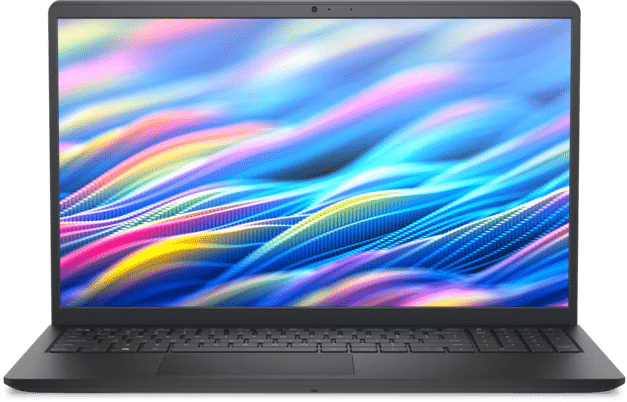
Dell 15.6 Laptop (Intel Core 3 100U):
Dell 15.6 inches, 300 nits Anti-Glare WVA, Intel UHD Graphics, 8GB DDR5 RAM, 512GB SSD, Wi-Fi 6, Bluetooth, Windows 11 Home, Carbon Black, 3-Cell 41WHr Battery.
 Early Black Friday Deal at Amazon
Samsung Galaxy Z Fold8 Ultra:
Unlocked Android Smartphone, 256GB, 12GB Memory, Customized Processor, 200MP Camera, 5000 mAh Battery, Side-By-Side Multitasking, Now Nudge, Photo Assist, Graphite
 Early Black Friday Deal at Amazon



Samsung Galaxy S26 FE:
Unlocked Phone, 128GB, 8GB Memory, Galaxy AI, AI Photo Editor, 50MP Camera, Photo Assist, My FanCam, Super Steady Video, 4900 mAh Battery, Graphite
 Best Deal at Amazon for Today

Laptop Deals on Amazon
Black Friday prices on laptops from top brands. Find the right one for you.
- Work
- Study
- Gaming
- Everyday
Shop Laptop Deals at Amazon

