
As someone who has spent years working with Windows systems and writing about them, I can tell you that knowing how to go full screen on Windows 11 is one of the most effective ways to eliminate distractions and make the most of your display. This is irrespective of whether you are working, gaming, or streaming.
It sounds simple, but Windows 11 does not have a single universal full-screen button. What works in Chrome does not work in Word, and what works in a game will not work in a streaming app.
Whether you’re looking to focus on a document without distractions, enjoy a game or movie in full-immersive view, or simply stop the taskbar from eating up your screen space, you’ll find everything you need in this guide.
By the time you finish reading, going full screen on Windows 11 will feel completely natural.
You may also find my guide on how to turn off Fast Startup in Windows 11 useful if you face driver or display issues on startup
Table of Contents
How to Go Full Screen in a Web Browser on Windows 11 (Edge and Crome)
Web browsers are where most people spend the majority of their screen time, and going full screen in a browser is one of the most satisfying things you can do for focus and readability. When you enter full-screen mode in a browser on Windows 11, the address bar, tabs, toolbar, and taskbar all disappear, leaving you with a clean, distraction-free view of the web page.
There are two ways to do this: via keyboard shortcut (the fast way) and via the browser menu (the point-and-click way). Both work equally well, so use whichever fits your workflow.
Method 1: Using the F11 Keyboard Shortcut (All Browsers)
This is the fastest approach and works identically in Google Chrome, Microsoft Edge, Mozilla Firefox, and Opera.
- Open your browser and navigate to any web page you want to view in full screen.
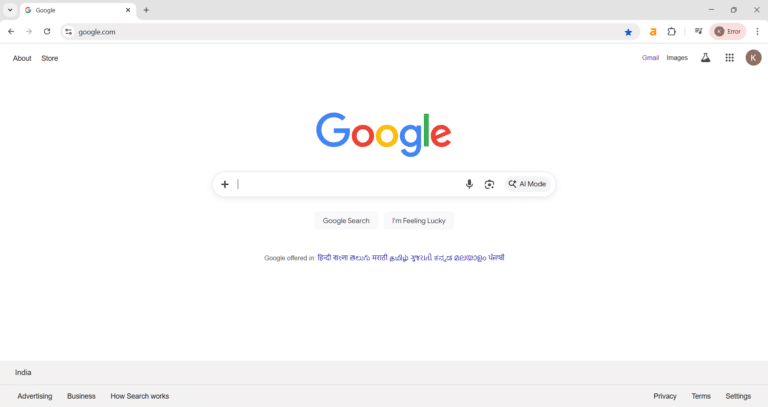
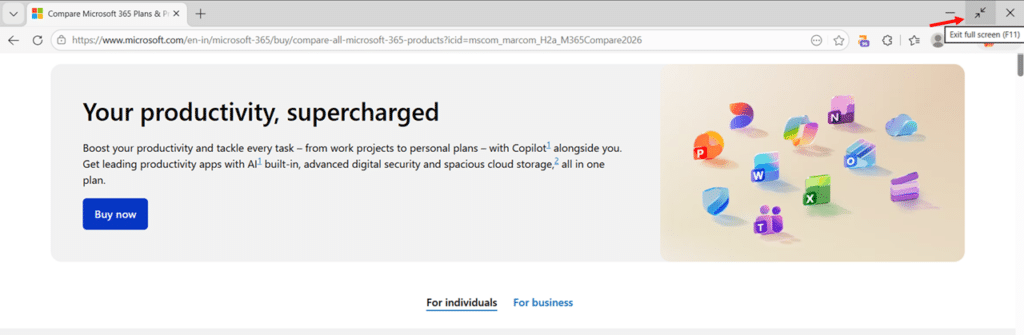
- Press F11 on your keyboard to immediately enter full screen mode, causing the browser to expand and cover the entire screen while hiding all toolbars and the taskbar.
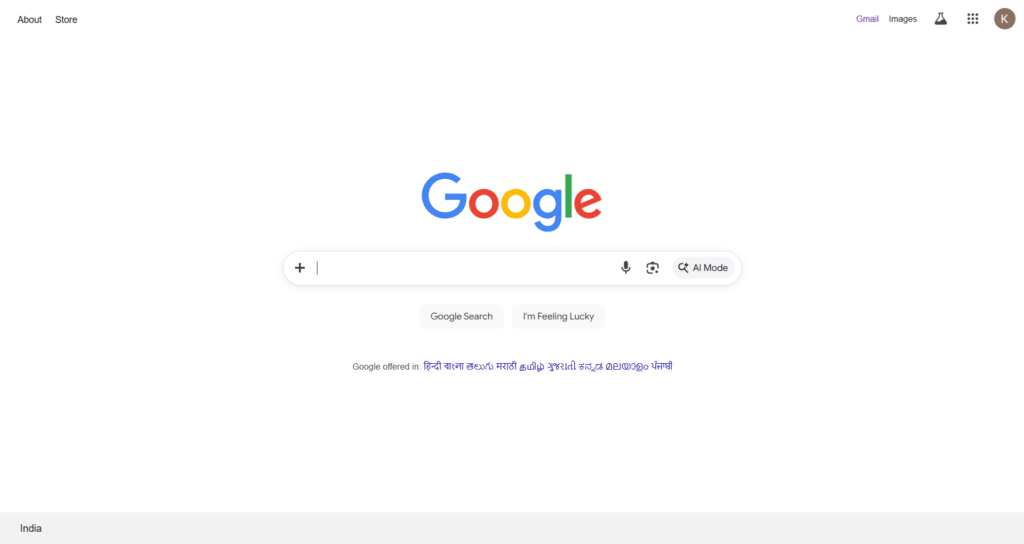
- Press F11 again to exit full screen mode and return to the normal browser view.
Note for laptop users: If pressing F11 adjusts your screen brightness or triggers another function, press Fn + F11 together instead. On some keyboards, you may need Shift + F11.
Method 2: How to Go Full Screen in Google Crome on Windows 11 Using the Browser Menu
If you prefer using your mouse, Chrome provides a full screen button directly in its settings menu.
- Open Google Chrome and navigate to the page you want to view.
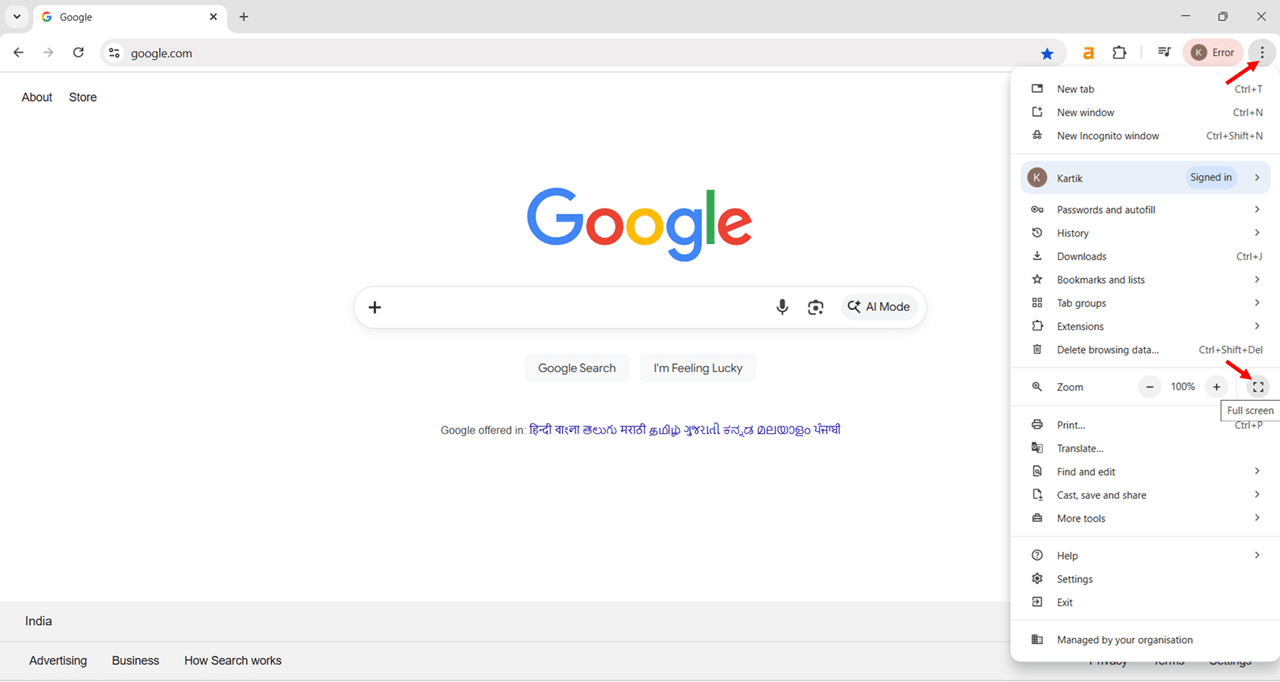
- Click the three vertical dots (⋮) icon in the top-right corner of the Chrome window to open the browser menu.
- Locate the Zoom row in the menu, which shows the current zoom level (typically 100%), and click the full screen icon (the square made of four corners) to the right of the zoom controls.
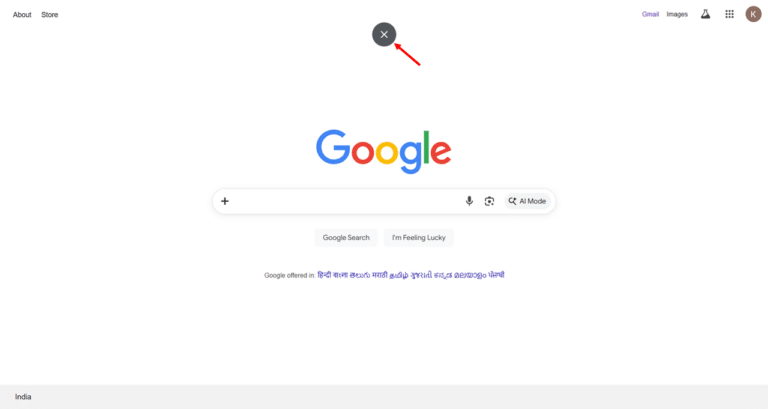
- Move your mouse to the top of the screen and click the X in a circle button that appears to exit full screen mode, or press F11 to toggle back to normal view.
Method 3: How to Go Full Screen in Microsoft Edge on Windows 11 Using the Browser Menu
- Open Microsoft Edge and go to the web page you want to view.
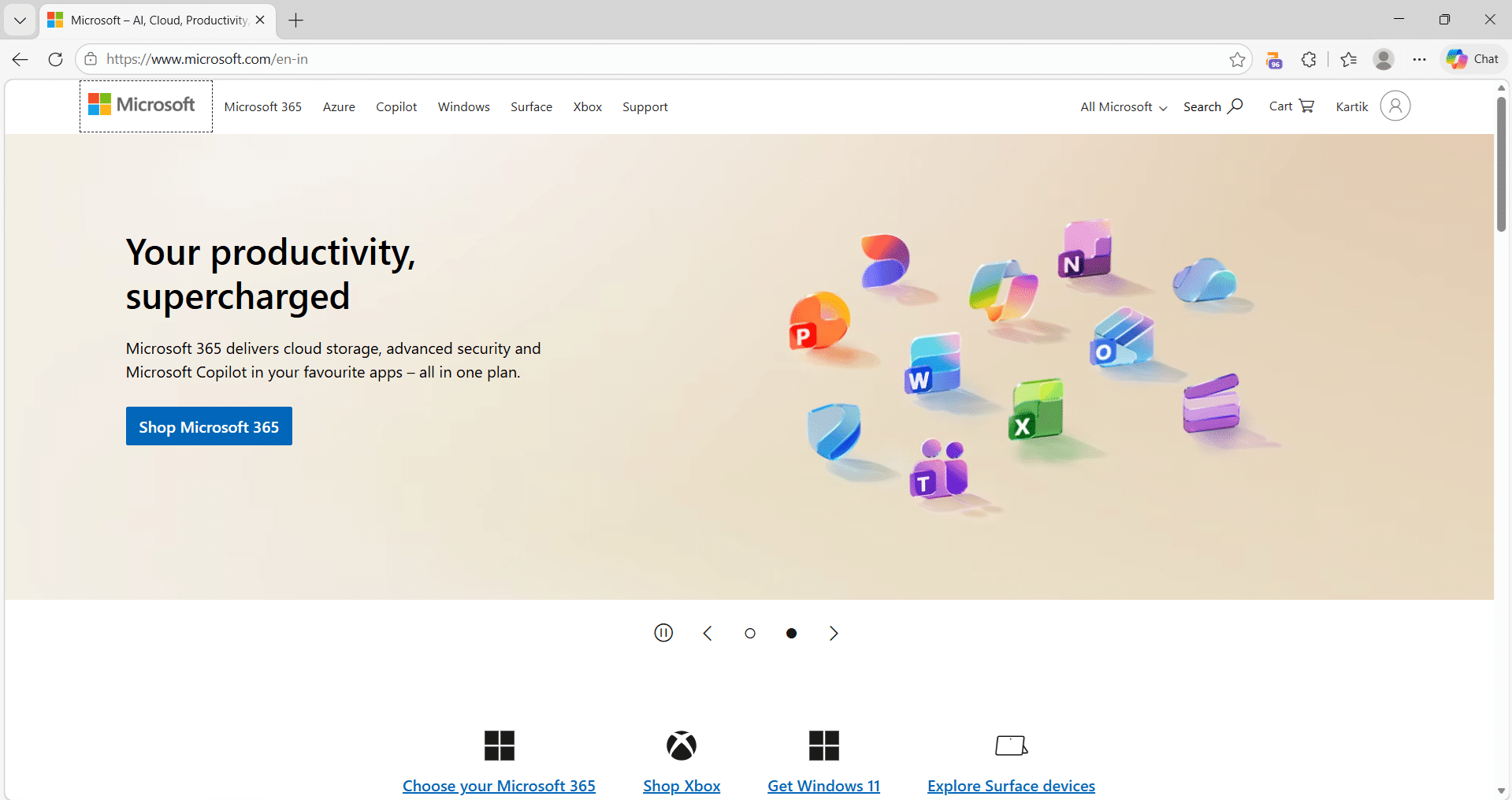
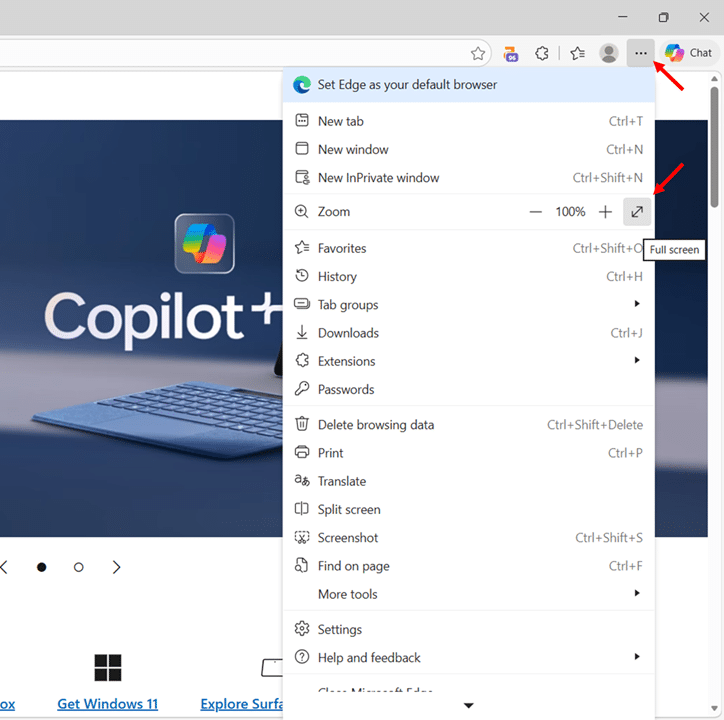
- Click the three horizontal dots (…) icon in the top-right corner to open the Edge menu.
- Click the full screen icon next to the Zoom controls in the menu to enter full screen mode.
- Press F11 or hover your mouse at the top of the screen and click the exit full screen button to return to normal view.
How to Go Full Screen While Watching Videos on Windows 11 (YouTube, Netflix, and More)
When you watch videos on Windows 11, whether in a web browser (for example, YouTube or Netflix in Chrome, Edge, or Firefox) or in a desktop video player (such as VLC or the built-in Movies & TV / Media Player app), the full-screen behavior is mostly controlled by the video player itself rather than by Windows.
There are two approaches here: using the video player’s own controls, or using keyboard shortcuts that work directly on the video player. Both methods are covered below.
Method 1: The "F" Key The Hidden Full Screen Shortcut for Video Players on Windows 11
Most people don’t know this one, and it’s genuinely one of the most useful shortcuts in Windows 11 for streaming. While the F11 key puts your entire browser into full screen, the F key does something different and often more useful. It puts the video player into full screen mode while keeping the rest of the browser technically active in the background.
This works on YouTube, Netflix, Amazon Prime Video, Disney+, Hotstar, and most other major streaming platforms. It’s a shortcut built into the video player, not the browser.
- Open your browser and navigate to the streaming site of your choice (YouTube, Netflix, etc.).
- Start playing a video which you want.
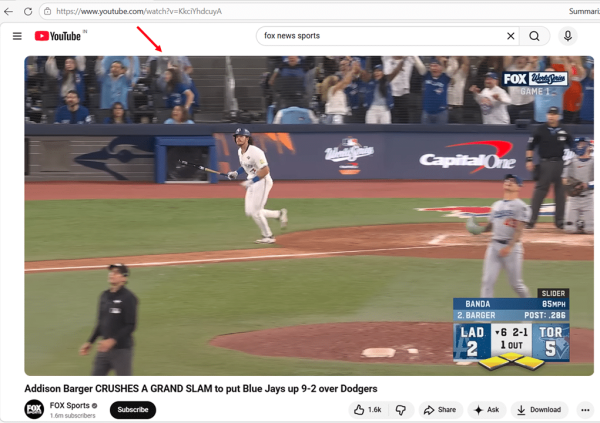
- Press the F key on your keyboard to enter full screen mode, which expands the video player to cover your entire screen.
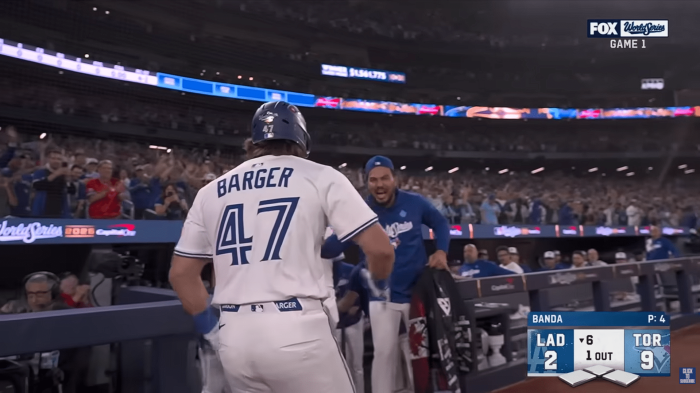
- Press F again or press Esc to exit full screen and return to the normal video player view.
Method 2: Using the Full Screen Button in the Video Player
If you prefer using your mouse, every major streaming platform includes a full screen button directly in the video player controls.
- Navigate to your streaming platform and play a video.
- Move your mouse over the video player to make the playback controls appear at the bottom of the player.
- Click the full screen icon — typically located in the bottom-right corner of the player and resembling four outward-pointing arrows or a square with expanding corners — to enter full screen mode.

- Move your mouse to make the controls appear again, then click the exit full screen icon (inward-pointing arrows) or press Esc or F to exit full screen.
How to Go Full Screen in Microsoft Office Apps on Windows 11 (Word, Excel, PowerPoint)
Microsoft Office apps handle full screen mode differently from browsers and streaming platforms. There’s no simple F11 toggle that works across the board. Instead, each Office app has its own approach to maximizing your workspace. Once you know the right method for each one, though, the experience is genuinely useful, especially for long writing sessions and presentations.
Microsoft Word: Creating a Distraction-Free Writing View
Word doesn’t support the standard F11 full screen shortcut. Instead, it has its own “Focus” mode and a ribbon-hiding feature that together give you a clean, distraction-free workspace.
Option 1: Using Focus Mode in Microsoft Word for Distraction Free Writing View (Recommended)
Focus Mode in Word hides everything: the ribbon, toolbars, taskbar, and even the document margins, fading to a dark background, leaving just your text on screen. It’s the closest thing Word has to a true full screen writing experience.
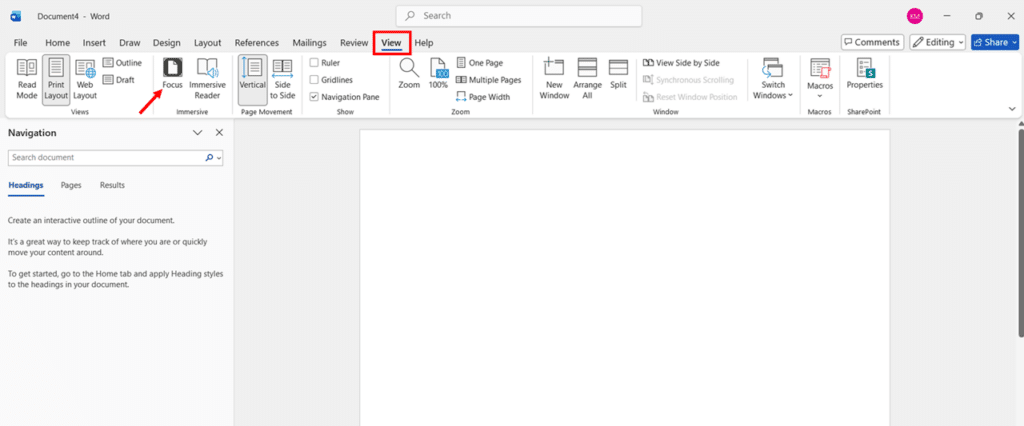
- Open your Word document and click the View tab in the ribbon at the top of the window.
- Click Focus in the Immersive section of the ribbon to enter Focus mode, which dims the screen edges and hides all toolbars immediately.
- Move your mouse to the top of the screen if you need to access the ribbon temporarily, which causes it to slide down into view while you interact with it.
- Press Esc to exit Focus mode and return to the normal Word view.
Option 2: Enable Full-screen mode Using Ribbon in Microsoft Word (Works for All Office Apps)
If you want to keep working normally but just want more vertical space, hiding the ribbon is a quick win. This works in Word, Excel, and PowerPoint.
- Click the ribbon display options icon — the small downward-pointing arrow in the top-right corner of the window, just to the left of the minimize button — to open the display options menu.
- Select Full-screen mode from the menu to hide the ribbon completely, giving you significantly more vertical document space.
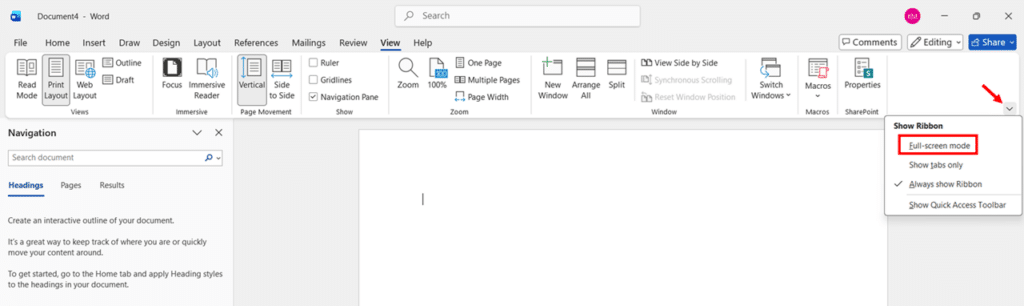
- Click anywhere near the top of the window to temporarily reveal the ribbon when you need to access a tool, and it hides again automatically when you click back into your document.

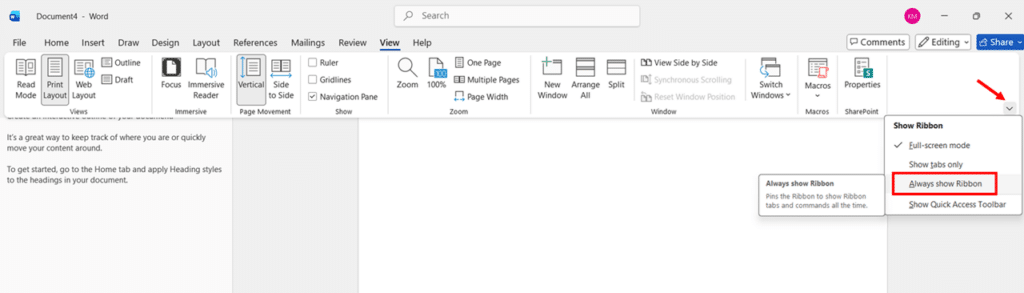
- Click the ribbon display options icon again and select Always show Ribbon to restore the ribbon permanently when you want it back.
Enable Full-screen mode Using Ribbon in Microsoft Excel
Excel follows the same ribbon-hiding approach as Word. There is no dedicated full-screen mode in Excel for Windows 11, but hiding the ribbon and maximizing the window gives you a clean, spacious workspace.
- Open your Excel workbook and click the ribbon display options icon in the top-right corner of the window.
- Select Full-screen mode to collapse the ribbon and gain extra vertical space for your spreadsheet rows.
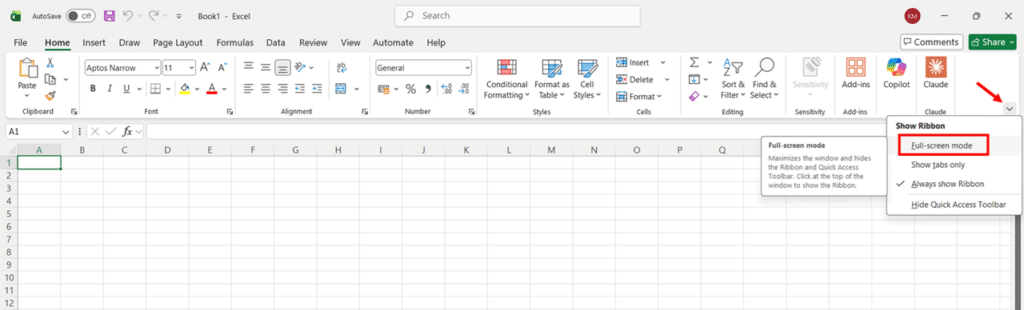
- Click anywhere near the top of the window to temporarily reveal the ribbon when you need to access a tool, and it hides again automatically when you click back into excel sheet.
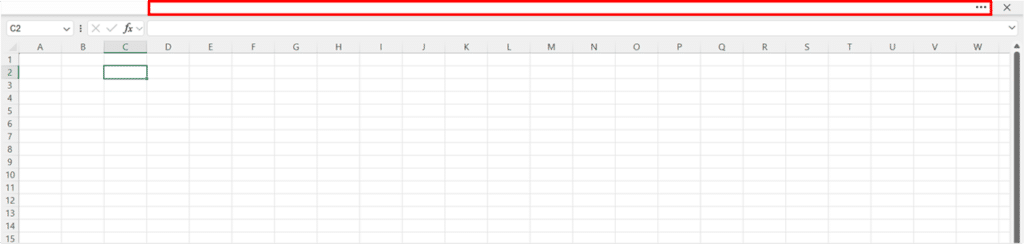
- Click the ribbon display options icon again and select Always show Ribbon to restore the ribbon permanently when you want it back.
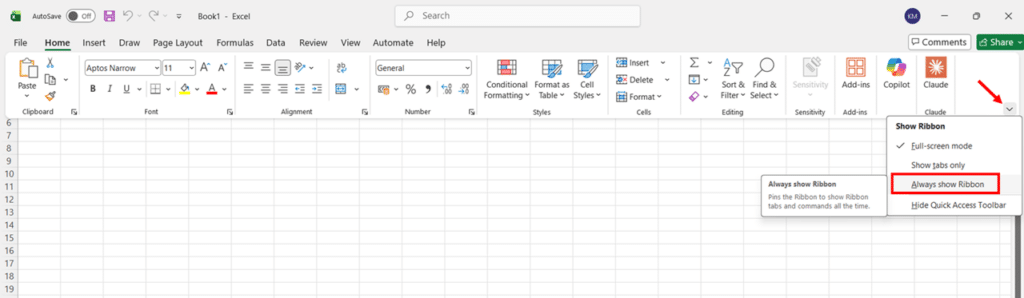
- Alternatively press Ctrl + Shift + F1 as a quick keyboard shortcut to toggle the ribbon on and off if you want an even faster method than the icon menu.
Microsoft PowerPoint Full Screen Slideshow Mode
PowerPoint offers the clearest full-screen experience of all the Office apps because it’s built for presenting. When you launch a slideshow, your entire screen becomes the presentation.
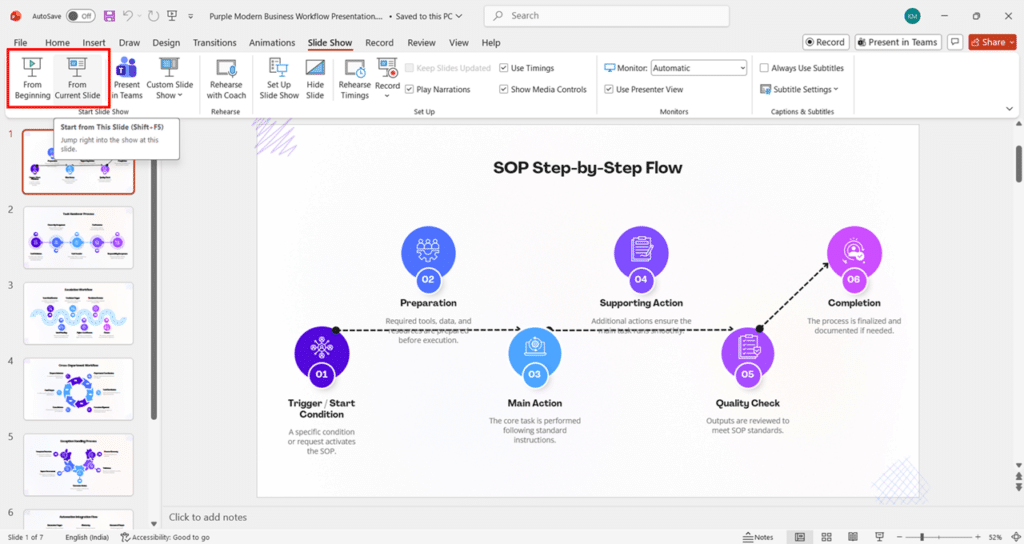
- Open your PowerPoint file and press F5 to start the slideshow from the very first slide, covering the entire screen immediately.
- Alternatively, press Shift + F5 to start the slideshow from whichever slide you’re currently viewing, rather than always starting from slide one.
- Click the Slide Show tab in the ribbon and select From Beginning or From Current Slide if you prefer using the menu instead of a keyboard shortcut.
- Use the arrow keys or click your mouse to advance through slides, and press Esc when you’re done to exit the slideshow and return to the normal editing view.
Tip: While presenting in full-screen slideshow mode, press B to temporarily black out the screen (useful during Q&A sessions), then press B again to bring the slide back.
How to Go Full Screen in Games on Windows 11
Games handle full screen a bit differently from normal apps because they often offer several display modes, such as Fullscreen, Borderless Windowed, and Windowed, each with its own behavior. On Windows 11, most PC games let you toggle full screen using either a keyboard shortcut like Alt + Enter or through in-game Display or Video settings.
Alt + Enter The Quick Toggle
Alt + Enter is the classic shortcut for toggling full screen mode in PC games. It’s been around since the early days of Windows gaming and still works in many games today — particularly older titles, emulators, and games built on legacy engines.
- Launch your game and wait for it to load to the main menu or gameplay.
- Press Alt + Enter simultaneously to toggle the game between windowed mode and full screen mode.
- Press Alt + Enter again to switch back if needed, since this shortcut acts as a toggle between the two states.
How to Auto-Hide the Taskbar for a Full Screen Experience on Windows 11
Auto-hiding the taskbar is a simple way to get a near full-screen experience, even in apps that do not support true full-screen mode. When Automatically hide the taskbar is enabled, the taskbar slides out of view whenever it is not in focus and reappears only when you move your mouse to the edge of the screen.
This is especially useful on smaller displays, when working in maximized windows, or when watching videos and presentations, and you want the taskbar to stay out of the way. If the taskbar does not hide correctly, a quick restart of Windows Explorer or toggling the setting usually resolves the problem.
How to Enable Auto-Hide Taskbar in Windows 11
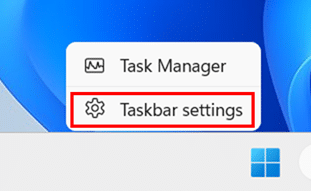
- Right-click anywhere on an empty area of the taskbar at the bottom of your screen to open the taskbar context menu.
- Select Taskbar settings from the context menu, which opens the Personalization > Taskbar section of Windows Settings.
- Scroll down to the Taskbar behaviors section and click on it to expand the options.
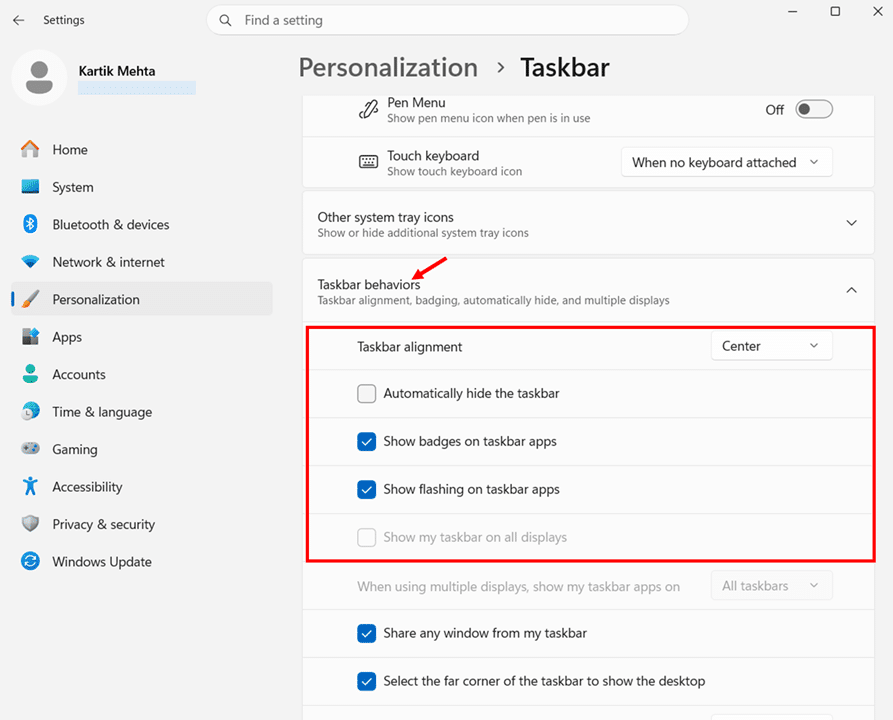
- Check the checkbox next to Automatically hide the taskbar to enable auto-hide mode, which causes the taskbar to slide off-screen immediately.
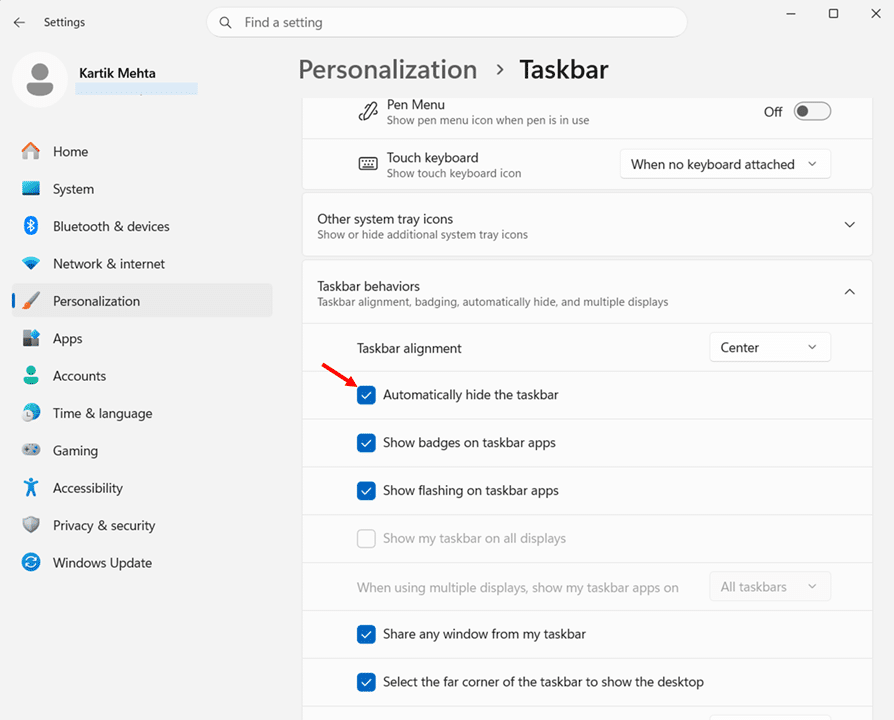
- Click the Close (X) caption button at the top-right corner of the Settings window to close it. The taskbar will already be hidden, and hovering your mouse near the bottom of the screen will bring it back temporarily.
How to Disable Auto-Hide Taskbar (Restore the Taskbar)
If you decide auto-hide isn’t for you, turning it off is just as straightforward.
- Move your mouse to the bottom edge of the screen to bring the taskbar into view, then right-click on an empty area of the taskbar.
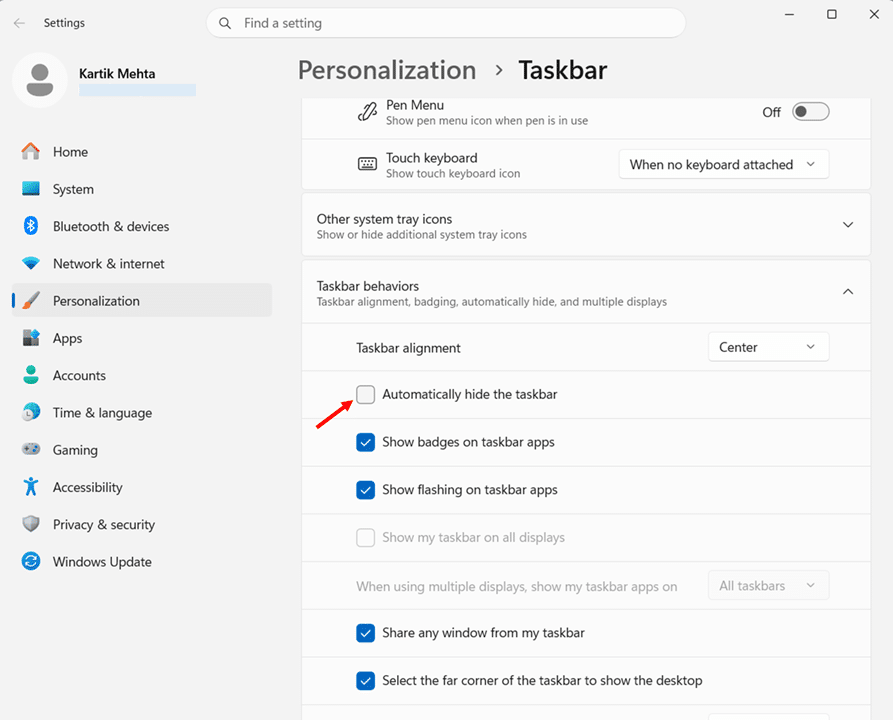
- Select Taskbar settings and scroll down to Taskbar behaviors.
- Uncheck the Automatically hide the taskbar checkbox to restore the taskbar to its permanently visible position.
For more screen space beyond auto-hiding, read my guide on how to make the taskbar smaller in Windows 11.
Full Screen Shortcuts at a Glance
| App Type | Shortcut to Use |
|---|---|
| Web Browsers (Chrome, Edge, Firefox) | F11 or Fn + F11 |
| File Explorer | F11 or Fn + F11 |
| Microsoft Store / UWP Apps | Win + Shift + Enter |
| Games and Command Prompt | Alt + Enter |
| Streaming Video (YouTube, Netflix) | F |
| Microsoft Word | Alt + V then U |
| Microsoft Excel | Ctrl + Shift + F1 |
| Microsoft PowerPoint | F5 (from beginning) or Shift + F5 (current slide) |
Conclusion
Going full-screen on Windows 11 isn’t complicated once you know which method applies to each app.
I have walked you through every scenario in this guide, from pressing F11 in your browser to full-screen settings across Microsoft Office apps. The key is simply knowing where to look.
My recommendation is to start with the method most relevant to how you use your PC daily. If you spend most of your time in a browser, F11 is all you need. If you work in Office apps, hiding the ribbon combined with auto-hiding the taskbar will give you the cleanest and most focused workspace.
Drop a comment below if you run into a scenario that isn’t covered here. I am happy to help you figure it out.
Frequently Asked Questions (FAQs)
Your keyboard likely has Fn Lock enabled, which means the top row of keys is set to control hardware functions like brightness and volume instead of standard function keys. Press Fn + F11 together, and it will work.
Taskbar auto-hide may be disabled or the shell may be glitching. Turn on Automatically hide the taskbar in Taskbar behaviors, or restart Windows Explorer via Task Manager.
Yes. Move the window or game to the second monitor, click it to focus, then use the relevant shortcut such as F11 or Alt + Enter.
Some apps allow custom key bindings in their settings. Windows 11 does not provide a built-in global full-screen shortcut remapper.
Press F11 while File Explorer is your active window. This hides the address bar and taskbar, giving you a clean view of your files and folders. Press F11 again to exit.