


Smart App Control has been part of Windows 11 since the 22H2 update, but most users have never enabled it. The reason was simple: it required a clean Windows 11 installation. Turning it off was permanent. Want it back? Reinstall the entire operating system.
That changed with the April 2026 Patch Tuesday update (KB5083769). Microsoft removed the clean install requirement entirely, letting you switch SAC on and off directly from Windows Security without resetting your PC. It is the single most significant usability improvement SAC has received since its introduction in Windows 11 22H2.
This how to set up Smart App Control in Windows 11 guide walks you through everything: checking system requirements, enabling SAC through the GUI and registry, understanding how it decides which apps to block, temporarily disabling it for trusted software, troubleshooting common issues, and applying best practices for enterprise environments.
Table of Contents
What Is Smart App Control in Windows 11?
Smart App Control (SAC) is a built-in security feature in Windows 11 that blocks untrusted or potentially dangerous applications before they can run on your computer. It was first introduced with the Windows 11 22H2 update in 2022 and has been refined in every major release since, including 23H2, 24H2, and 25H2.
Every time you launch an application, SAC checks whether that app is trustworthy using a combination of cloud intelligence, digital signatures, and AI analysis. If it passes, the app runs normally. If it doesn’t, SAC blocks it and shows you a notification explaining why.
How SAC Differs from Traditional Antivirus
Traditional antivirus software like Microsoft Defender works reactively. It scans files on your system, compares them against a database of known malware signatures, and removes threats after they’ve already landed on your PC.
Smart App Control works proactively. It evaluates applications at the point of execution, before the code actually runs. If an app can’t prove it’s trustworthy, it never gets the chance to execute.
SAC and your antivirus are not competing tools. They work alongside each other. SAC blocks untrusted apps from running, while Microsoft Defender
(or your third-party antivirus) continues to scan files, monitor for suspicious behaviour, and handle threats that enter through other vectors like email attachments or browser downloads.
What SAC Does Not Do
Smart App Control does not replace a full antivirus solution. It doesn’t scan files on your hard drive, monitor network traffic, or quarantine infected files.
SAC also has no per-app exception system. You cannot whitelist a specific application that SAC has blocked. If a trusted app gets flagged, your options are to wait for the developer to properly sign their software, or temporarily disable SAC to install it (which is now much easier thanks to the April 2026 update).
SAC requires an active internet connection to function at full capacity. If you’re offline, SAC falls back to blocking unknown apps more aggressively. Previously verified apps will still run thanks to locally cached reputation data, but new or updated applications may be blocked until connectivity is restored.
What Changed in the April 2026 Update (KB5083769)?
The April 2026 Patch Tuesday release (KB5083769) removes the single biggest barrier to using Smart App Control: the clean install requirement.
The Clean Install Barrier Is Gone
Before this update, re-enabling SAC after turning it off required either resetting your PC or reinstalling Windows. While the reset option let you keep personal files, it still removed all installed applications and settings. Either path was disruptive enough that very few people bothered using the feature.
Microsoft designed it this way so SAC could start from a known-clean system state. The logic made sense from a security perspective, but it created a real usability problem. If SAC blocked a trusted app and you turned it off to deal with it, you lost the feature permanently unless you went through a reset or reinstall.
That’s no longer the case. You can now switch SAC off or on without any clean install requirement. The toggle sits under Settings > Windows Security > App & Browser Control > Smart App Control settings.
The Practical Impact
You can now enable SAC on an existing Windows 11 installation without a clean install or reset. You can temporarily disable it and re-enable it without losing the feature permanently. Before this update, turning SAC off was a one-way operation. The toggle now works both ways.
System Requirements and Prerequisites for Smart App Control
Windows Version
SAC requires Windows 11 version 24H2 or 25H2 with the April 2026 cumulative update (KB5083769) installed. If you’re running 23H2 or earlier, you’ll need to upgrade before the new toggle becomes available.
To check your version:
- Press Windows key + R, type winver, and press Enter.
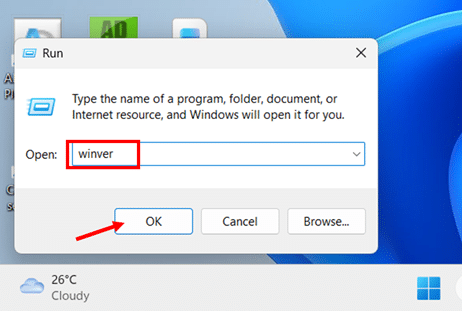
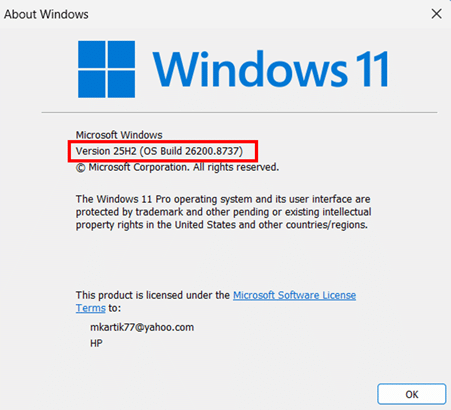
- Confirm your version is 24H2 (build 26100.8246 or later) or 25H2 (build 26200.8246 or later).
Optional Diagnostic Data is Enabled
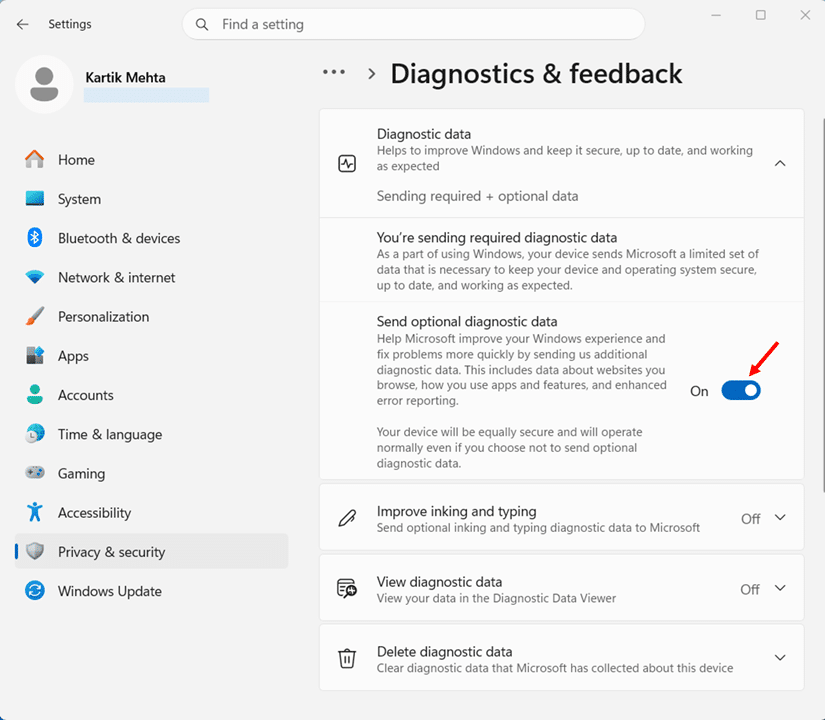
SAC relies on Microsoft’s cloud-based intelligence services to evaluate apps. For those services to work, optional diagnostic data must be enabled.
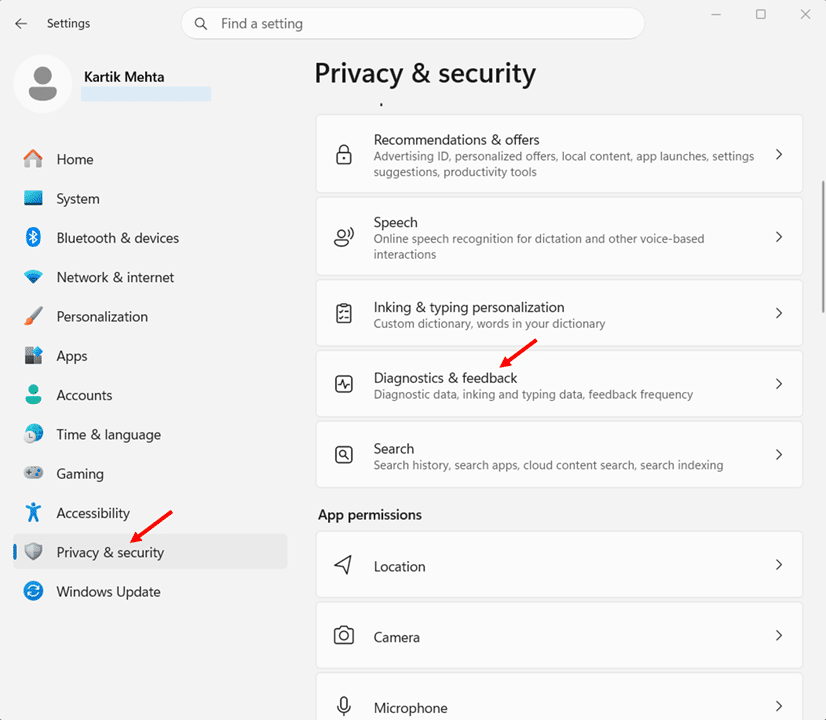
- Open Settings > Privacy & Security > Diagnostics & Feedback.
- Confirm that the toggle for Send optional diagnostic data is turned on.
Internet Connectivity
SAC requires an active internet connection for cloud-based reputation checks. If you’re offline, previously verified apps will still run from cached data, but new or updated applications may be blocked until connectivity is restored.
Secure Boot is Enabled
Secure Boot must be enabled. Most modern PCs ship with it on by default, but if you’ve disabled it (for example, to dual-boot Linux), you’ll need to access your BIOS to re-enable it before setting up SAC.
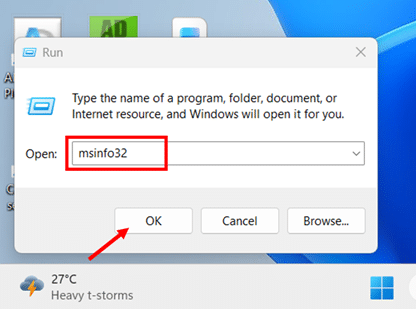
- Press Windows key + R, type msinfo32, and press Enter.
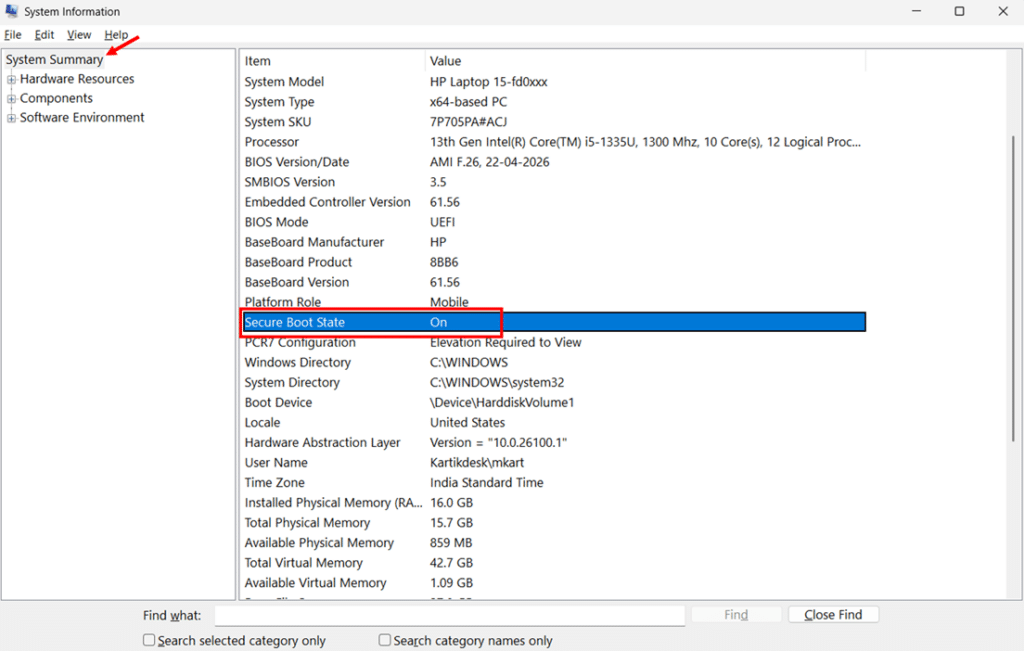
- Check that Secure Boot State reads On in the System Summary section.
SAC is one layer of application-level protection. For full-disk encryption to secure your data at rest, consider enabling BitLocker alongside it.
Conditions That Prevent SAC from Being Available
Enterprise-managed devices. PCs managed through Microsoft Intune, Group Policy, or Configuration Manager may have SAC disabled by policy.
Developer mode enabled. Turn it off in Settings > System > For Developers if you want to use SAC.
Windows in S mode. Switch out of S mode first, then reset your PC to enter Evaluation mode.
How to Enable Smart App Control in Windows 11
Now that your system meets all the prerequisites, let’s get Smart App Control up and running. I’ll cover the recommended GUI method and an advanced registry method for users who need to force-enable SAC.
Method 1: Enable Smart App Control via Windows Security (Recommended)
- Press Windows key + I to open the Settings app.
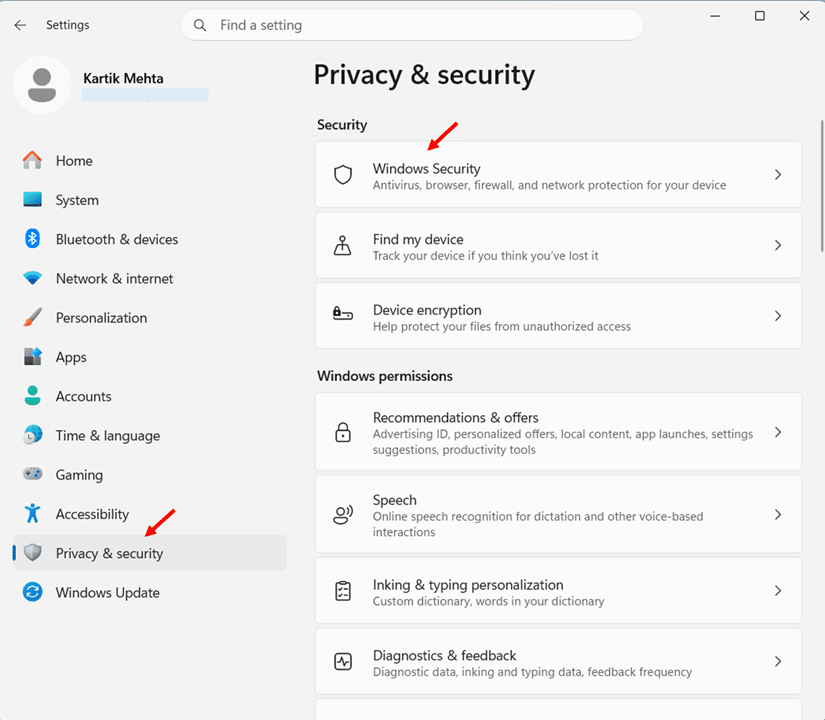
- Select Privacy & Security from the left sidebar, then click Windows Security.
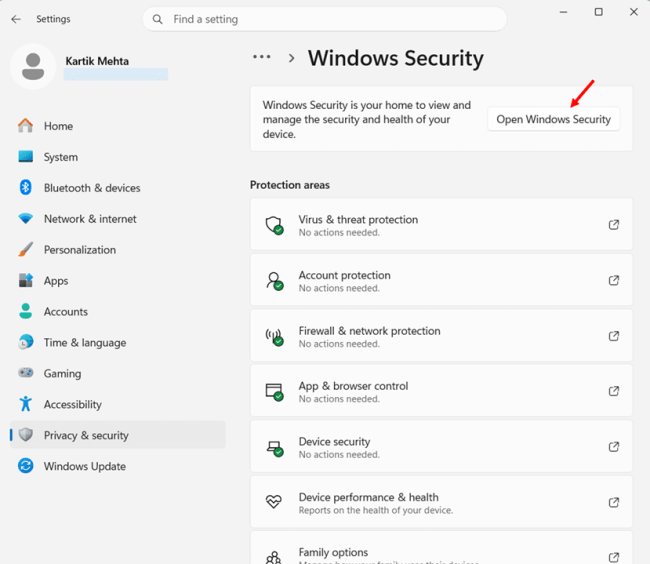
- Click Open Windows Security to launch the full Windows Security dashboard.
- Select App & Browser Control from the left navigation menu and click Smart App Control settings.
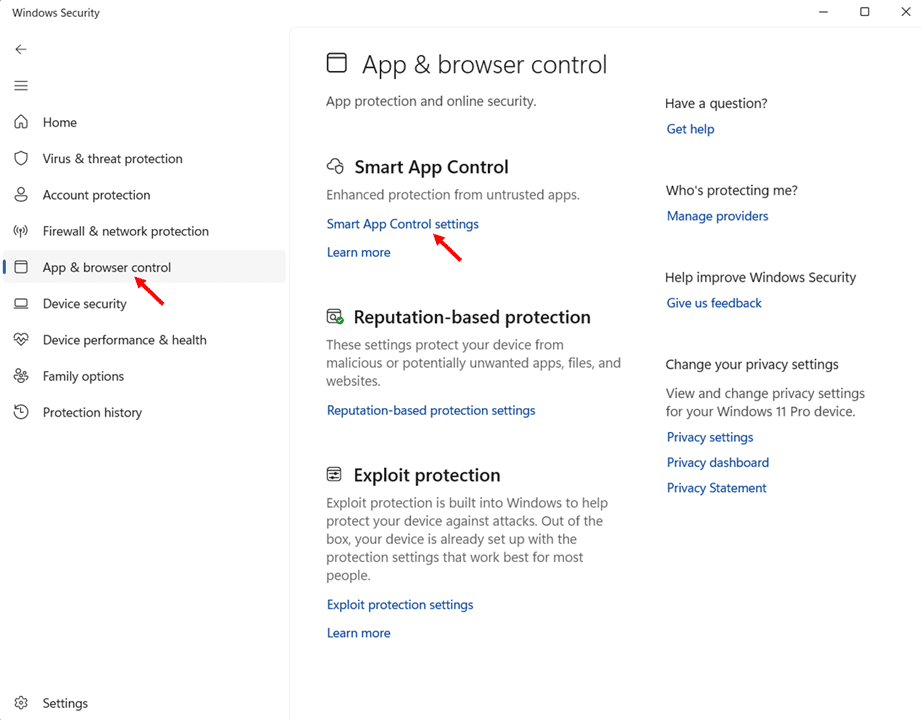
- Choose either Evaluation or On.
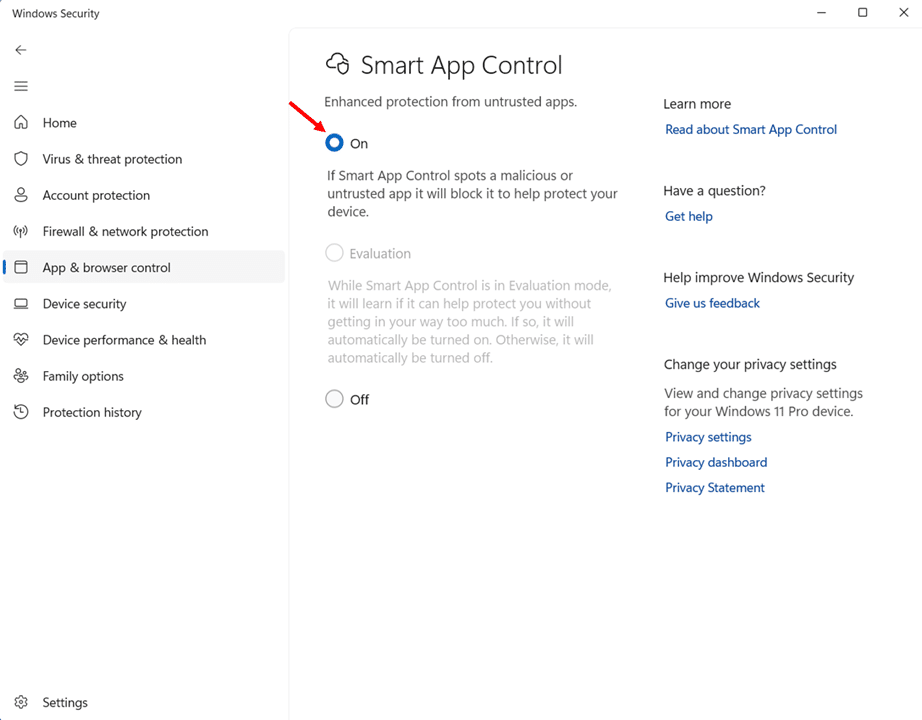
That’s it. No restart required.
Quick shortcut: Click Start, type Smart App Control, and select Smart App Control settings directly from the search results.
Important: You may find that Evaluation is greyed out while On remains available. According to Microsoft’s App & Browser Control documentation, once the evaluation is complete, or if you manually switch Smart App Control on or off, you won’t be able to return to evaluation mode unless you reinstall or reset Windows. If Evaluation is greyed out on your device, select On to enable SAC directly in Enforcement mode.
Method 2: Enable Smart App Control via Registry Editor (Advanced)
If the SAC toggle isn’t visible in Windows Security (typically because the Controlled Feature Rollout hasn’t reached your device), you can force-enable it through the registry.
Important: Create a restore point before making registry changes.
- Press Windows key + R, type regedit, and press Enter.
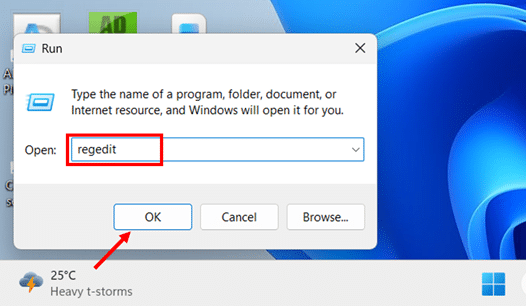
- Confirm the User Account Control prompt by clicking Yes.
- Navigate to HKEY_LOCAL_MACHINE\SYSTEM\CurrentControlSet\Control\CI\Policy
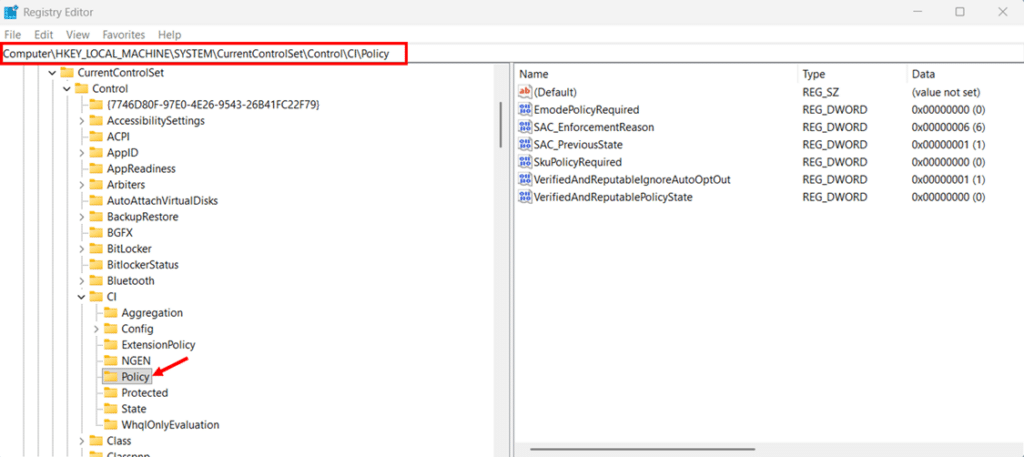
- Double-click the VerifiedAndReputablePolicyState value and change the Value data to 1 (Enforcement), 2 (Evaluation), or 0 (Off).
- Click OK, close Registry Editor, and restart your PC.
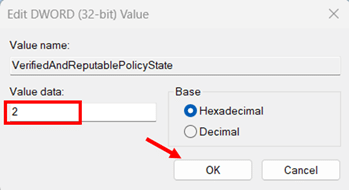
According to Microsoft’s developer documentation, “Smart App Control can be manually configured via the Registry for testing purposes only. Editing Smart App Control settings in this way could compromise the protection it provides.” Use the GUI method unless you have a specific reason not to.
How Smart App Control Works
Smart App Control doesn’t rely on a single method to evaluate apps. It uses a three-layer verification system that combines cloud intelligence, digital signatures, and AI analysis. According to Microsoft’s Smart App Control FAQ, if an app passes any layer, it runs. If it fails all three, it’s blocked.
The Three-Layer Verification Process
Layer 1: Cloud Reputation Check. SAC queries Microsoft’s cloud-based app intelligence services, which aggregate security data from millions of Windows devices worldwide. If the cloud service confidently predicts the app is safe, SAC allows it. If it’s identified as malicious or potentially unwanted, SAC blocks it immediately.
Layer 2: Digital Signature Verification. If the cloud service can’t make a confident prediction, SAC checks whether the app is digitally signed by a certificate authority (CA) in the Microsoft Trusted Root Program. A valid, trusted signature confirms the software comes from a legitimate developer and hasn’t been tampered with. If the signature checks out, the app runs even without a strong cloud reputation.
Layer 3: AI-Powered Behavioural Analysis. For apps that fall into a grey area, SAC uses artificial intelligence to evaluate the app’s behaviour. It looks for patterns associated with malware, potentially unwanted programs (PUPs), and other threats. This layer is particularly useful for catching zero-day threats that haven’t appeared in any signature database yet.
If an app fails all three checks, SAC blocks it from executing and shows a toast notification from Windows Security.
What Gets Checked
SAC doesn’t just evaluate the main .exe file. It checks every binary in the execution chain: .dll files, installer and uninstaller binaries, temporary files created during installation, scripts, and components loaded by integrations like Office add-ins. If even one component in the chain is unsigned, SAC can flag the entire process.
Why Legitimate Apps Get Blocked
A block is a trust signal, not a malware verdict. The most common reasons a safe app gets flagged:
The app is unsigned. Many smaller developers and open-source projects don’t have code-signing certificates.
The app is new. Microsoft’s cloud intelligence needs time to build a reputation profile. Brand-new apps with low distribution may be blocked until enough telemetry data accumulates.
The certificate doesn’t chain to a trusted root. Self-signed, expired, or unrecognised certificates all trigger a block.
How to Check What SAC Has Blocked
SAC logs its decisions in Event Viewer under two Event IDs: 3076 for Evaluation mode (would have blocked) and 3077 for Enforcement mode (actively blocked).
- Press Windows key + R, type eventvwr.msc, and press Enter.
- Navigate to Applications and Services Logs > Microsoft > Windows > CodeIntegrity > Operational.
- Look for events with ID 3076 or 3077 to see which files were flagged and why.
How to Temporarily Disable Smart App Control (and Re-Enable It)
Before the April 2026 update, disabling Smart App Control was a permanent decision. The feature was gone until you reinstalled Windows. That’s no longer the case. You can now toggle SAC off, handle whatever triggered the block, and switch it right back on.
When Temporarily Disabling SAC Makes Sense
Don’t reach for the off switch every time an app gets blocked. A block is a trust signal worth investigating first. That said, there are legitimate scenarios where a temporary disable is the right call.
Installing apps that use Windows Installer Transform (MST) files. MST files can’t be digitally signed, so SAC will block the installation. A temporary disable is the official workaround.
Running trusted but unsigned legacy software. Older apps from established developers may lack modern code-signing certificates.
Resolving false positives. SAC occasionally blocks clearly safe software. The ASUS ROG Ally’s Armory Crate was a widely reported example where SAC blocked the manufacturer’s own bundled software.
How to Disable and Re-Enable SAC
- Open Settings > Privacy & Security > Windows Security.
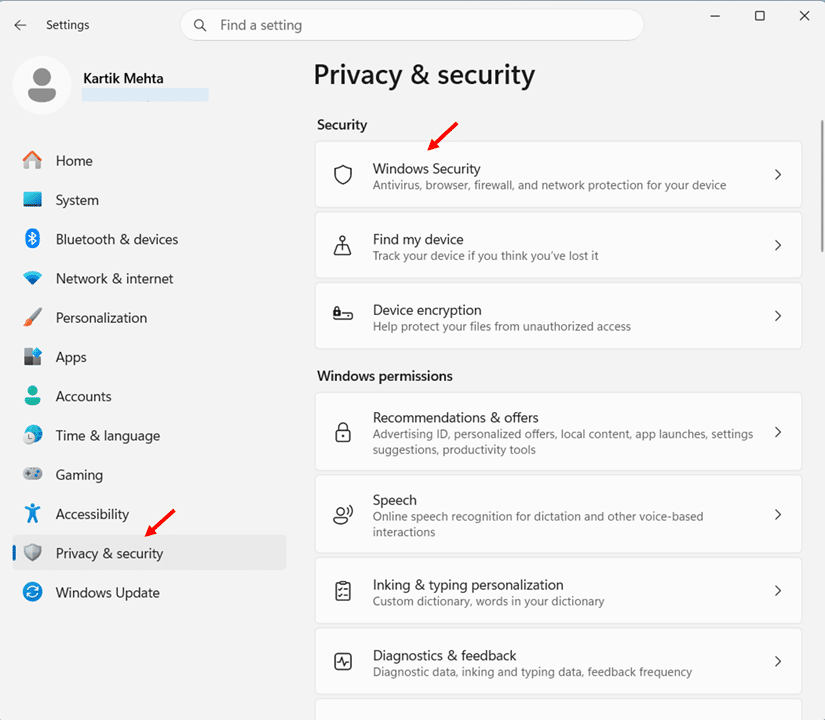
- Click Open Windows Security to launch the full Windows Security dashboard.
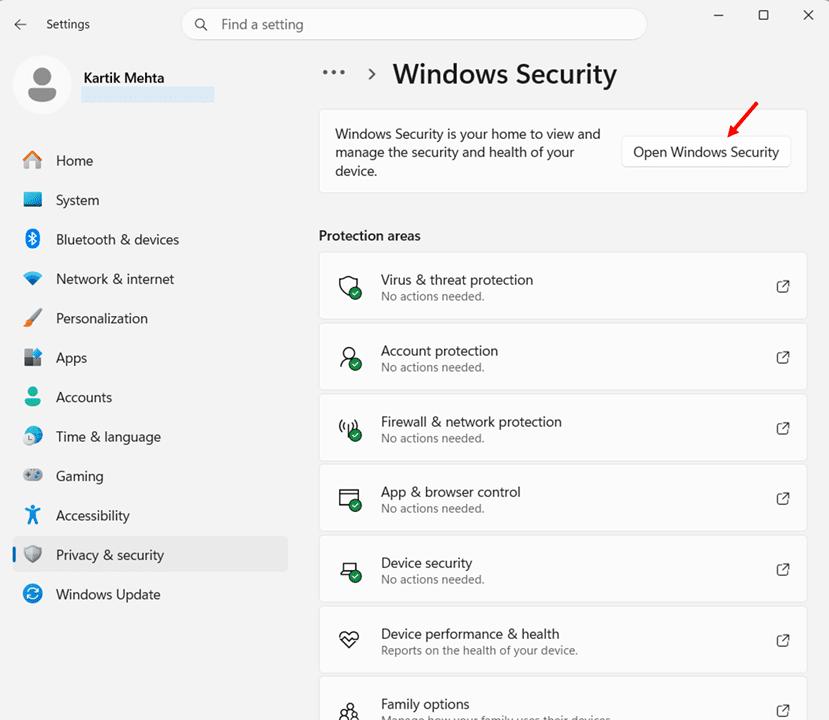
- Select App & Browser Control from the left navigation menu and click Smart App Control settings.
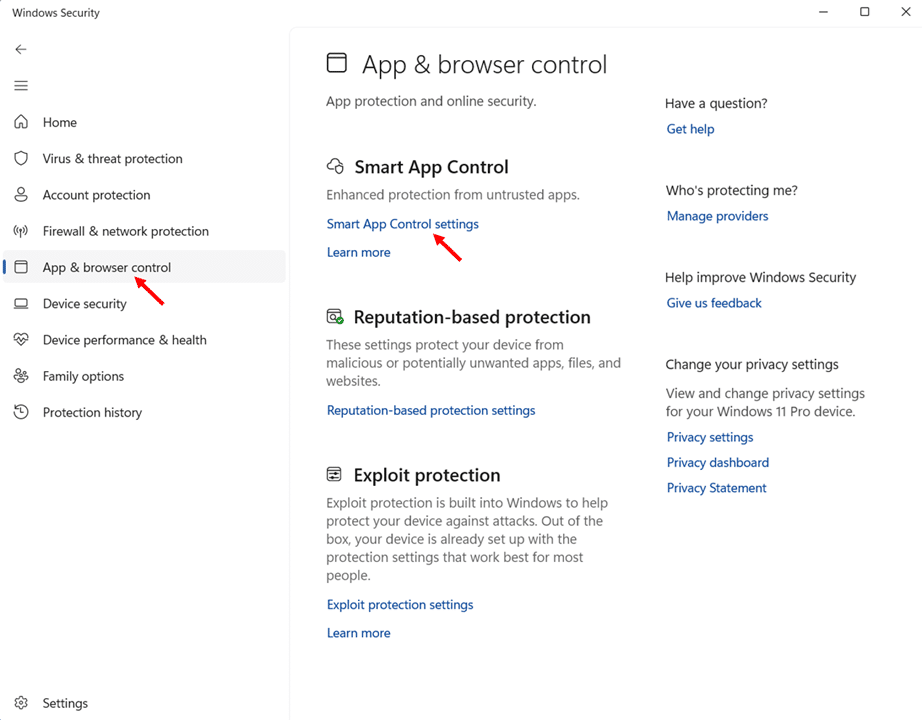
- Select Off to temporarily disable Smart App Control and confirm the prompt when asked.
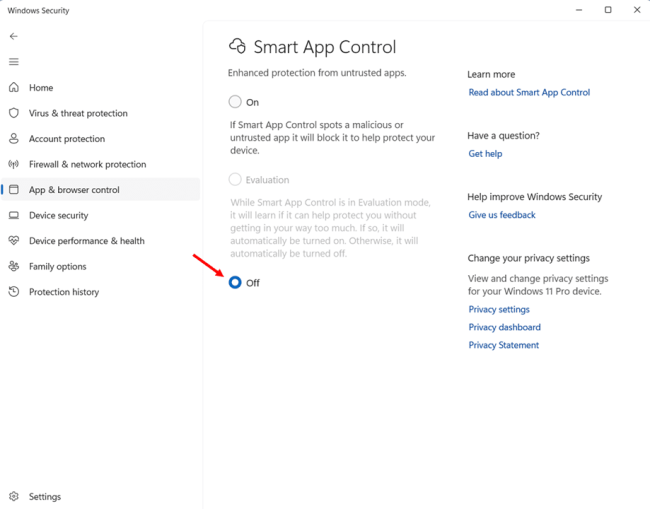
- Complete the task that SAC was blocking.
- Return to Smart App Control settings and select On to re-enable protection immediately.
No restart required. Microsoft Defender and SmartScreen continue running while SAC is off, so your PC isn’t fully unprotected. But keep the off window as short as possible.
Avoid Using the Registry to Toggle SAC
A user on Microsoft’s Q&A forums manually set the VerifiedAndReputablePolicyState registry value to 0 and ended up with SAC blocking virtually every application on the PC, including PowerShell, Command Prompt, and Chrome. The only recovery was a full Windows reset.
Now that the GUI toggle exists, there’s no reason to touch the registry for routine SAC management. Use Windows Security and save yourself the headache.
Smart App Control Best Practices for IT Professionals
SAC was designed primarily for consumer and small business scenarios. If you’re managing endpoints in an enterprise environment, SAC can still play a role on unmanaged or lightly managed devices, but it requires a different approach than simply toggling it on across your fleet.
SAC Is Disabled on Enterprise-Managed Devices by Default
Devices managed through Microsoft Intune, Group Policy, or Configuration Manager have SAC automatically turned off. Microsoft’s position is that enterprise environments should use App Control for Business (formerly WDAC) instead, which provides policy-driven allowlists, managed installer rules, and centralised enforcement.
Pilot in Evaluation Mode First
If you’re considering SAC for unmanaged devices (small office PCs, shared workstations, or kiosks), start with Evaluation mode on a pilot group. Monitor CodeIntegrity event logs in Event Viewer (Event IDs 3076 and 3077) to identify which apps would be blocked before rolling out Enforcement.
Audit Your Application Inventory
Before enabling SAC, verify the digital signatures of all installed applications. Focus on unsigned apps, apps signed with certificates outside the Microsoft Trusted Root Program, and software using Windows Installer Transform (MST) files. Work with vendors to obtain properly signed installers where possible.
Isolate Unsigned Software in VMs
If your organisation relies on legacy applications that lack proper code signing, run them in a Hyper-V virtual machine where SAC isn’t enabled. This maintains SAC protection on the host while isolating unsigned software.
Set User Expectations Early
Inform users that SAC is active and explain what a block notification means. Provide a clear process for reporting blocked apps to your support team.
Smart App Control vs Windows Defender Application Control (WDAC)
These two features get confused constantly, and it’s easy to see why. Both are built into Windows 11, both control which applications can run on your PC, and both use code integrity policies under the hood. But they’re designed for very different audiences and offer very different levels of control.
What They Have in Common
Smart App Control and WDAC (now officially called App Control for Business) share the same underlying technology. SAC actually uses a WDAC policy internally to enforce its decisions. The SmartAppControl.xml template that SAC relies on is available on every Windows 11 device at **%OSDrive%* and can be used as a starting point for custom WDAC policies.
Both features evaluate apps based on digital signatures and Microsoft’s Intelligent Security Graph (ISG) cloud reputation data. Both block untrusted or unsigned code by default. And both log their decisions in the CodeIntegrity event logs under Event Viewer.
Where They Differ
SAC is automatic. WDAC is policy-driven. SAC requires zero configuration. You toggle it on and it handles everything in the background using Microsoft’s cloud intelligence. WDAC requires you to create, test, and deploy XML-based policies that define exactly which apps, publishers, and file hashes are trusted. That’s significantly more work, but it gives you granular control that SAC simply doesn’t offer.
SAC has no exception system. WDAC does. If SAC blocks an app, your only option is to disable SAC entirely or find a signed version of the software. WDAC lets you create supplemental policies that whitelist specific apps, publishers, or file paths without weakening your overall security posture.
SAC is for individual devices. WDAC scales across fleets. SAC makes its decisions at the device level and can’t be centrally managed or reported on. WDAC integrates with Microsoft Intune, allowing you to deploy policies to thousands of devices, use managed installer rules so Intune-deployed apps are automatically trusted, and monitor enforcement through centralised logging.
They can’t run simultaneously. SAC and WDAC cannot coexist on the same device. On enterprise-managed endpoints, SAC disables itself automatically, deferring to WDAC policies.
Which One Should You Use?
Choose SAC if you’re a home user or small business owner who wants strong app protection without any configuration overhead. SAC is ideal for PCs that primarily run mainstream, well-known software.
Choose WDAC if you’re an IT professional managing multiple endpoints and need deterministic application control with allowlists, audit modes, and centralised policy deployment through Intune.
For enterprise environments, Microsoft’s recommended approach is to start with WDAC in audit mode using the managed installer, analyse your CodeIntegrity logs to identify what needs whitelisting, build supplemental policies for each app, and transition to enforcement once you’re confident nothing critical will be blocked.
SAC and WDAC aren’t competing solutions. They’re the same technology packaged for different audiences. SAC gives consumers a simple on/off switch. WDAC gives IT teams a full policy engine. Pick the one that matches your needs.
Conclusion
If you’ve been ignoring Smart App Control because of the clean install requirement, the April 2026 update removes that excuse. You can now enable it, test it, and turn it off if it doesn’t suit your workflow. Start with Evaluation mode and let SAC decide whether your device is a good fit.
For IT professionals managing endpoints, SAC works best on unmanaged devices where simplicity matters. If you need allowlists and centralised policy control, WDAC through Intune is your tool. Either way, I’d recommend giving SAC a try now that the toggle actually works both ways.
Have you enabled Smart App Control on your PC? Drop a comment below and let me know how it’s working for you, or if you ran into any issues I can help with.
Frequently Asked Questions (FAQs)
No. SAC blocks untrusted apps from executing. Your antivirus (Microsoft Defender or third-party) continues to scan files, monitor behavior, and handle threats from email attachments, browser downloads, and other vectors. They work alongside each other.
No. SAC has no per-app exception system. If a trusted app gets blocked, your options are to find a signed version from the developer or temporarily disable SAC to install it.
No. SAC and Windows Defender Application Control cannot coexist on the same device. On enterprise-managed endpoints, SAC disables itself automatically.
Partially. Previously verified apps will run from cached reputation data. New or updated applications that SAC hasn’t seen before may be blocked until your internet connection is restored.
No. Smart App Control is exclusive to Windows 11.
Once the developer signs their app with a certificate from a CA in the Microsoft Trusted Root Program and the app builds a cloud reputation, SAC will allow it to run without your intervention.

