
I spent hours testing widgets on my Windows 11 Pro 25H2 machine, and I uncovered something useful about how the Pin widgets picker works. The widgets you see in the picker are not “default Windows widgets.” They are widgets provided by widget-enabled apps installed on your PC. Some come preinstalled with Windows 11. Others appear after you install apps from the Microsoft Store.
Once you understand this, everything about adding widgets makes sense. You stop searching for widgets that no longer exist, stop wondering why your picker looks different from the screenshots in older guides, and learn the exact path to add any widget you want.
In this guide, I will show you exactly how to add widgets in Windows 11 using the Pin widgets picker and how to install new widgets from the Microsoft Store. Everything in this guide has been verified on a live Windows 11 Pro 25H2 machine in June 2026.
Pair this with my guide on Clipboard History in Windows 11, and you have two underused features that quietly improve your daily Windows experience
Table of Contents
What Is the Pin Widgets Window in Windows 11?
The Pin widgets window is the menu inside the Widgets board where you browse and pin widgets to your board. It shows every widget available from your installed apps, including pre-installed Microsoft apps and any third-party apps you have added from the Microsoft Store.
How the Pin Widgets Window Works in Windows 11
Here is something most guides do not explain clearly. The Pin widgets window (the menu you open by clicking the Plus (+) icon) is dynamic. It only shows widgets from widget-enabled apps installed on your PC.
The mechanism works like this:
- Windows 11 ships with several preinstalled apps (Windows Clock, Phone Link, Microsoft Clipchamp, Spotify, and others).
- Each preinstalled app that supports widgets contributes its widget to the Pin widgets window.
- When you install a new widget-enabled app from the Microsoft Store, its widget automatically appears in the Pin widgets window.
- When you uninstall an app, its widget is removed from the Pin widgets window.
This is why the Pin widgets window may look different on different Windows 11 machines. What you see is determined by which widget-enabled apps you have installed.
Prerequisites Before You Add Widgets
Before you start, make sure your system is ready:
- Windows 11 must be installed (any edition, Home or Pro).
- You should be signed in with a Microsoft account. Local accounts get a stripped-down widget experience with limited functionality.
- The Widgets icon must be enabled on your taskbar. If it is missing, go to Settings > Personalization > Taskbar and toggle Widgets to On.
- The Windows Web Experience Pack must be up to date. Open the Microsoft Store, click the Library icon, and choose Get updates to install the latest version.
- A stable internet connection is required since widgets pull live data.
How to Add Widgets to the Widgets Board from Pin Widgets Window
This is the standard way to add a widget that is already available on your system:
- Press the Windows key + W to open the Widgets board.
- Click the Plus (+) icon near the top of the widgets area to open the Pin widgets window.

- Browse the list of available widgets in the left sidebar.
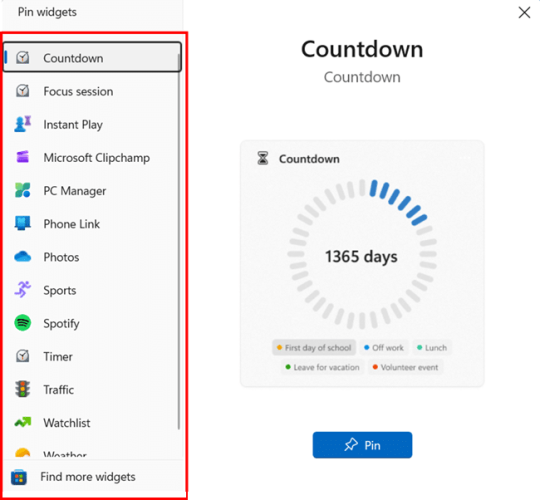
- Click the widget you want to preview on the right side.
- Click the Pin button at the bottom to add it to your board.
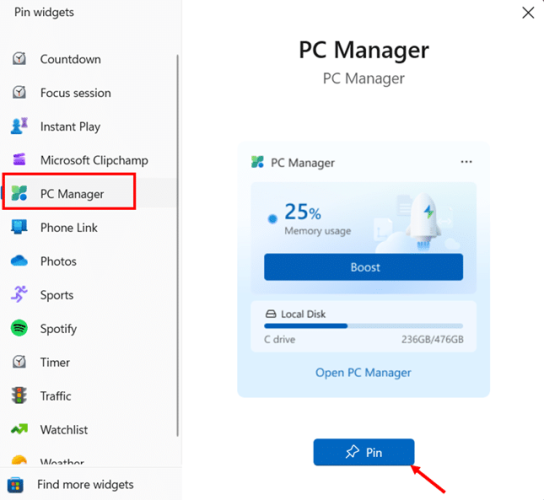
- The new widget instantly appears on your board. You can drag it to rearrange it or click the More options (…) button to resize it..
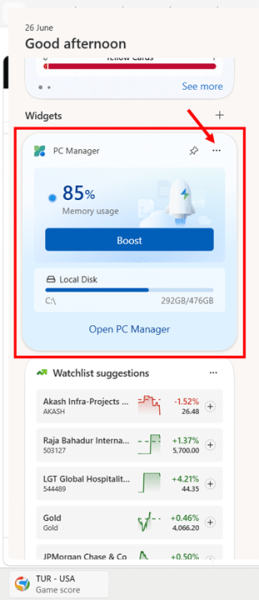
How to Add More Widgets from the Microsoft Store
Since widgets come from apps, adding a new widget means installing a new widget-enabled app from the Microsoft Store. There are two ways to find these apps:
Path 1: Open the Microsoft Store Directly
- Open the Microsoft Store from your Start menu.
- Make sure you are on the Home tab (house icon in the left sidebar).
- Scroll down the home page until you see the Collections section.
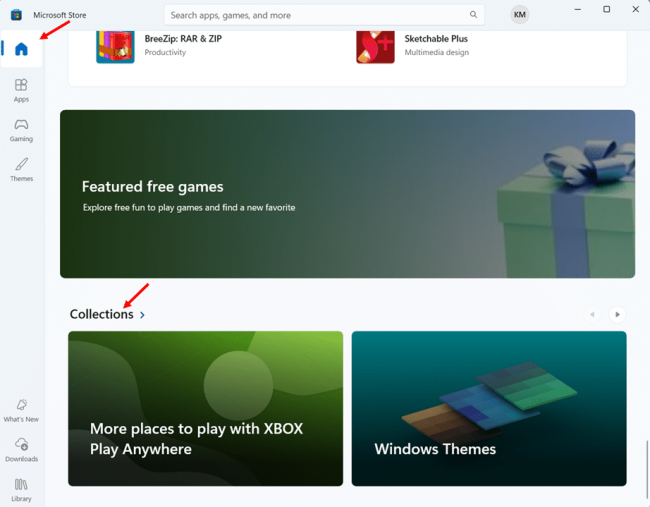
- Click the Collections > heading to view all collections.
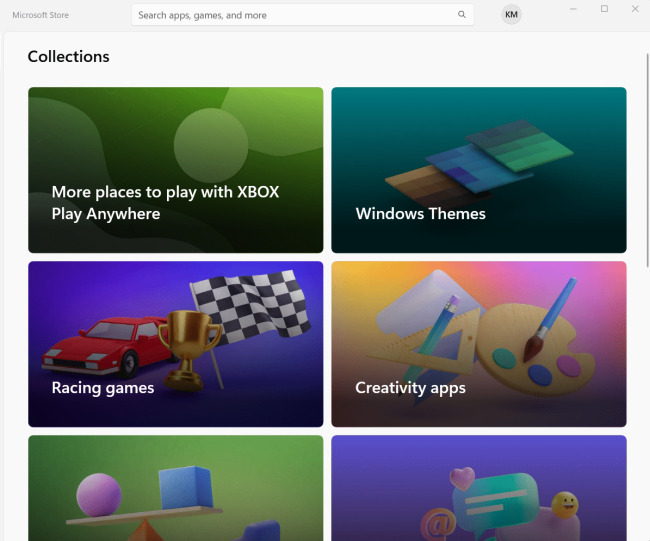
- Look for the Find your next widget collection in the list.
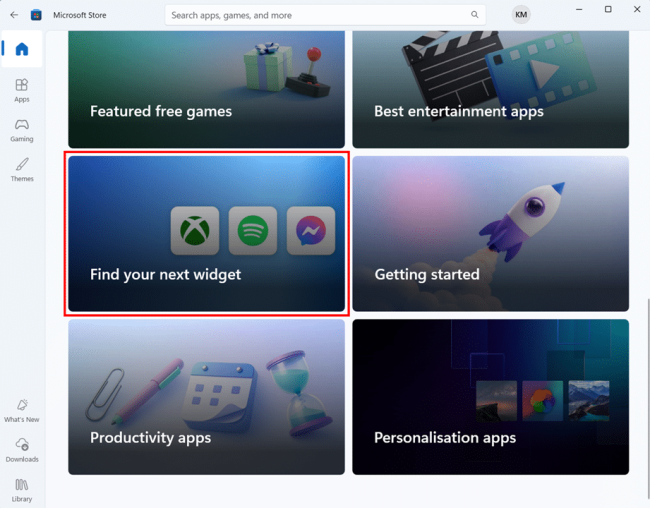
- Click the collection to open the curated widget gallery.
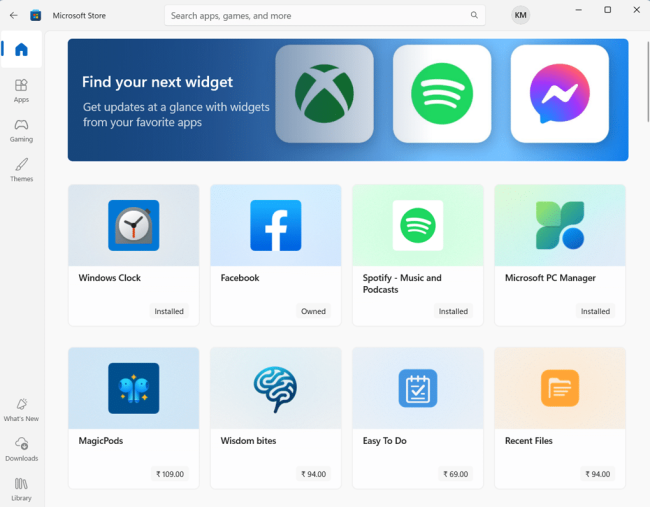
- Browse the widget-enabled apps and click any app to install it.
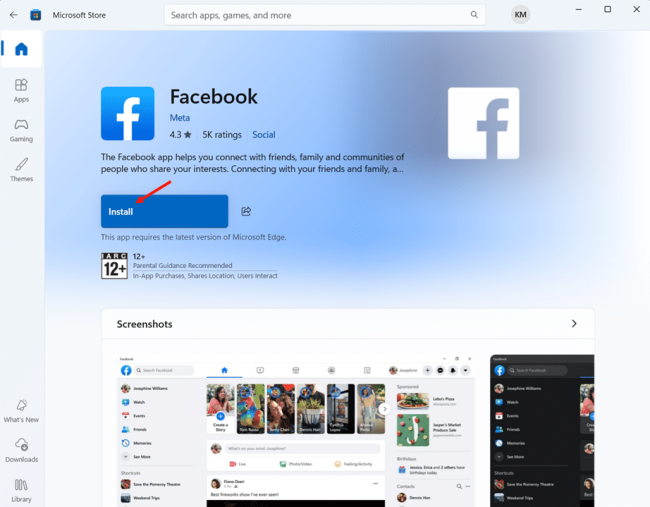
- Press Windows key + W to open the Widgets board.
- Click the Plus (+) icon to open the Pin widgets window.
- Verify the new widget appears in the Pin widgets window.
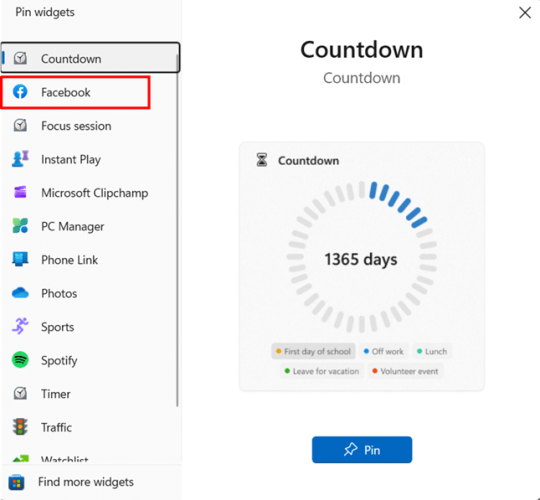
Path 2: Direct Link from the Pin Widgets Window
- Press Windows key + W to open the Widgets board.
- Click the Plus (+) icon to open the Pin widgets window.
- Scroll to the bottom of the left sidebar and click Find more widgets.
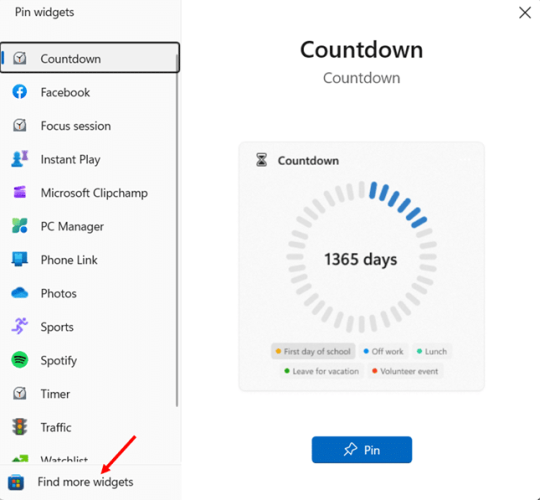
- The Microsoft Store opens directly to the curated widget collection.
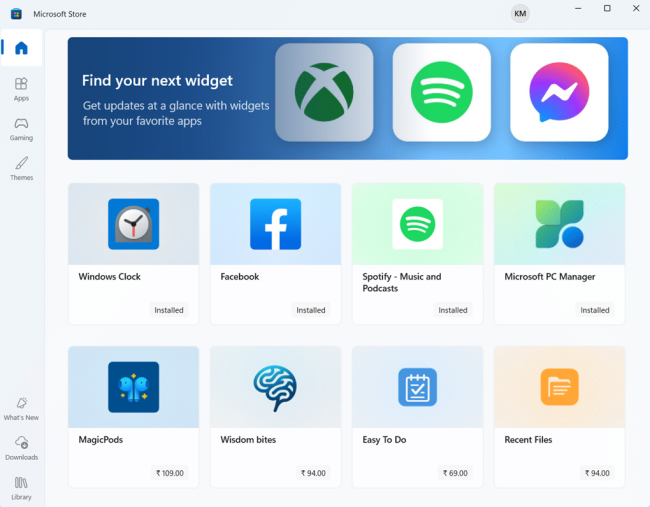
Recommendation: Path 2 is significantly faster because it skips all the home page scrolling and goes directly to the widget collection.
Popular Widget-Enabled Apps Available in 2026
Based on what is available in the Find your next widget collection as of June 2026, here are the popular widget-enabled apps you can install:
Free Microsoft Apps
- Windows Clock (provides Countdown, Focus session, and Timer widgets)
- Microsoft PC Manager (system performance widgets)
- Phone Link (messages and calls from your phone)
- Microsoft Clipchamp (video editing shortcuts)
Free Third-Party Apps
- Spotify – Music and Podcasts (music playback)
- Facebook (Messenger chat notifications)
- Xbox (game library and friends)
Paid Third-Party Apps
- MagicPods (manage AirPods on Windows)
- Easy To Do (task management, alternative to the retired Microsoft To Do widget)
- Wisdom bites (daily quotes and reflections)
- Recent Files (quick access to recent documents)
The exact list changes regularly as new developers add widget support. Always browse the Find your next widget collection for the latest selection.
Troubleshooting: Can't Add Widgets in Windows 11?
If the Pin button is grayed out, the Pin widgets window is empty, or widgets fail to appear after installing an app, try these fixes in order:
- Update Windows 11 to the latest build. Go to Settings > Windows Update > Check for updates.
- Update the Windows Web Experience Pack via the Microsoft Store > Library > Get updates.
- Sign in with a Microsoft account if you are using a Local account.
- Set Microsoft Edge as your default browser. Widgets depend on Edge WebView2 to render.
- Restart the Widgets process. Open Task Manager with Ctrl + Shift + Esc, find Windows Widgets, right-click, and select End task.
- Verify the parent app is installed. If you expected a widget but do not see it, check that the providing app is installed and signed in.
- Check the registry for blocked policies. Go to HKEY_LOCAL_MACHINE\SOFTWARE\Policies\Microsoft\Dsh and delete the AllowNewsAndInterests value if it exists.
Conclusion
Adding widgets to your Windows 11 board is straightforward once you understand how the Pin widgets window actually works. Press Windows key + W, click the Plus (+) icon, pick what you want, and hit Pin. The widgets available to you depend on the widget-enabled apps installed on your PC, so installing a new app like Microsoft PC Manager or Facebook instantly adds its widget to your options.
If you do not see a widget you expected (like Outlook Calendar or Microsoft To Do), it is not a bug. Microsoft has consolidated and changed which widgets ship with Windows 11 25H2. Your safest bet is to browse the Find your next widget collection in the Microsoft Store to see what is currently available for your machine.
Now it is your turn. Open your Pin widgets window today, pin three widgets you genuinely use, and remove the rest. Do this in the next 10 minutes and tell me in the comments which three you picked. I will share my own setup in the comments too.
Once your widgets are set, take your Windows 11 setup further with my guide on Snap Layouts and Snap Groups in Windows 11.
Frequently Asked Questions (FAQs)
The widgets you see in your Pin widgets window are provided by apps that come preinstalled with Windows 11 (such as Windows Clock, Phone Link, and Microsoft Clipchamp). If you uninstall these apps, the corresponding widgets disappear from the Pin widgets window.
No. You cannot create custom widgets using built-in Windows tools. Widgets must come from apps in the Microsoft Store or be developed using the Windows App SDK 1.2.
There is no hard limit, but I recommend keeping it to 5-7 widgets. Each widget refreshes in the background, so too many can slow down older PCs.
The native Widgets board does not support pinning widgets to your desktop. For desktop widgets, you need third-party apps like Widget Launcher, or BeWidgets.
Yes. Widgets work on both Windows 11 Home and Pro editions with no functional difference.